
Need help applying this to your account?
Contact support and we will keep this article attached to your request.
Overview
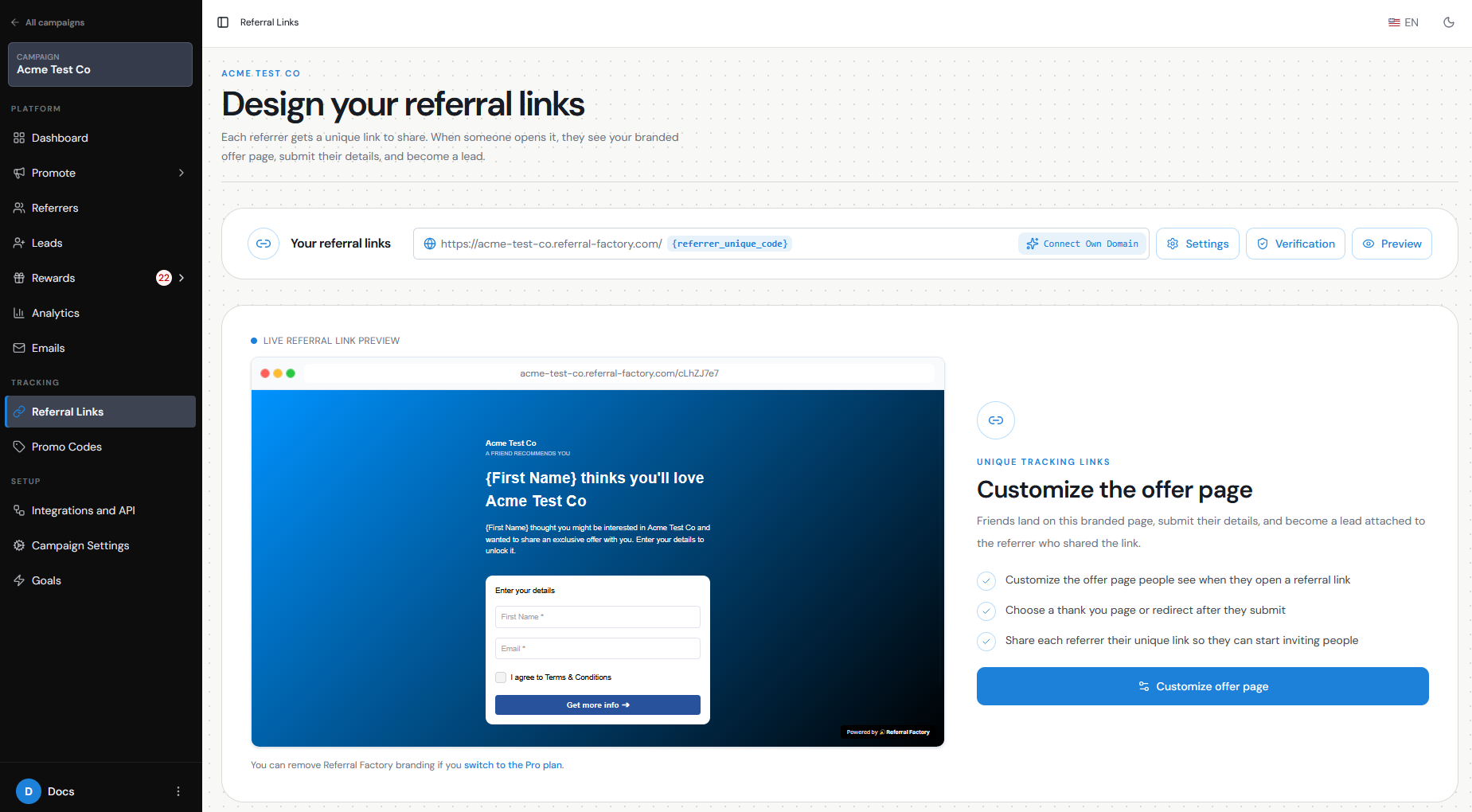
Your Referral Link Page is the page a Lead sees after clicking a Referrer’s unique referral link. It is where you can explain your offer, capture the Lead’s details, and guide them toward the next step.
You can customize the page using Referral Factory’s drag-and-drop builder — no coding is required. Go to Invite Leads → Referral Link Page to open the editor.
How to customize layout, branding, copy, form fields and CTA of the referral page
The Referral Link Page builder is divided into Step 1 and Step 2.
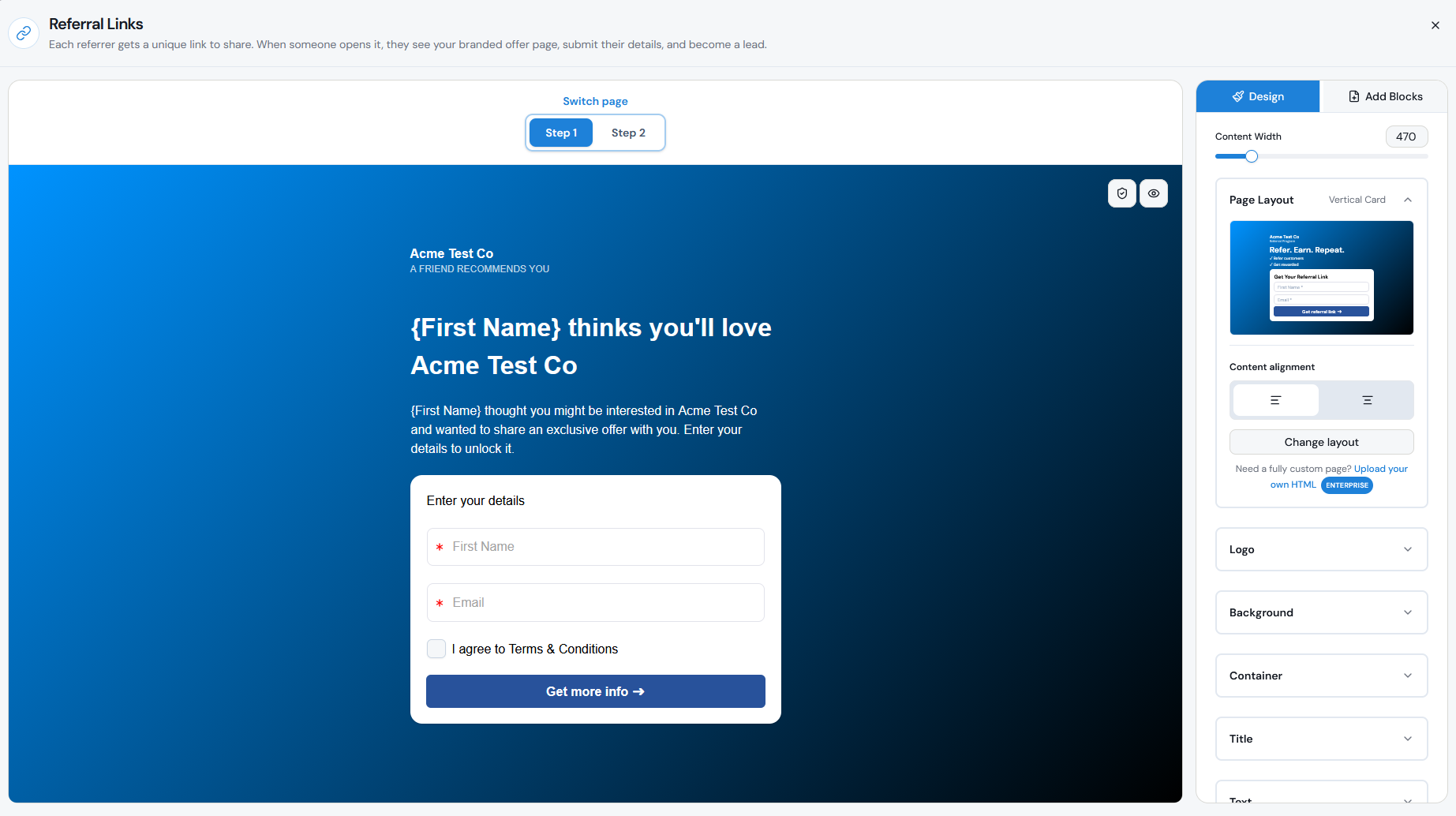
In Step 1, you design the page the Lead sees before submitting their details. The builder lets you drag and drop content blocks onto the page, including:
By default, the Lead capture form includes First Name and Email, and you can add additional fields such as phone number, select fields, dates, numbers, URLs, multiple-select fields, and CRM fields when a CRM is connected.
Keep the form focused on information you actually need. Adding too many required fields can make the page harder to complete.
Use the Design tab to control the overall look of the page. You can customize your:
Try to make the page feel like a natural extension of your own brand. Your headline should make the offer clear, the supporting copy should explain why the Lead should take action, and the CTA should tell them exactly what happens next.
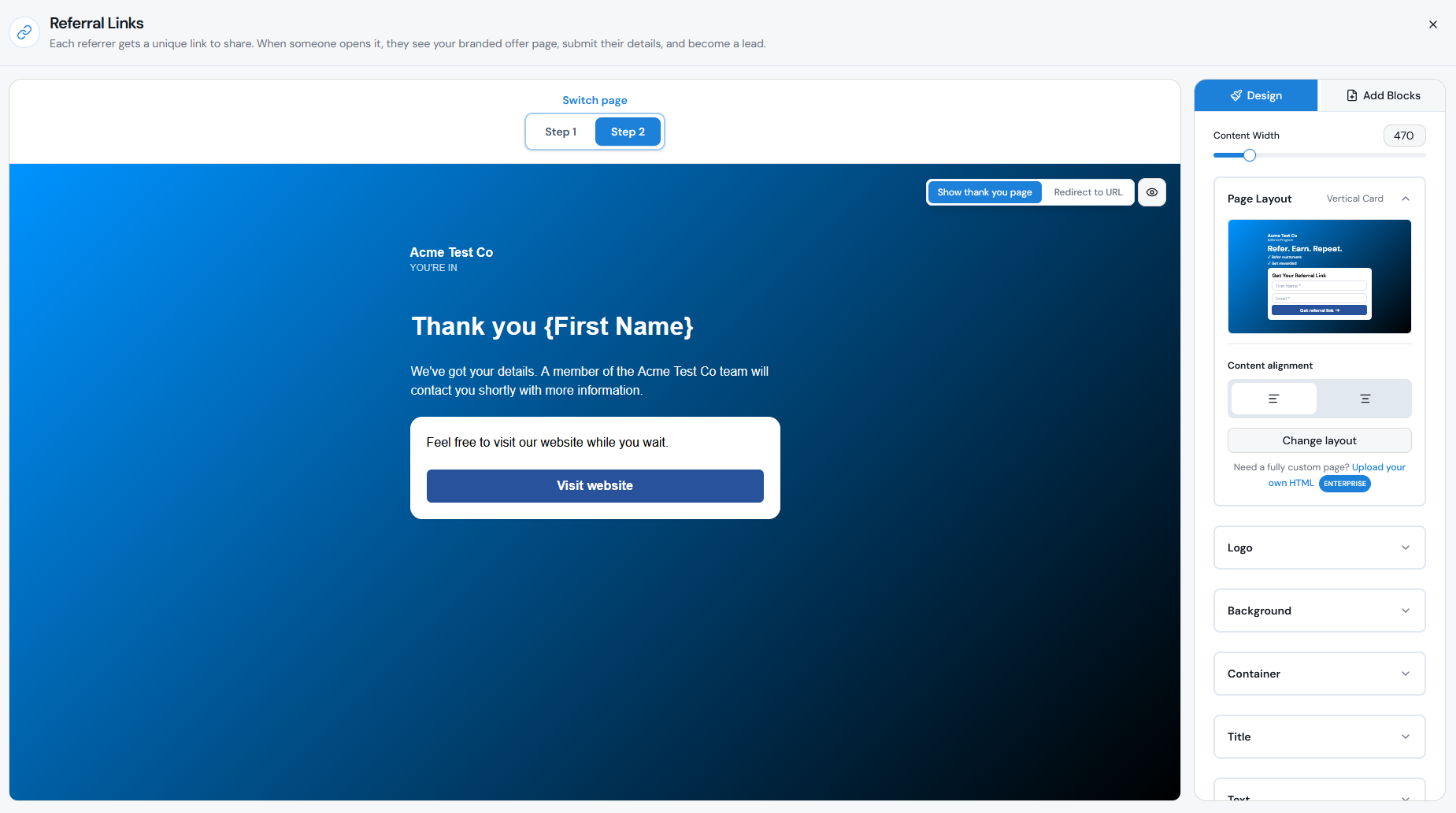
In Step 2, choose what happens after the Lead submits the form. You can either:
If you redirect the Lead, you can also pass supported values such as First Name, Email, and Referrer First Name through URL parameters.
- Title and Text Editor blocks for your headline, offer, instructions, reviews, or other supporting copy.
- Personalisation blocks to dynamically include the Referrer’s name.
- Images and Videos to help explain your product, service, or offer.
- Form Fields to collect the information you need from the Lead.
- Submit Leads Button for your main call to action.
- Logo and logo shape
- Content width
- Background and container
- Fonts, text size, and text colors
- Button styling
- Form field styling
- Images and links
- Show a customizable thank-you page, or
- Redirect to a URL, such as your website, booking page, checkout, or signup flow.
Mobile/responsive considerations
A large percentage of referral links are likely to be opened from messaging apps, email, or social media, so always check how your page looks on smaller screens.
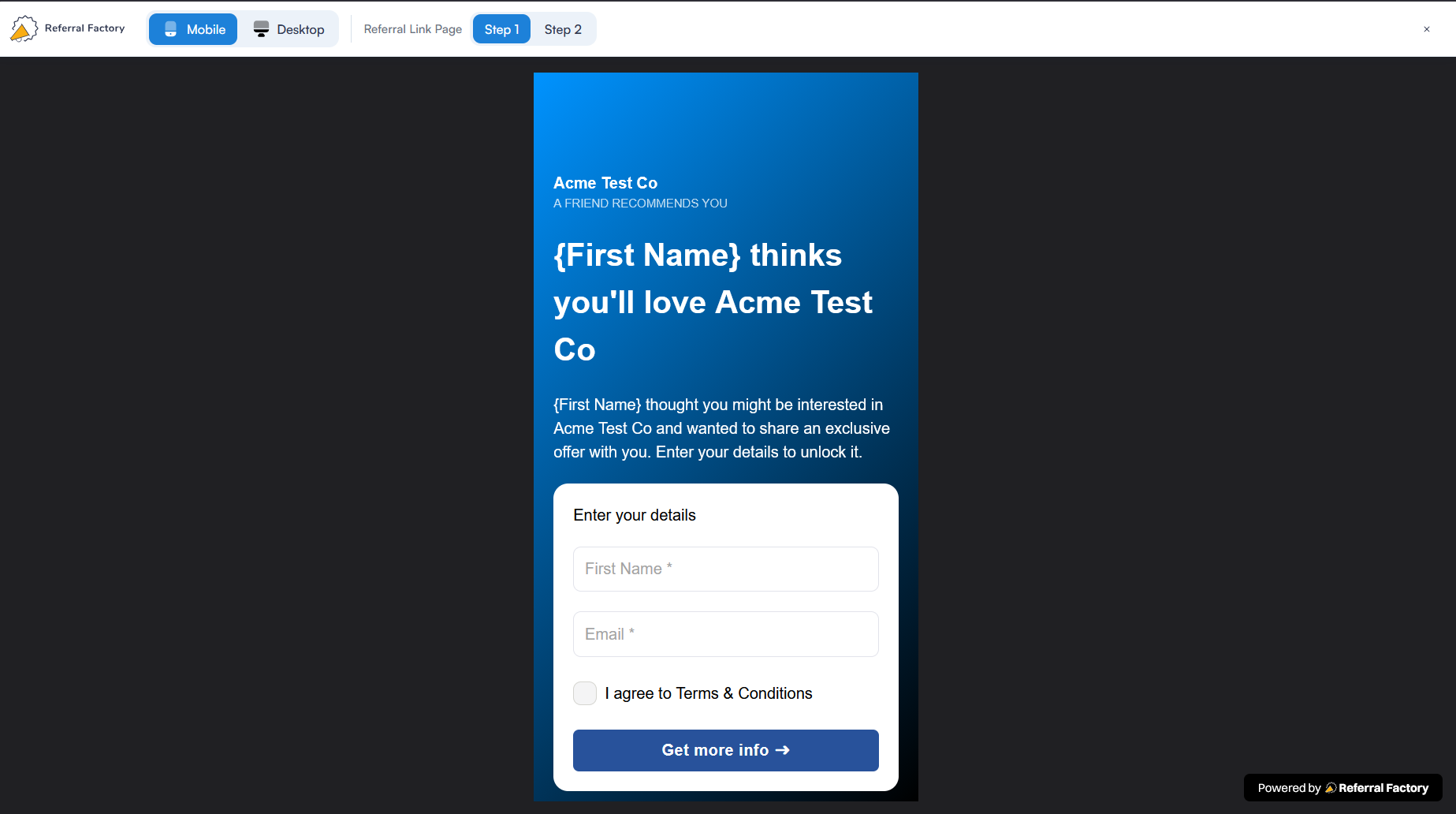
The Referral Link Page editor includes Desktop, Tablet, and Mobile preview options. Use the device icons at the top of the builder to review each version before publishing.
On mobile, pay particular attention to:
A simple page with a clear offer and a short form will usually be easier for Leads to complete on mobile.
- Whether the headline and offer are immediately clear.
- Whether images are displaying correctly.
- Whether the form is easy to complete.
- Whether the CTA is visible without excessive scrolling.
- Whether text is large enough to read comfortably.
Preview/test
Before sharing your campaign, preview the Referral Link Page on Desktop, Tablet, and Mobile.
Then test the full Lead journey using an actual referral link:
Testing the live referral journey is important because the builder preview shows the design, while a real referral link confirms that attribution and the post-submission flow are working correctly.
Step 1
Open a Referrer’s unique referral link.
Step 2
Check that the correct page design and Referrer personalization appear.
Step 3
Submit the form using test Lead details.
Step 4
Confirm that the Lead is created in Referral Factory and attributed to the correct Referrer.
Step 5
Check the Step 2 experience — either the thank-you page or redirect.
Step 6
If you use URL parameters, confirm that the expected values are passed correctly.
Step 7
If the Lead is sent to a CRM or another integration, confirm that the record is created or updated as expected.
Preserve attribution
Each Referrer receives a unique referral link. When a Lead follows that link and submits their details on the Referral Link Page, we capture the Lead and associate them with the correct Referrer.
This is why the Lead should be captured through the Referral Link Page before being redirected elsewhere. Once the form is submitted, the referral relationship has already been recorded, so you can safely redirect the Lead to your website, checkout, booking page, or another external destination.
Avoid replacing a Referrer’s unique referral link with a generic website URL when sharing the campaign. The unique link is what allows Referral Factory to establish which Referrer should receive credit.
If you are on the Pro or Enterprise plan and use a custom domain, the unique referral code remains part of the link. For example:
refer.yourdomain.com/[referral-code]
This means you can brand the referral URL without removing the identifier used for attribution.