
Need help applying this to your account?
Contact support and we will keep this article attached to your request.
Overview
Yes. You can redirect a Lead to your website or another URL immediately after they submit their details on the Referral Link Page. This allows you to capture and attribute the Lead in Referral Factory first, then continue their journey on your own website.
Can I redirect a Lead to my website after they submit?
Yes. Instead of showing the Lead a thank-you page after they submit the form, you can redirect them to a URL of your choice.
For example, you could send them to:
You can also pass selected Lead information to your website using URL Parameters, so your website can use that information to pre-fill a form or personalize the next step.
- Your website
- A sign-up or registration page
- A booking page
- Your online store
- A special offer or product page
Where do I set the destination URL?
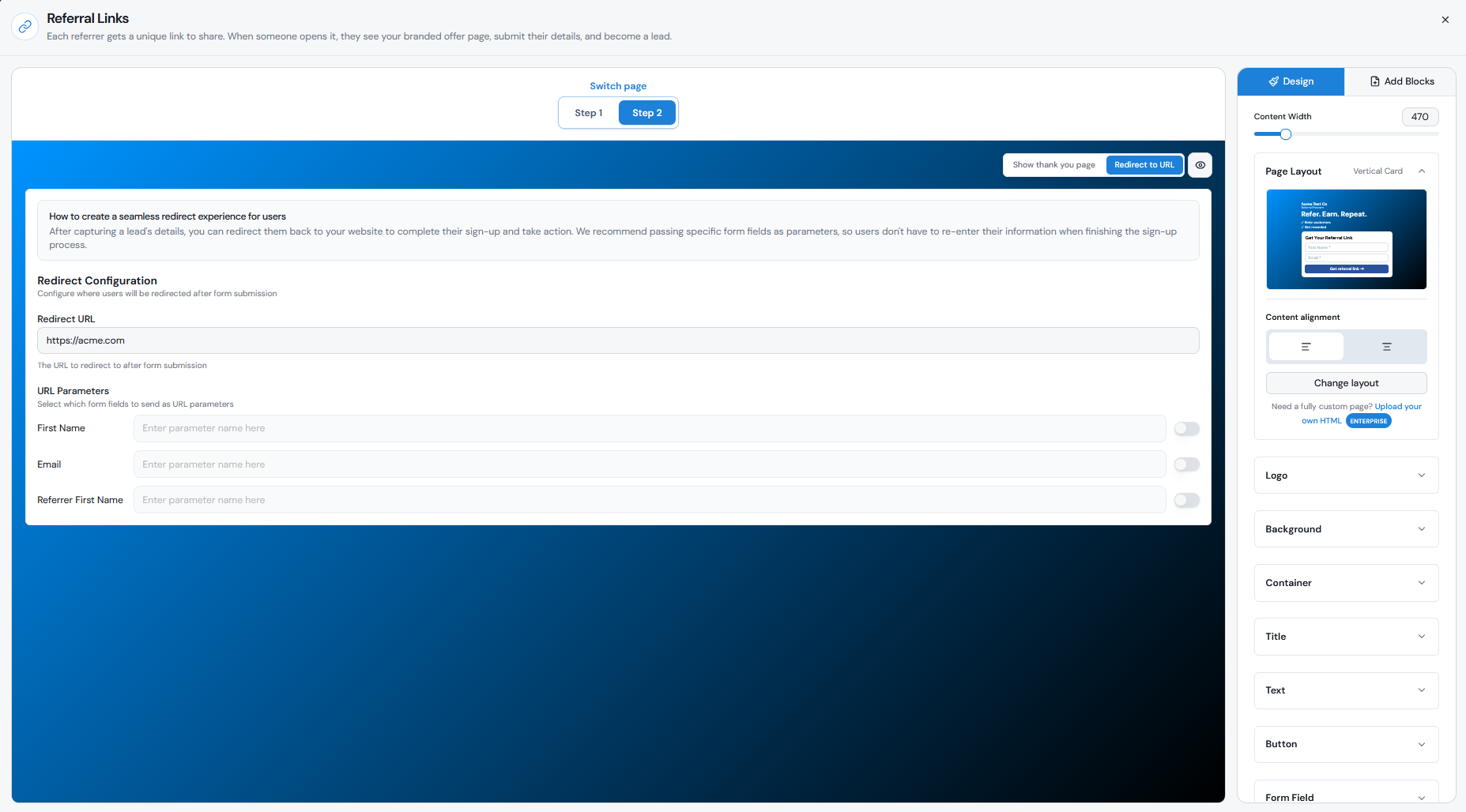
To set up the redirect:
Make sure you enter the full URL, including https://.
You can also enable URL Parameters to pass:
You can choose your own parameter name for each value. Your website must be configured to read those parameters if you want to use them to pre-fill fields or personalize the page.
- First Name
- Email
- Referrer First Name
Step 1
Go to Tracking → Referral Links
Step 2
Select Step 2 at the top of the builder.
Step 3
Change Show thank you page to Redirect to URL.
Step 4
Enter the page you want to send Leads to in the Redirect URL field.
Step 5
Click Save.
When does the redirect happen?
The redirect happens after the Lead submits the form on the Referral Link Page.
We first capture the Lead's details and attribute the Lead to the correct Referrer. The Lead is then redirected to the URL you configured.
If you do not enable a redirect, the Lead will see the customizable thank-you page instead.
Does the referral attribution stay intact?
Yes. The referral is already tracked before the Lead is redirected.
Each Referrer has a unique referral link. When a Lead uses that link and submits their details, we record the Lead and attribute them to the correct Referrer. Redirecting the Lead to your website afterward does not remove or change that attribution.
The Lead will appear in your Leads tab with the Referrer they were attributed to, even though the next step in their journey happens on your website.
When is a redirect useful?
A redirect is useful when the referral starts in Referral Factory but the next part of the customer journey happens on your own website or platform.
For example, you might capture the Lead's name and email in Referral Factory and then redirect them to:
This means you can track who referred the Lead while still moving them directly into your existing signup or sales journey.
- Create an account
- Book a demo or appointment
- Start a free trial
- Complete a purchase
- Fill out a longer application or form
- View a specific product or offer
How do I test the full journey?
Before sharing your referral program, test the redirect from start to finish:
If the redirect does not work, make sure the URL is complete and includes https://, confirm that you clicked Save, and try testing again in an incognito or private browser window.
Step 1
Create or use a test Referrer.
Step 2
Open their unique referral link.
Step 3
Submit the Referral Link Page form as a new Lead.
Step 4
Confirm that you are redirected to the correct page on your website.
Step 5
Check the Leads tab and confirm that the Lead was created and attributed to the correct Referrer.
Step 6
If you enabled URL Parameters, check that the correct values are being passed to your website.