
Need help applying this to your account?
Contact support and we will keep this article attached to your request.
Overview
Facebook Pixel lets you measure activity on your Referral Factory campaign pages and use that activity in your Facebook reporting. Add the Pixel ID to your Referral Factory account first, then enable Facebook Pixel for the campaign you want to track.
Before you start
Have the Facebook Pixel ID for the pixel you want to use. Do not enter a Facebook password, access token or other secret into the Facebook Pixel ID field.
How to add Facebook Pixel tracking
1. Open your account menu. Select your account name, then choose Organization.
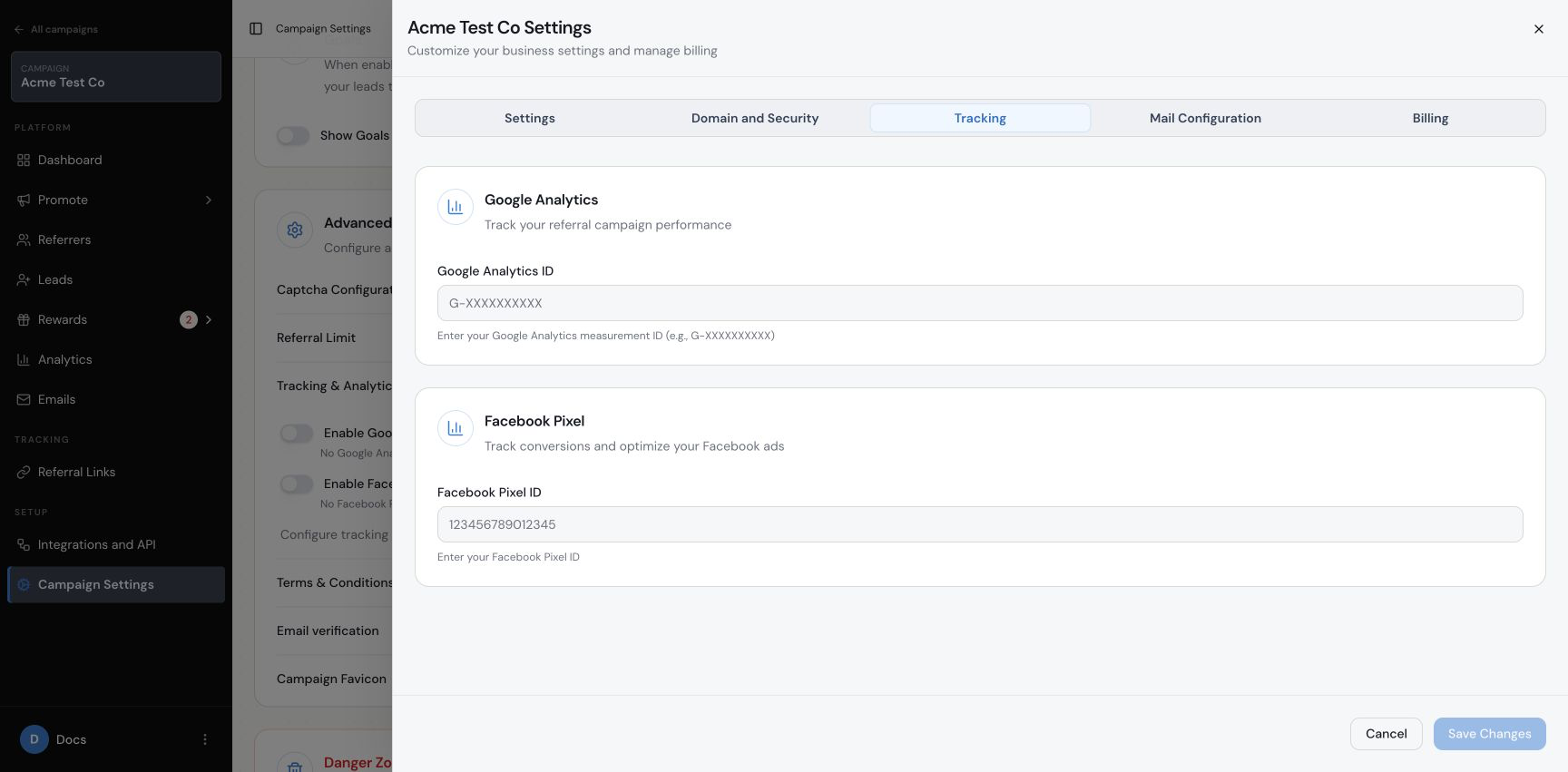
2. Open the Tracking tab. In the Referral Factory Settings window, select Tracking.
3. Enter the Facebook Pixel ID. Enter the ID in the Facebook Pixel ID field, then select Save Changes.
4. Select the campaign. Choose the campaign you want to track, then open Campaign Settings from that campaign’s sidebar.
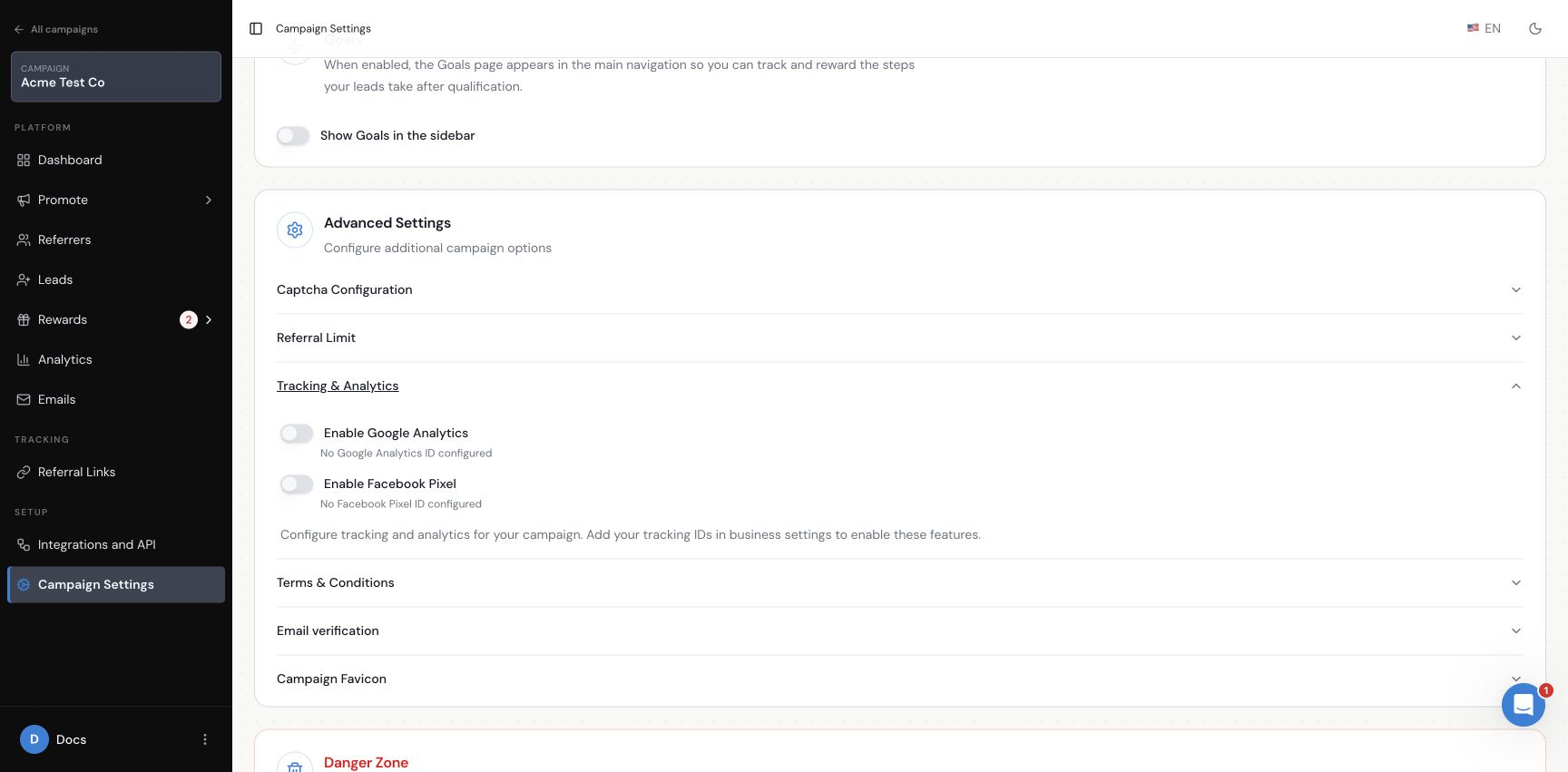
5. Open Tracking & Analytics. Scroll to Advanced Settings and expand Tracking & Analytics.
6. Enable Facebook Pixel. Select the Enable Facebook Pixel switch. The campaign can use the account-level Pixel ID once it has been configured.
What happens next
Referral Factory uses the account-level Facebook Pixel ID for the campaign after Facebook Pixel is enabled. Use Facebook’s tools to inspect events and conversions, while Referral Factory’s own Analytics page remains available for referral-program reporting.
Frequently asked questions
Where do I add the Facebook Pixel ID?
Open your account menu, choose Organization, select Tracking, enter the ID in Facebook Pixel ID and save the changes.
Where do I enable Facebook Pixel for a campaign?
Select the campaign, open Campaign Settings, expand Advanced Settings and then Tracking & Analytics. Select Enable Facebook Pixel.
What should I enter in the Facebook Pixel ID field?
Enter the Pixel ID only. Do not enter a Facebook password, access token or other secret.
Can I add a different pixel ID to each campaign?
The current setup uses an account-level Facebook Pixel ID. Confirm the ID at the account level before enabling campaigns.