
Need help applying this to your account?
Contact support and we will keep this article attached to your request.
Overview
The Referrers section is where you can view and manage the people participating in your referral program. From here, you can find individual Referrers, add new ones, update their details, review their referral activity, export data, and remove Referrers when necessary. Each person also receives a unique link for tracking their referrals.
View, search, and filter Referrers
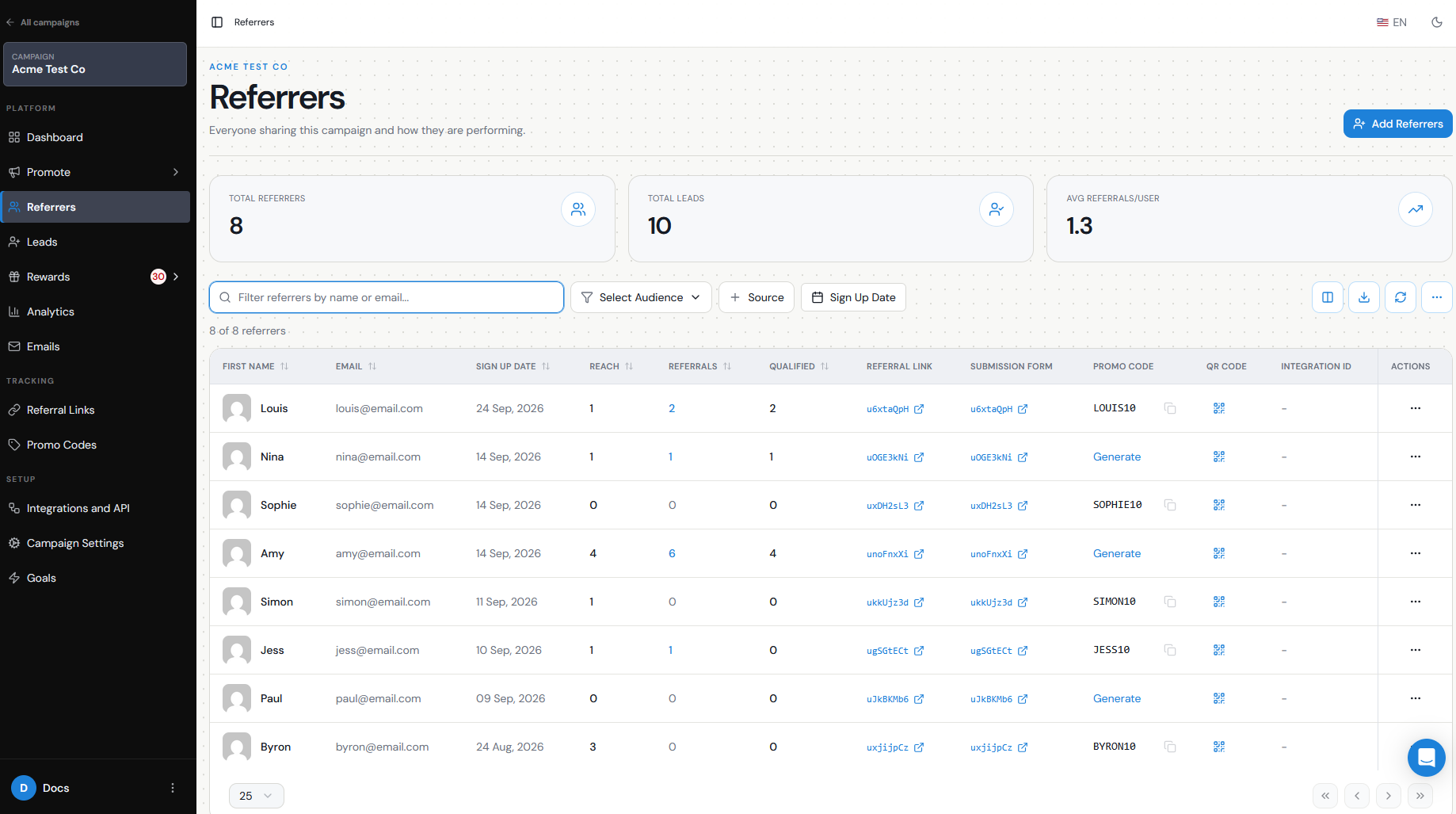
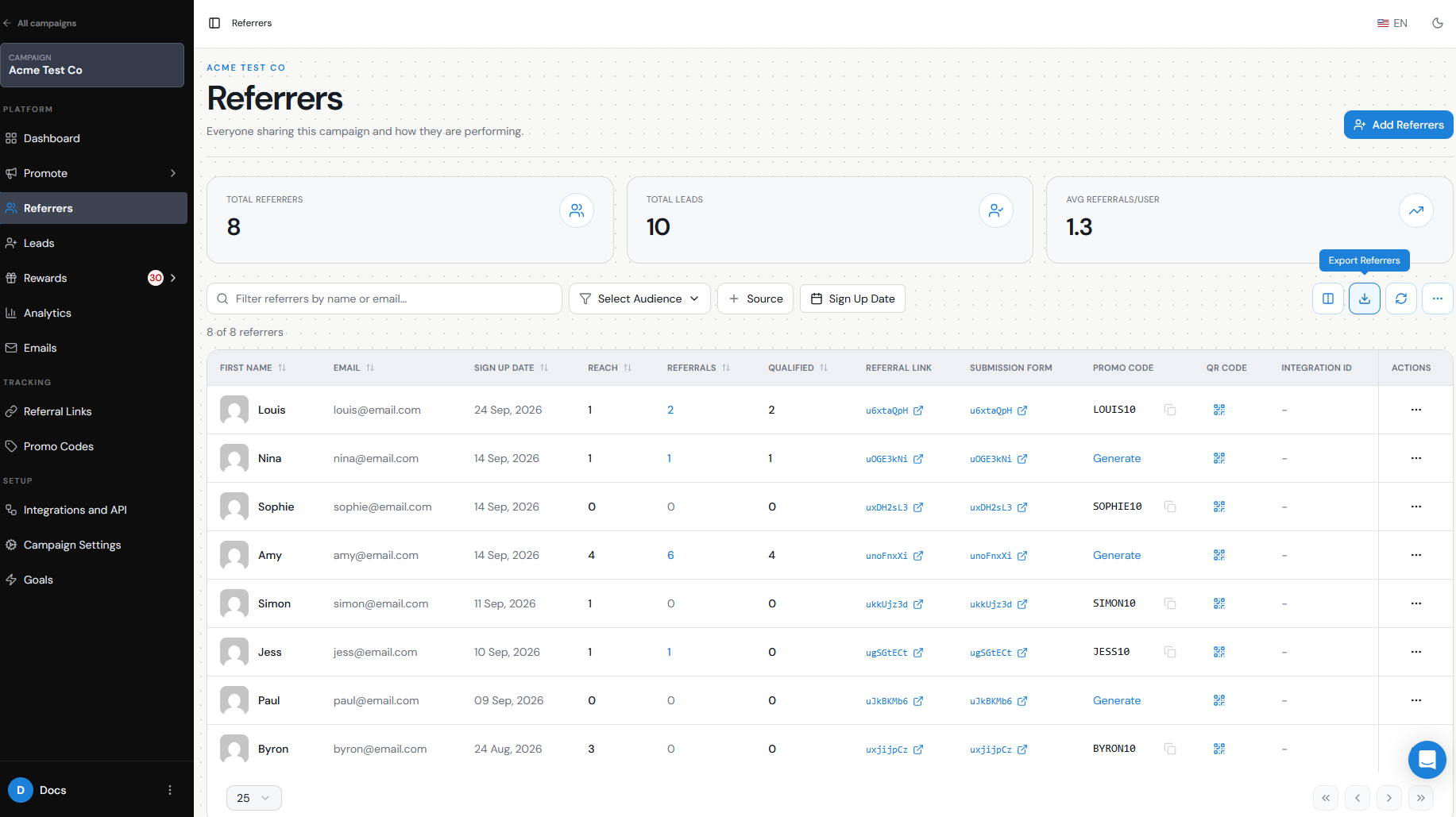
Go to Referrers from the left-hand menu to see the Referrers in your campaign.
The Referrers table lets you review information such as their contact details, unique Referral Link, referral activity, and conversion performance.
Use the search bar when you need to find a specific Referrer by name or email. You can also use the available filters and table controls to narrow down the people you want to review.
If you manage multiple campaigns, the All campaigns view lets you see Referrers across your campaigns, while opening an individual campaign shows the Referrers for that campaign only.
Add or import Referrers
You do not have to wait for someone to sign themselves up before they can become a Referrer.
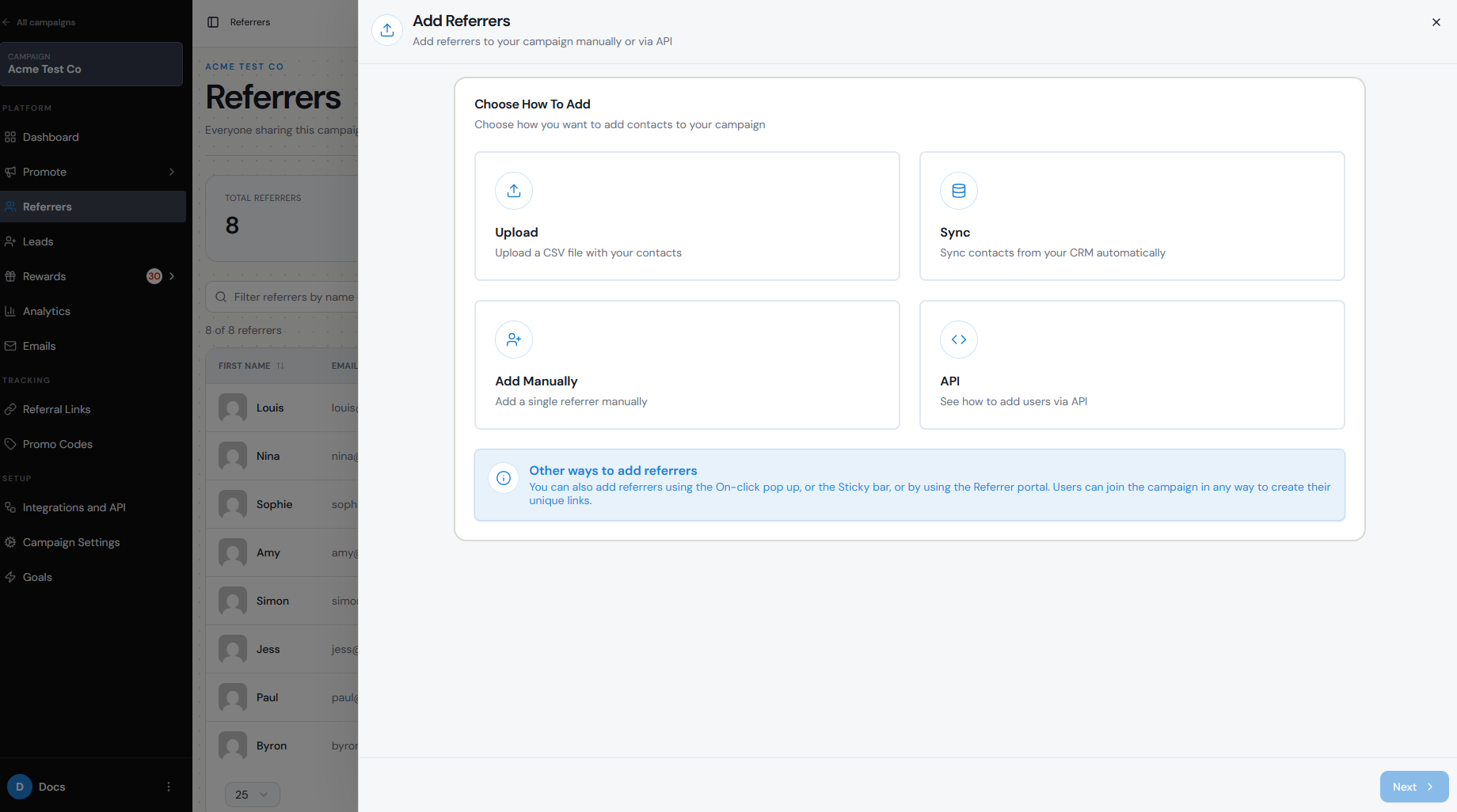
From Referrers, click Add Referrers to add people to the campaign.
You can add Referrers in different ways depending on your setup, including:
When you add a Referrer manually, First Name and Email are required, along with any additional Referrer fields you have configured as mandatory.
As soon as a Referrer is added to the campaign, Referral Factory generates their unique Referral Link automatically.
- Adding an individual Referrer manually.
- Uploading a list of Referrers.
- Syncing customers from a supported integration.
- Allowing people to sign themselves up through your Branded Referrer Portal or another onboarding method.
Edit a Referrer
If a Referrer's information changes, you can update their existing record rather than adding them again.
For example, if a Referrer changes their email address, edit the existing Referrer so their referral history stays connected to the same record.
Step 1
Go to Referrers.
Step 2
Find the Referrer.
Step 3
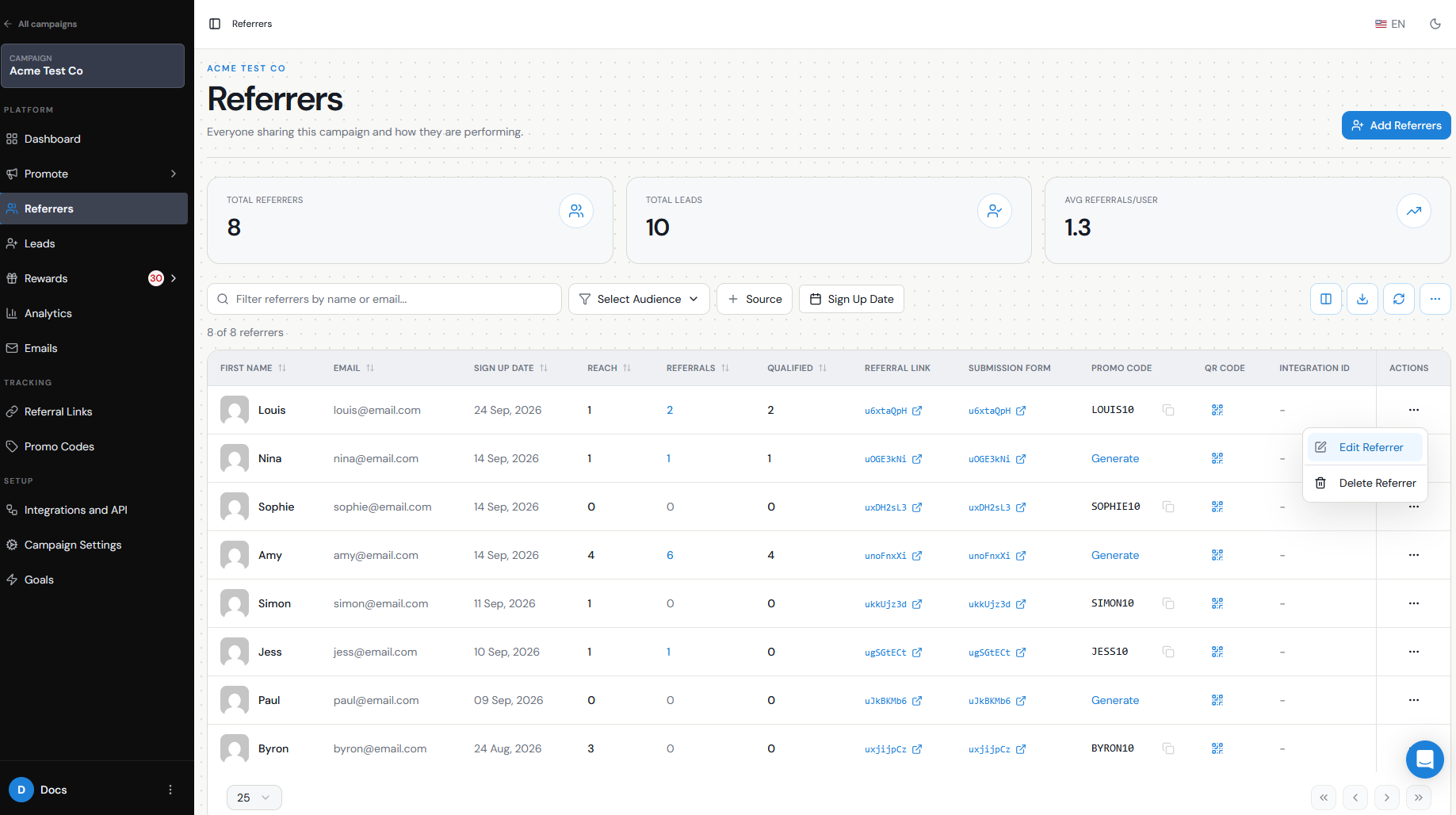
Open the Actions menu on their row.
Step 4
Select Edit Referrer.
Step 5
Update the required information and save your changes.
Activate, deactivate, or delete a Referrer
There is currently no individual Deactivate or Pause status for a Referrer.
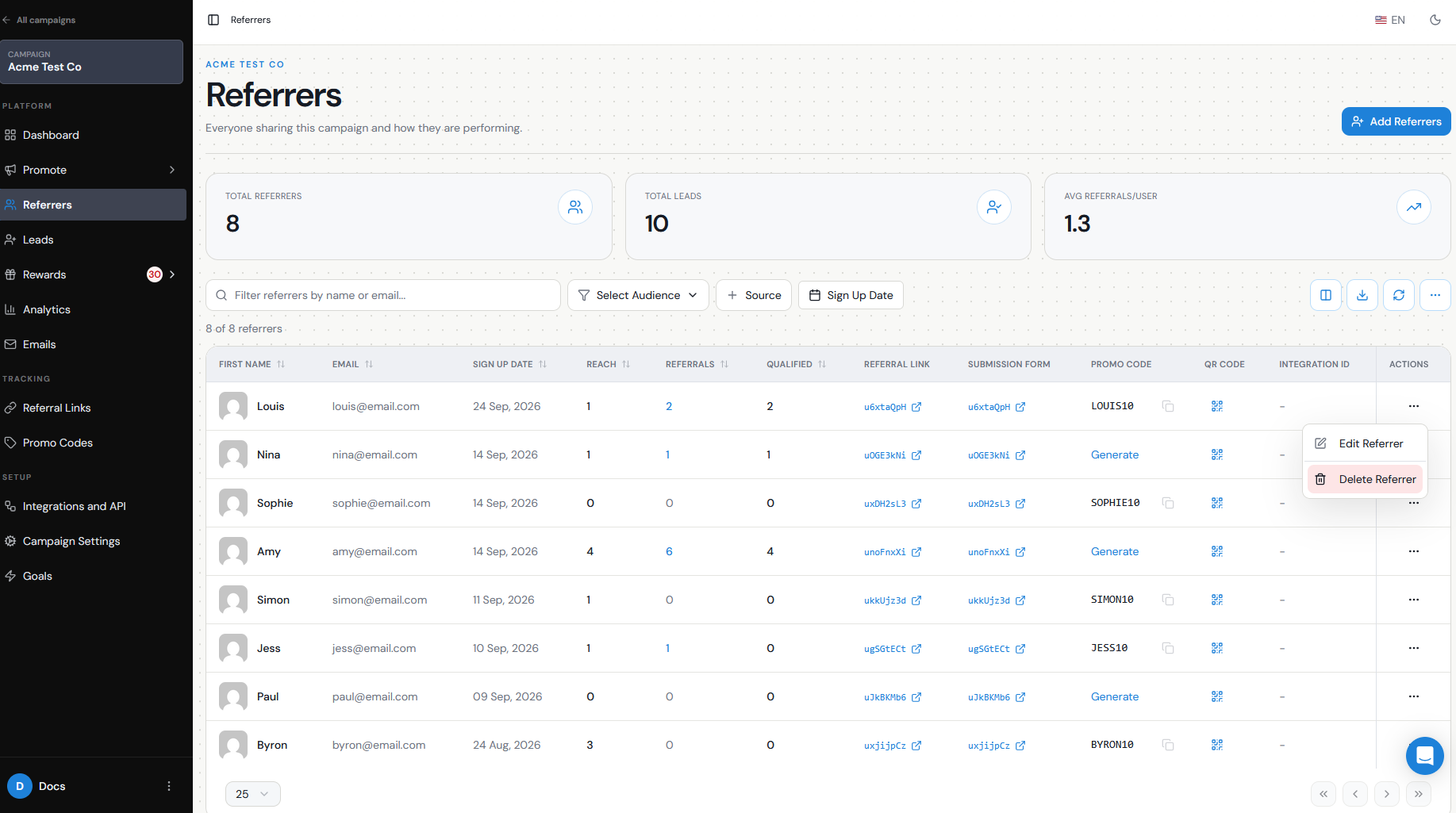
If a Referrer should remain in the campaign, you can edit their details. If they need to be permanently removed, use Delete Referrer from their Actions menu.
Be careful when deleting a Referrer. Deletion is permanent and can affect their Referral Link, attributed Leads, and pending reward information.
If you need to temporarily stop referral activity for everyone without deleting individual Referrers, you can pause the campaign instead.
Inspect referral and reward history
The Referrers table gives you an overview of how each person is performing, including their referral and conversion activity.
You can use this to identify:
For more detailed reward information, go to Rewards.
The Due Rewards section shows rewards that have been earned but not yet issued, while Issued Rewards provides the history of rewards that have already been sent. Reward details can also show which referred users triggered the reward.
This makes it possible to review both sides of a Referrer's activity: who they referred and what they earned as a result.
- How many Leads a Referrer has generated.
- How many of those Leads have Qualified.
- Their Referral Link and other available Referrer information.
Export Referrer data
You can export Referrer data when you need to work with it outside Referral Factory, create reports, or review a specific group of Referrers.
Use the available search and filters first if you only want a particular group, then use the Export option to download the data.
This is useful for tasks such as:
- Reviewing your most active Referrers.
- Creating internal reports.
- Comparing referral performance with CRM data.
- Working with Referrer data in a spreadsheet.
Handle duplicate Referrers
Referral Factory uses the Referrer's email address as their unique identifier within a campaign.
If someone already exists as a Referrer in that campaign, you should work with their existing record rather than trying to create another Referrer with the same email.
The same person can, however, participate in different campaigns.
Duplicate handling in an external CRM is separate. If you are sending Referrers to a CRM, the action taken when that person already exists there depends on the duplicate settings you choose for that integration.