
Need help applying this to your account?
Contact support and we will keep this article attached to your request.
You can use Make to automatically mark a Referral Factory Lead as Qualified when a conversion event happens in another system.
This lets you use the system where you already track successful customers — such as a CRM, payment platform, e-commerce store, form tool, or another app — to tell Referral Factory when a referred Lead has converted.
The workflow is:
Conversion event in your app → Make → Referral Factory qualifies the matching Lead
How make can automatically qualify a Referral Factory Lead
Start by creating a Make scenario where the first module watches for the event your business considers a successful conversion.
For most workflows, qualifying by email address is the simplest option.
- Create a new scenario in Make.
- Add the app where you track conversions as the trigger.
- Select the event that should represent a successful referral.
- If needed, add a Filter in Make so the scenario only continues when your qualification criteria are met.
- Add Referral Factory as the action app.
- Select the appropriate qualification action, such as Qualify User With Email.
- Connect your Referral Factory account.
- Select the correct campaign.
- Map the Lead identifier from your trigger app.
- Save and test the scenario.
- Activate the scenario once the test works correctly.
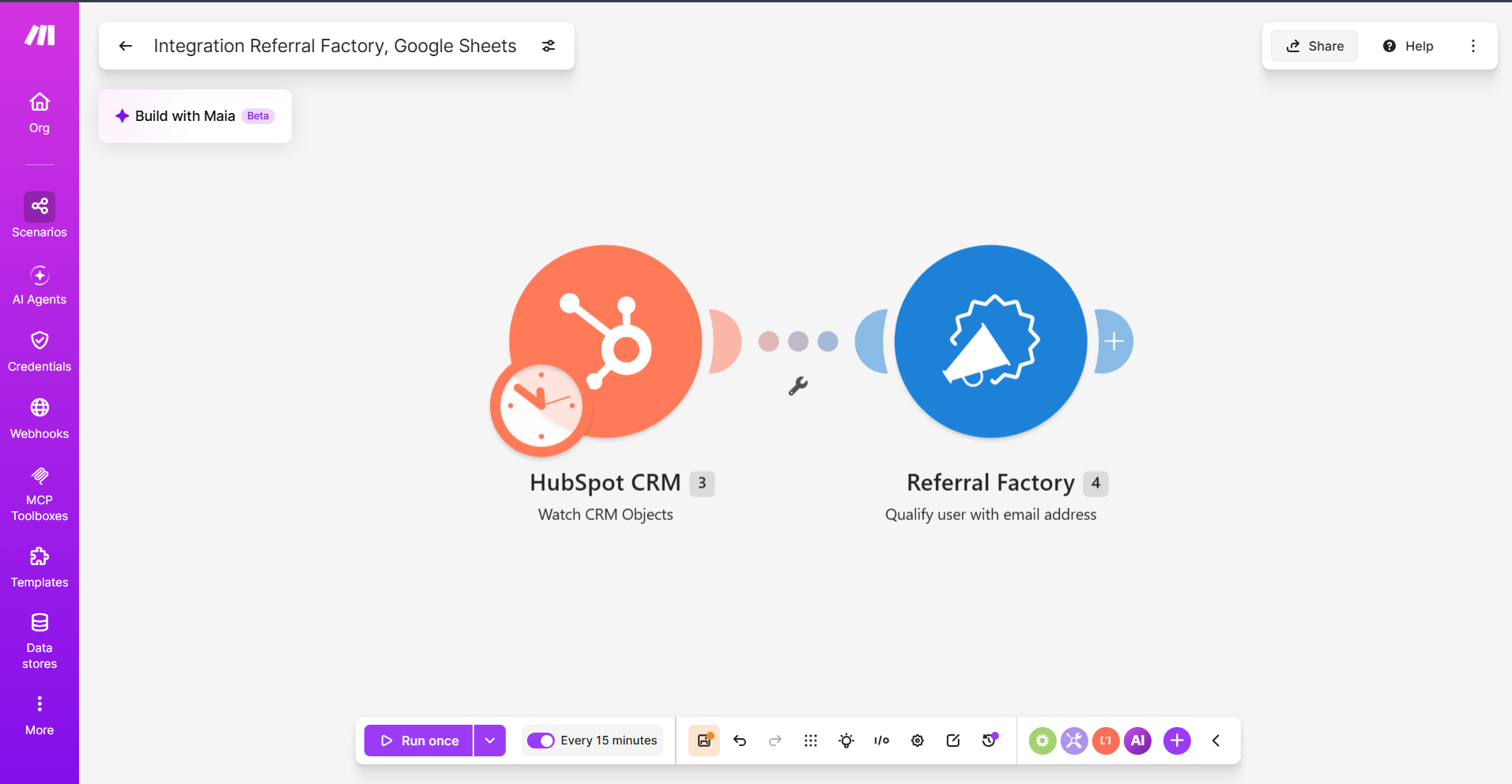
Which record/object and field/stage is monitored
Make monitors the conversion event in the app you choose as the trigger, not inside Referral Factory.
The exact record and condition depend on how your business tracks successful conversions.
For example, your scenario could start when:
If the trigger itself does not let you specify the exact condition, you can add a Make Filter before the Referral Factory action.
For example:
CRM Deal updated → Filter: Stage = Closed Won → Qualify Lead in Referral Factory
Choose an event that represents real business value rather than simply qualifying someone because they entered your sales process.
- A CRM Deal reaches a particular stage.
- A Lead or Contact reaches a specific status.
- A payment is completed.
- An order is created or paid.
- A subscription becomes active.
- Another supported event occurs in the app where you manage conversions.
Mapping/identifier requirements
Referral Factory needs an identifier to determine which existing Lead should be qualified.
Make provides qualification actions that can identify a Lead using:
Whichever method you choose, the value coming from your trigger app needs to correspond to the existing Lead in Referral Factory.
The Lead must already exist in Referral Factory before Make can qualify them. The qualification action changes an existing Lead from Pending to Qualified; it does not create the Lead.
- Email address — recommended for most workflows.
- Referral Factory user code — useful for more advanced setups where that value is already stored in the system triggering the scenario.
- Coupon code — when your campaign uses Referral Factory coupons and the coupon is available in the conversion system.
Timing
How quickly a Lead becomes Qualified depends on the trigger and schedule used in your Make scenario.
Some apps provide triggers that run immediately, while others are checked according to the schedule configured in Make.
The sequence is:
Conversion happens → Make detects the event → Qualification action runs → Lead becomes Qualified
If a Lead remains Pending, check whether the Make scenario has run and whether the qualifying event met any filters or conditions you configured.
Duplicate rules
Make qualification does not create another Lead in Referral Factory. It looks for an existing referred Lead using the identifier you mapped and qualifies that record.
However, duplicate data in the app triggering your scenario can affect your automation. For example, if the same customer or conversion event can appear more than once, make sure your Make workflow does not unnecessarily trigger the qualification action multiple times.
When testing, confirm that:
If you are using email as the identifier, use the same email address that the Lead used when entering the referral campaign.
- The identifier matches the correct Referral Factory Lead.
- The correct campaign is selected.
- The Lead already exists in Referral Factory.
- Your source app is triggering the scenario only when intended.
Reward implications
Qualifying a Lead through Make has the same effect as qualifying the Lead through another supported method.
Once the Lead changes from Pending to Qualified, Referral Factory evaluates any reward rules that depend on qualification.
Depending on your reward setup, a reward may become Due or may be issued automatically if Auto Issue is enabled.
For this reason, test the qualification workflow carefully before using it with live customers — particularly if qualification can trigger a reward with monetary value.
Testing
Test the full workflow using a Lead that already exists in Referral Factory.
- Create a test Referrer and referred Lead.
- Confirm that the Lead appears as Pending in Referral Factory.
- Make sure the same Lead exists in the system you are using to track conversions.
- In Make, use Run once.
- Trigger the real conversion event in your source app.
- Confirm that the trigger and any filters run successfully.
- Confirm that the Referral Factory qualification action receives the correct identifier.
- Return to Leads and check that the Lead has changed from Pending to Qualified.
- If qualification should trigger a reward, confirm that the expected reward was created.
- Activate the scenario once the complete test works as expected.