Need help applying this to your account?
Contact support and we will keep this article attached to your request.
Overview
You can manage your Referral Factory subscription, payment method, billing cycle, and invoices directly from the Billing section of your account.
From here, you can check your current plan, update your card details, and access previous invoices without needing to contact our team.
Where do I manage billing in Referral Factory?
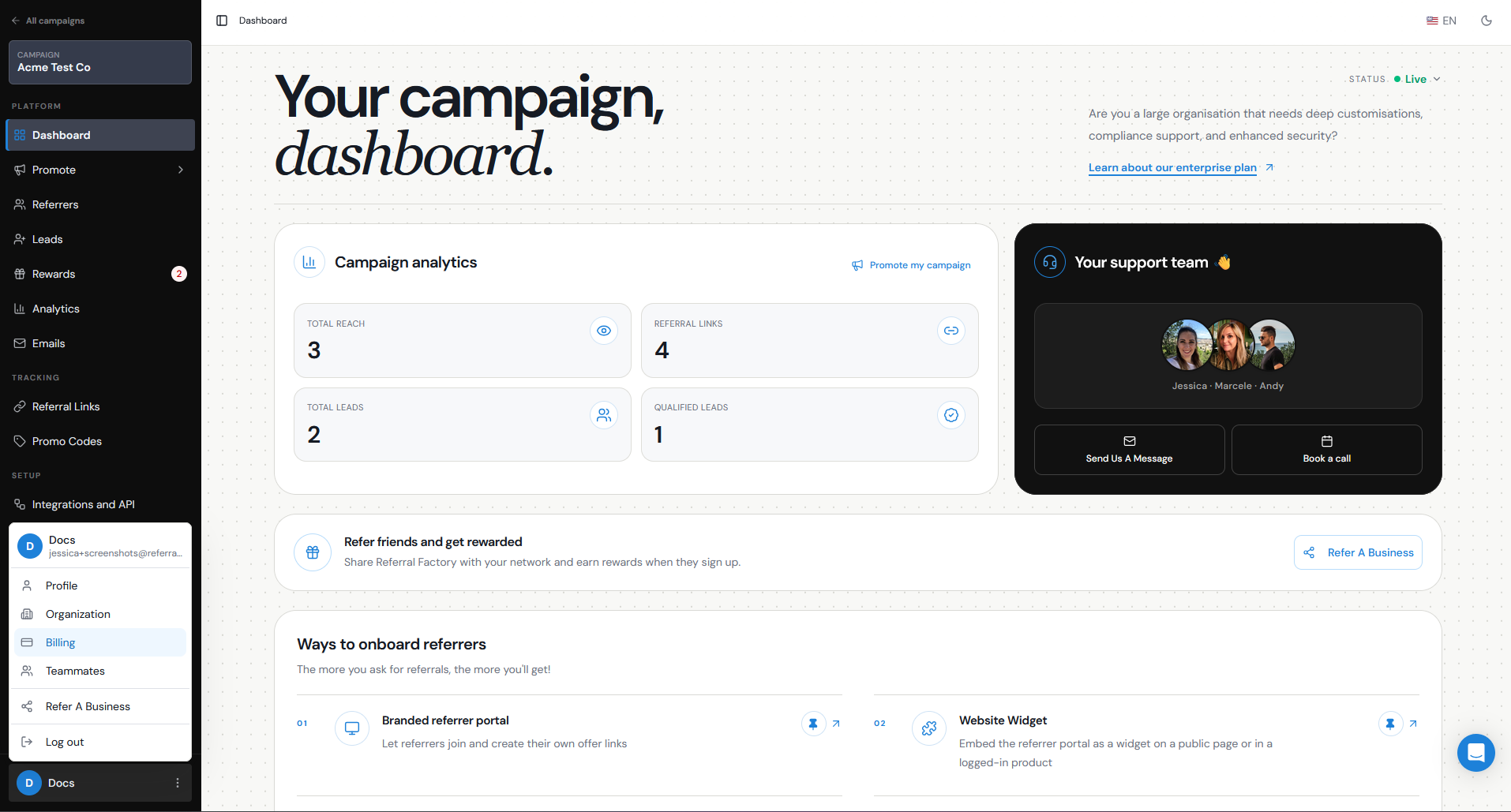
Open the account menu by clicking your name in the bottom-left corner of the dashboard, then select Billing. This opens your organisation settings on the Billing tab.
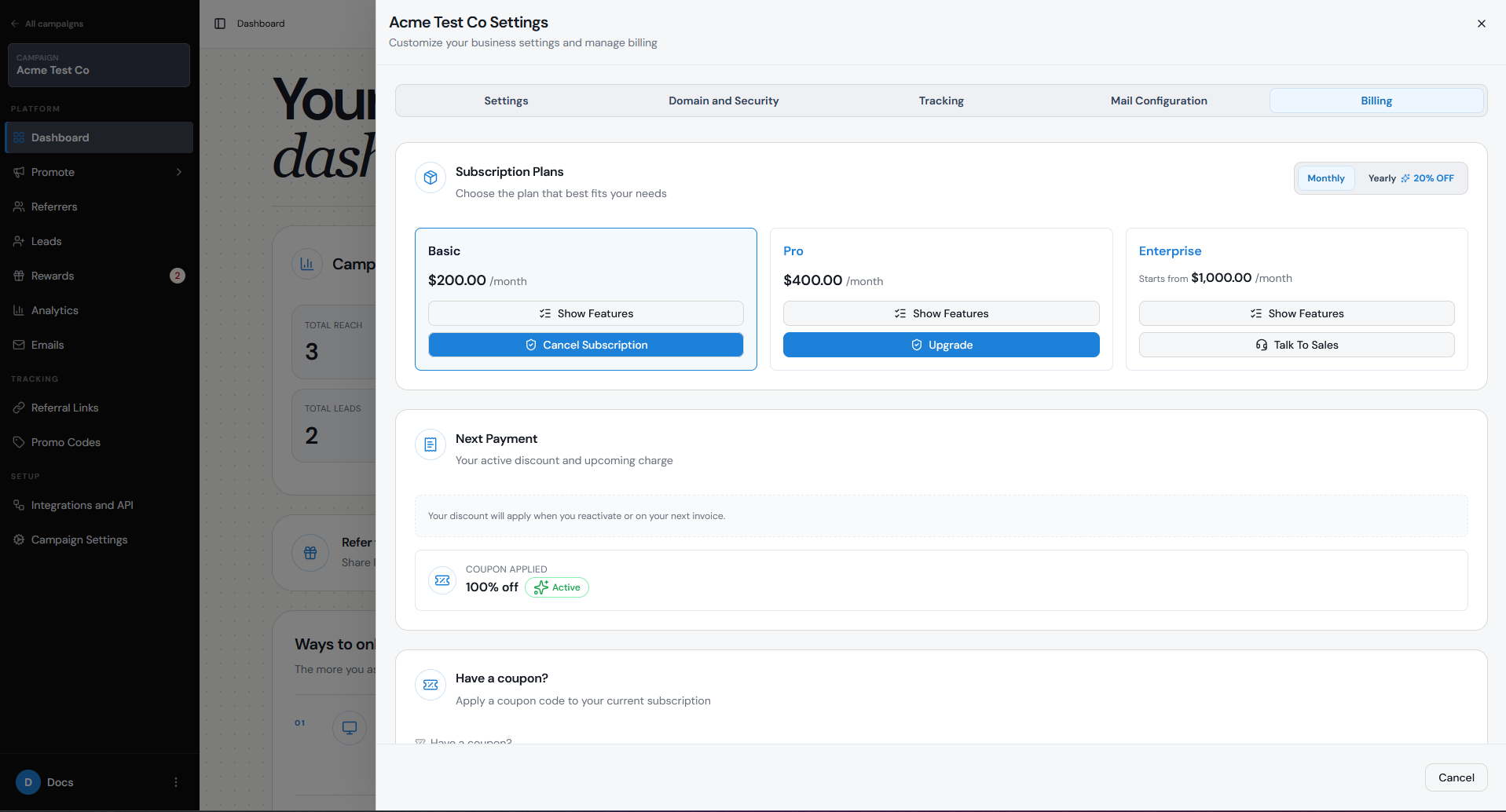
This is where you can manage your subscription, view your current plan and billing cycle, update your payment method, and access your billing history.
Step 1
Click your name at the bottom-left of the dashboard.
Step 2
Select Billing.
Step 3
Confirm that the Billing tab is open.
How do I update my payment details?
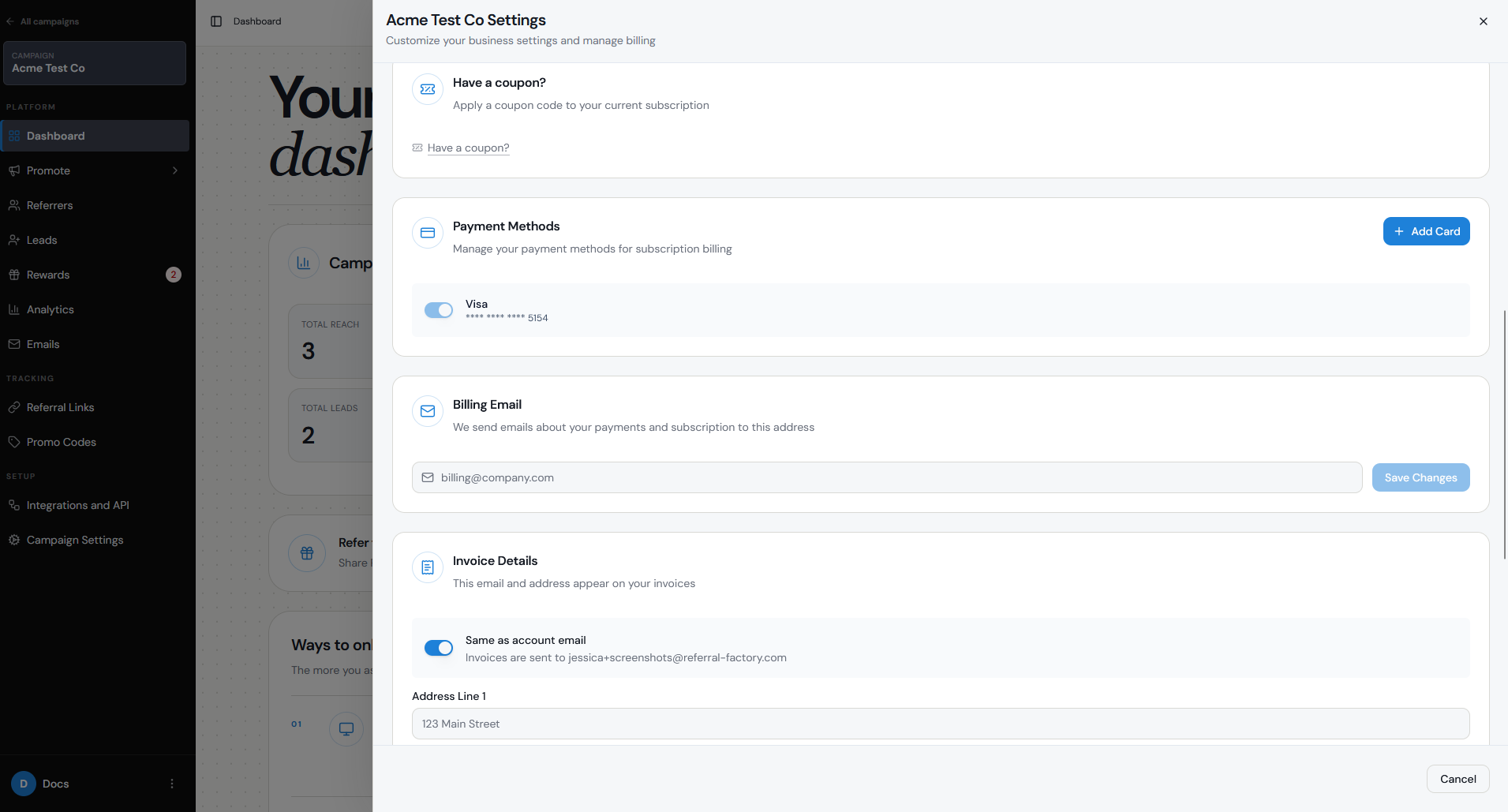
Open the account menu and select Billing to update the credit card used for your Referral Factory subscription.
To update your payment method:
Once the new payment method has been saved, future subscription charges will be applied to that card.
Step 1
Click your name at the bottom-left.
Step 2
Select Billing.
Step 3
Choose the option to update your payment method.
Step 4
Enter and save your new card details.
Where can I see my plan and billing cycle?
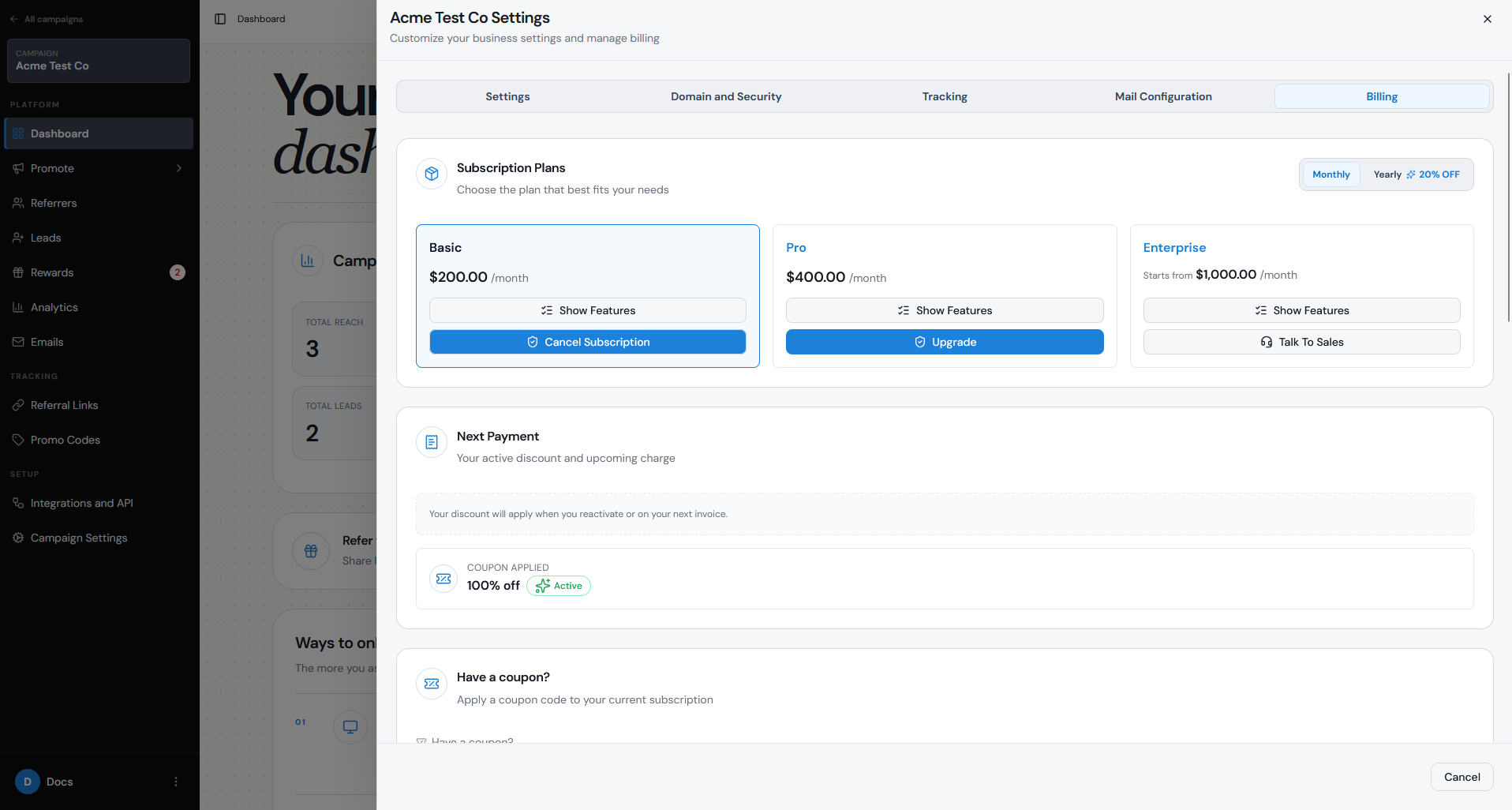
Open the account menu and select Billing to see your current Referral Factory plan and billing cycle.
The Billing page shows which plan your account is subscribed to and whether your subscription is billed monthly or annually.
If you are comparing plans or considering changing your subscription, you can also review our current plans and features in the Billing section of our Help Centre.
Where do I find and download invoices?
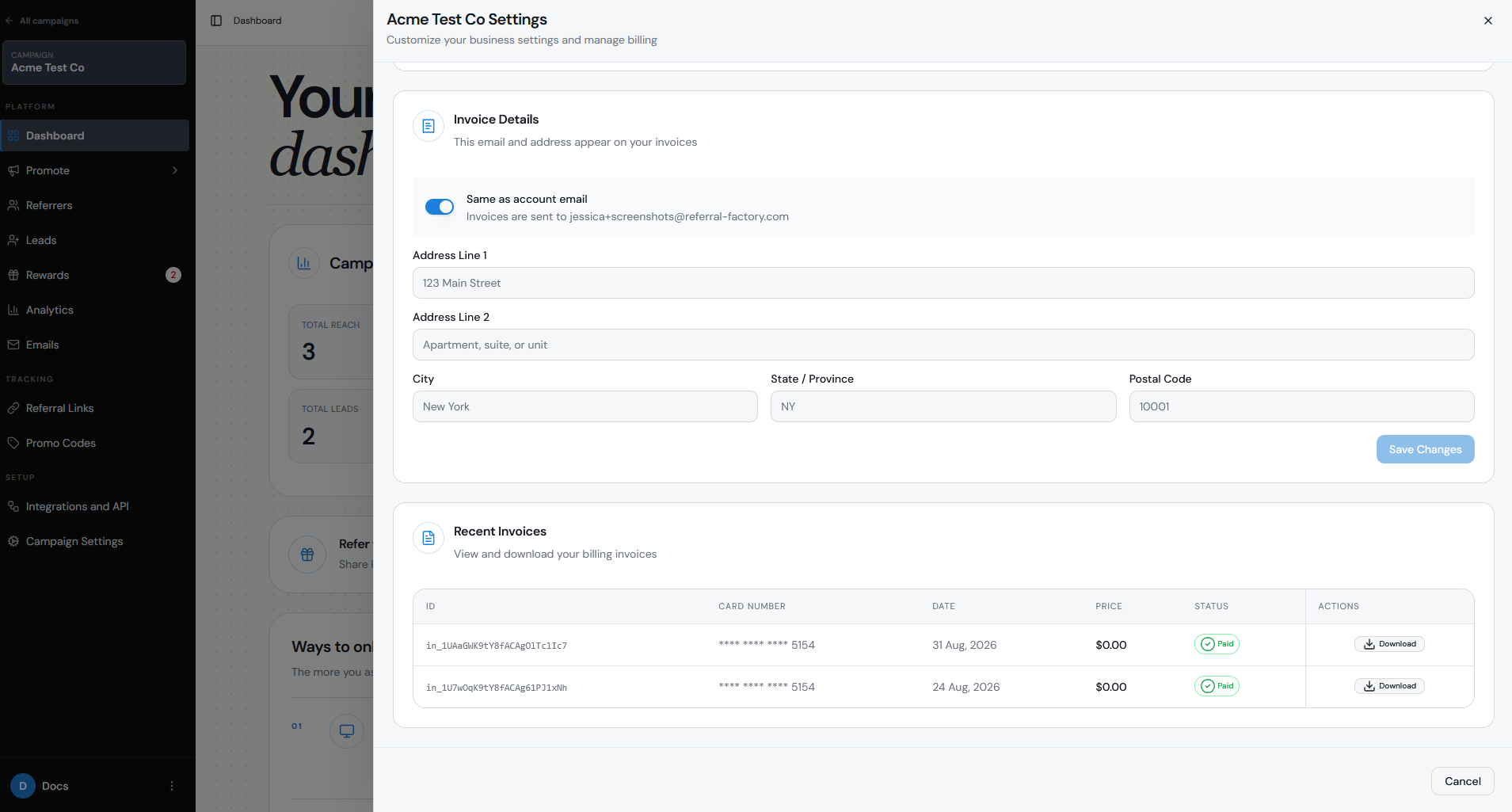
Open the account menu and select Billing to access your previous invoices and billing history.
From the Billing page, open your invoice history and select the invoice you want to download. Individual invoices can be downloaded as PDF files and include information such as the invoice date, amount, plan, and payment method used.
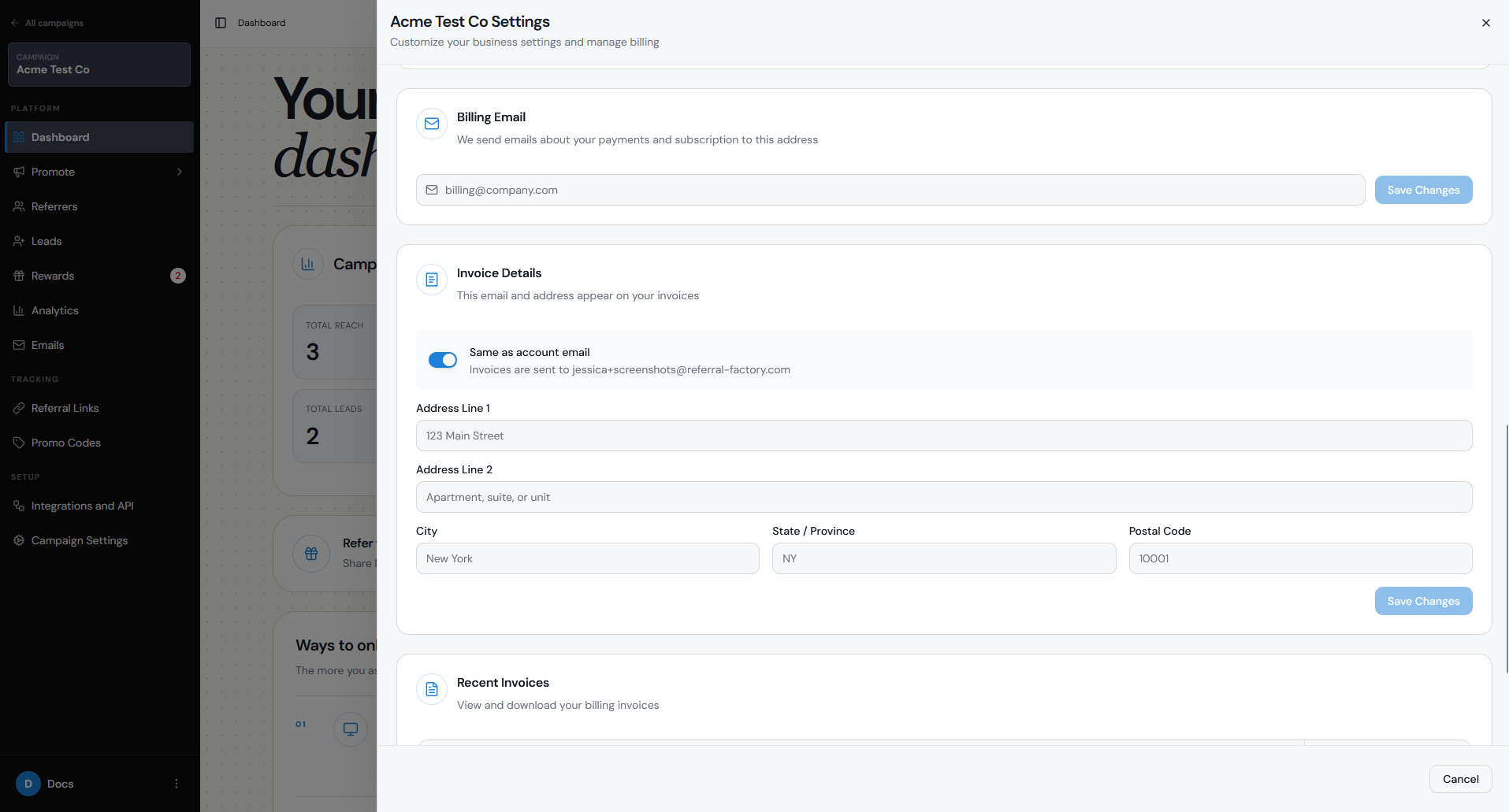
To send future invoices and payment receipts to a finance or accounts team, open the account menu, select Organisation, and add the address under Billing Email. Only one billing email address can be added at a time.
Who can access billing settings?
Billing settings can be accessed by the account owner and by teammates who have been given the appropriate permissions.
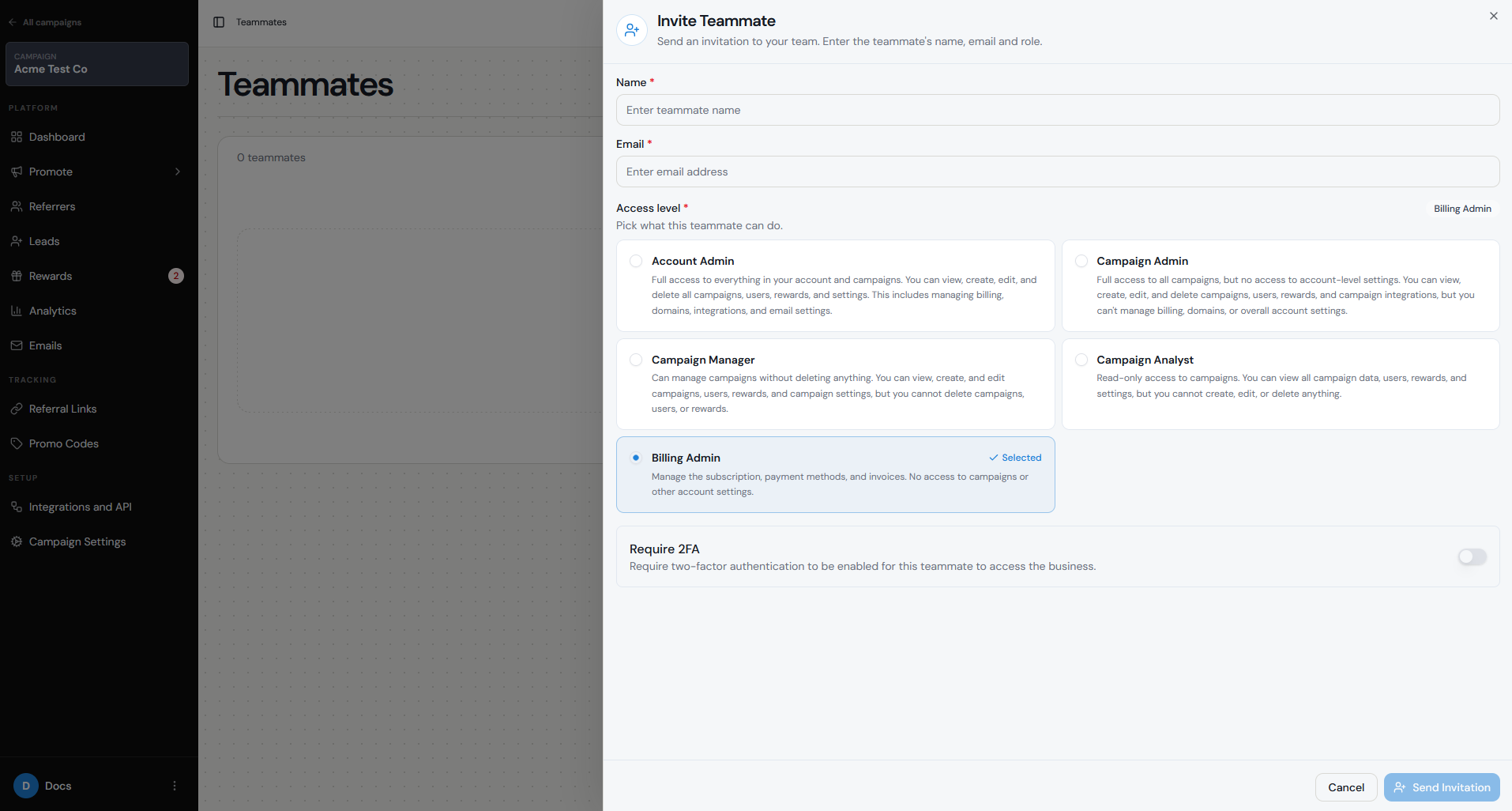
If someone on your team needs access specifically to billing, you can invite them as a teammate and assign the Billing Admin access level.
To do this:
A Billing Admin can manage the subscription, payment methods, and invoices, but does not have access to campaigns or other account settings.
You can also assign Account Admin access if the teammate needs broader access across the account, including billing.
If you add a separate Billing Email, that person will receive invoices and payment receipts, but this does not automatically give them access to your Referral Factory account. If they need to log in and manage billing, they should also be added as a teammate with the appropriate access level.
Step 1
Go to Teammates in your Referral Factory account.
Step 2
Click Invite Teammate.
Step 3
Enter their name and email address.
Step 4
Select Billing Admin as their access level.
Step 5
Send the invitation.
What should I do if a payment fails?
If a subscription payment fails, first check that your payment method is still valid and has sufficient funds. You can update your card details from the Billing section of your account.
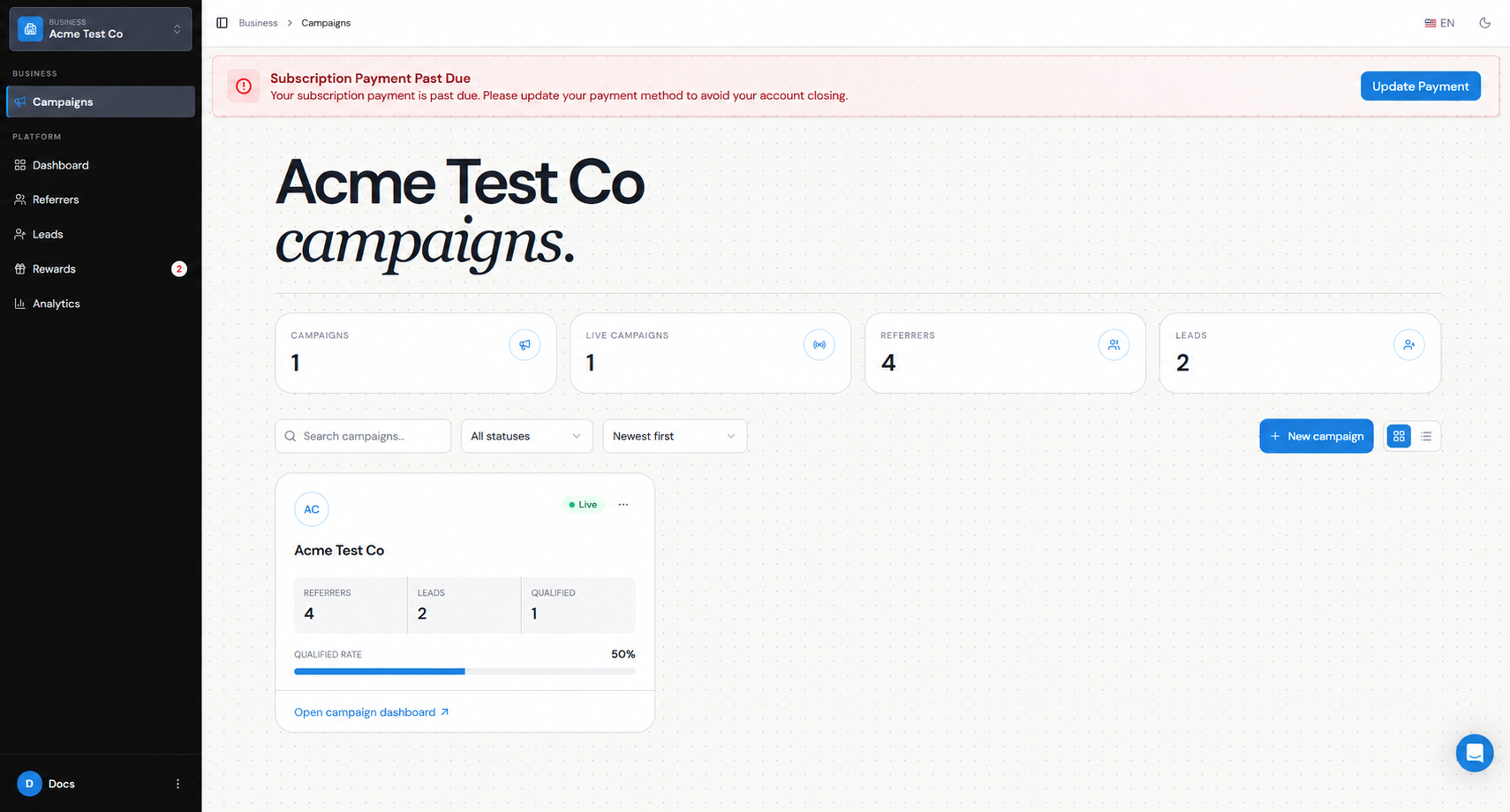
If your subscription becomes past due, you will see a warning in your Referral Factory account letting you know that your payment needs to be updated.
When you follow the payment prompt, you’ll be taken to a secure payment page where you can enter or update your credit card details and confirm the outstanding payment.
Once the payment has been successfully processed, your subscription will return to good standing and you’ll be able to continue using your account normally.
If you’re unable to complete the payment or still see the past-due message after updating your card, please contact our support team and we’ll be happy to help.
If you need to compare tiers before changing your subscription, read the Referral Factory plan comparison. For cancellation, follow the subscription cancellation guide.