
Read this page as a quick path: scan the headings, use the step blocks, and escalate if the expected result does not happen.
Need help applying this to your account?
Contact support and we will keep this article attached to your request.
All of the campaign email templates can be individually toggled on or off.
Go to Emails > Always On Emails. Each email template card has an enable/disable toggle.
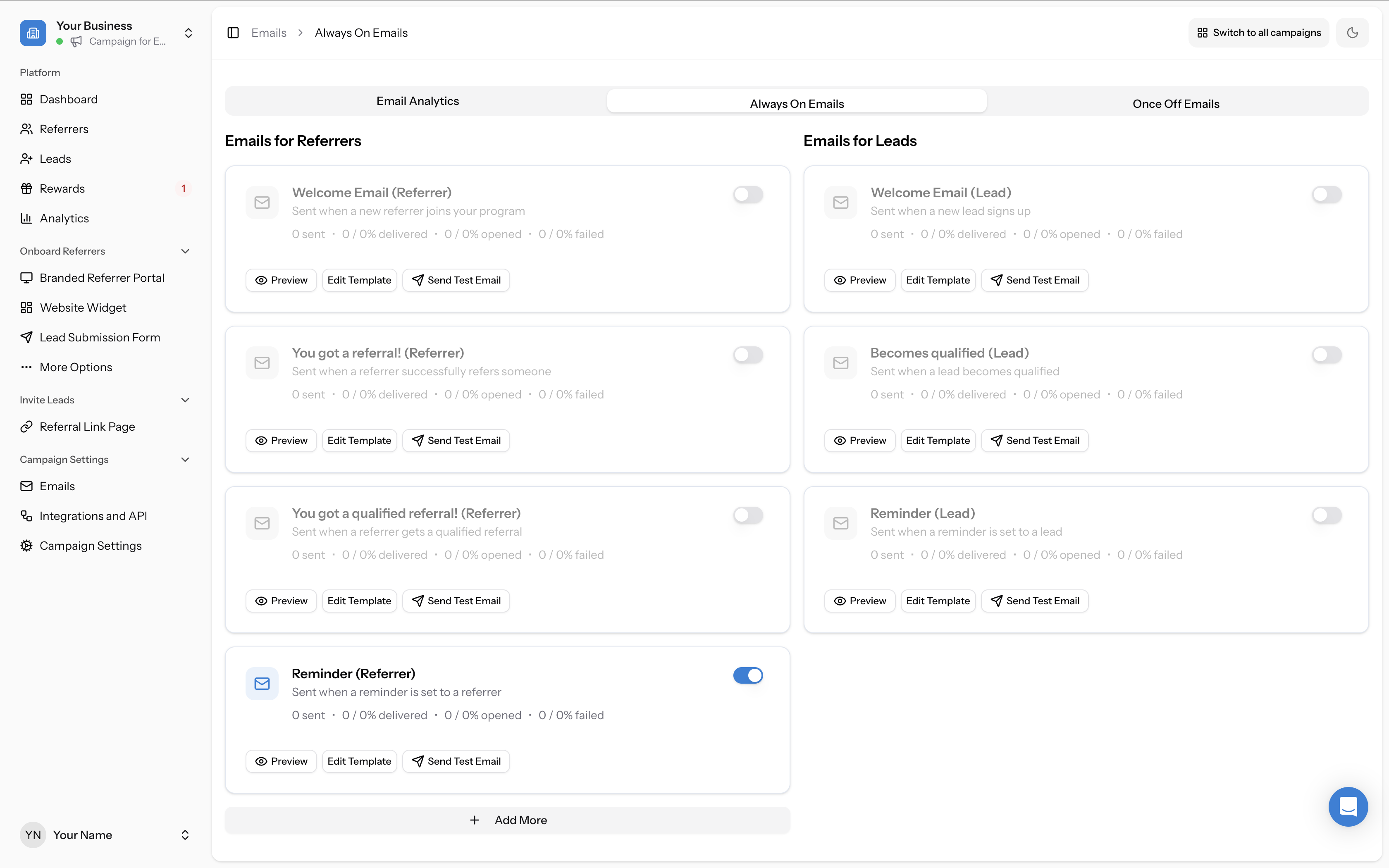
Switch the toggle off for any email you do not want to send. Changes take effect immediately — no save button required for the toggle.
Common reasons to disable specific emails:
In addition to the core templates, you may see channel-specific Welcome Email variants for referrers — for example, Welcome Email (Popup or Widget), Welcome Email (API), or Welcome Email (Zapier). These send instead of the default Welcome Email when a referrer joins through that specific channel. You can add variants using the + button, or delete ones you do not need. Deleted variants fall back to the default Welcome Email.
Note: if you disable the Welcome Email, referrers will not automatically receive their referral link. You will need to share their links through another method (e.g. CRM sync, manual send).

- You are managing referrer communication entirely through your own CRM (disable the Welcome Email and other referrer notifications)
- You do not want leads to receive a confirmation email (disable the You've Been Referred email)
- You are handling reward notifications through a third-party system (disable the Your Reward Is Ready email)