
Read this page as a quick path: scan the headings, use the step blocks, and escalate if the expected result does not happen.
Need help applying this to your account?
Contact support and we will keep this article attached to your request.
This is expected behaviour. By default, rewards in Referral Factory do not issue automatically.
When a referral qualifies, the reward moves to the Due Rewards tab and waits for manual authorisation. This gives you an opportunity to review the reward before paying out — catching any fraud, duplicate submissions, or errors before money leaves your account.
How to issue a reward manually
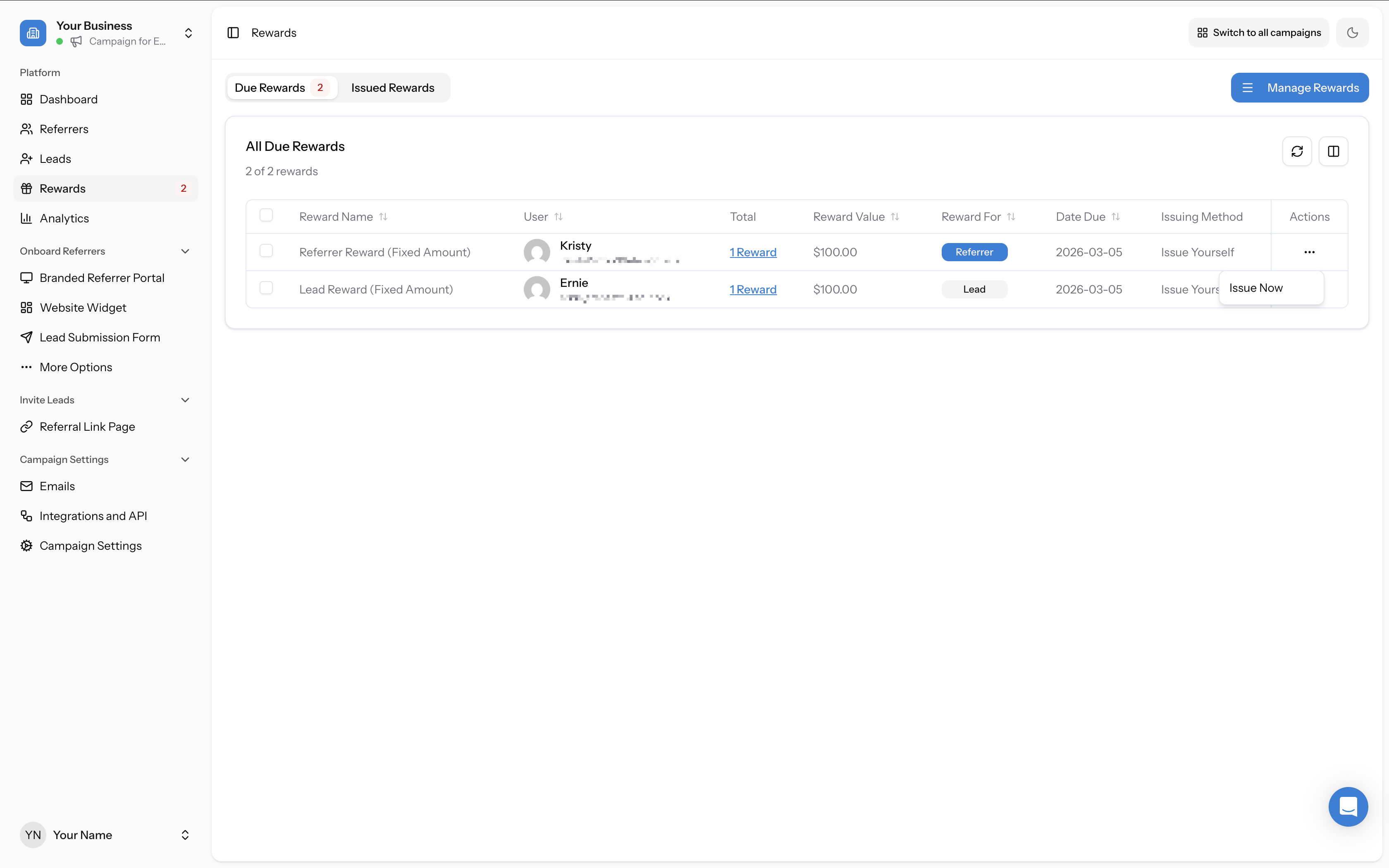
- Go to Rewards in the left sidebar
- In the Due Rewards tab, click the three-dots menu (⋮) on the reward row and select Issue Now
- Alternatively, tick the checkbox next to one or more rewards and use the bulk Issue Now button
- For Commission rewards: click the Total link to enter the total spend amount first
- Confirm the issuance when prompted
How to enable automatic issuance
If you'd prefer rewards to go out without manual approval:
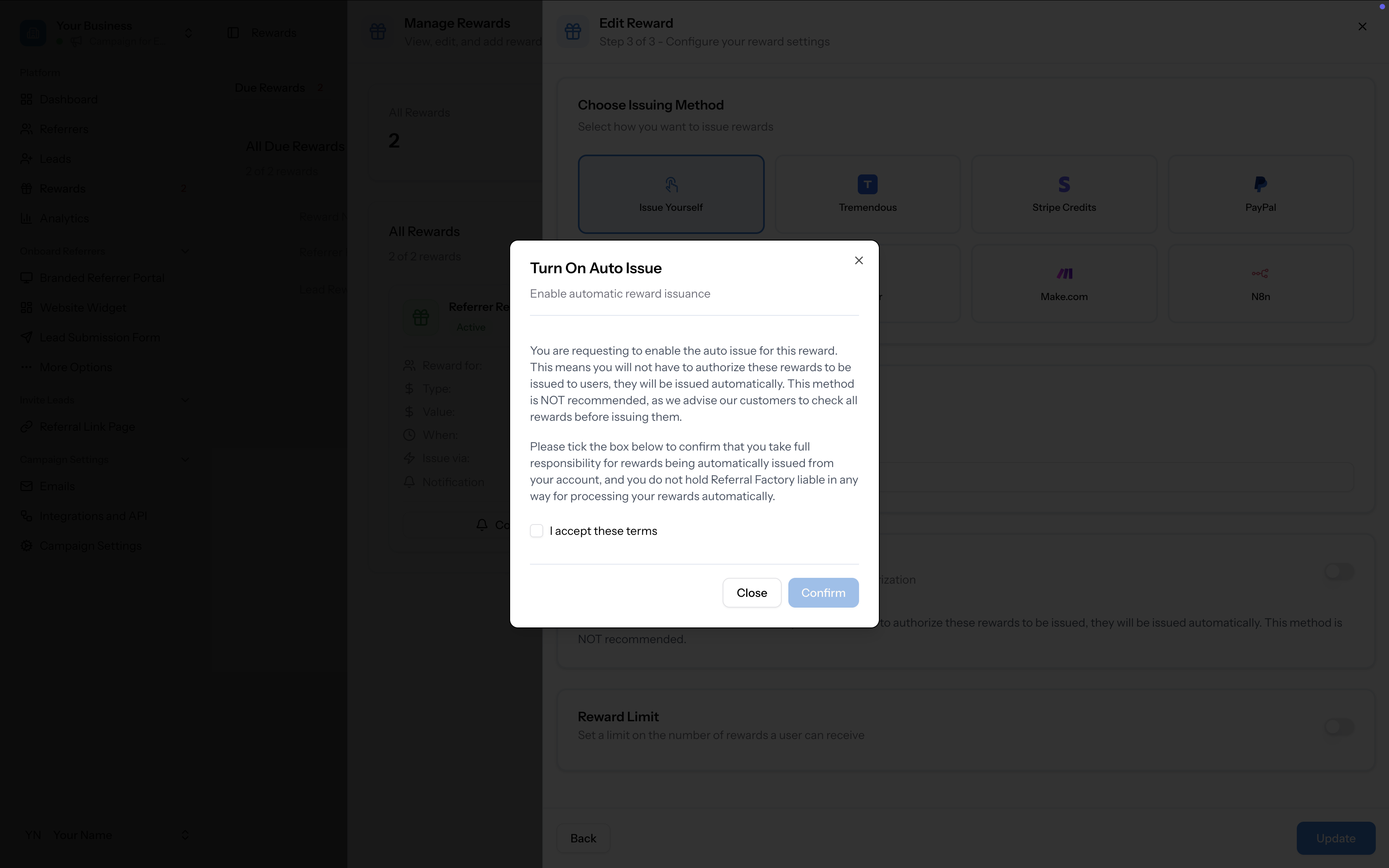
From this point, rewards will issue automatically when a qualifying event occurs.
- Go to Rewards in the left sidebar and click Manage Rewards
- Edit the reward (click the edit icon on the reward card)
- In Step 3, toggle on Auto Issue Rewards
- Accept the confirmation dialog acknowledging that rewards will be issued automatically
- Click Update to save