
Need help applying this to your account?
Contact support and we will keep this article attached to your request.
How does the Lead Submission Form work?
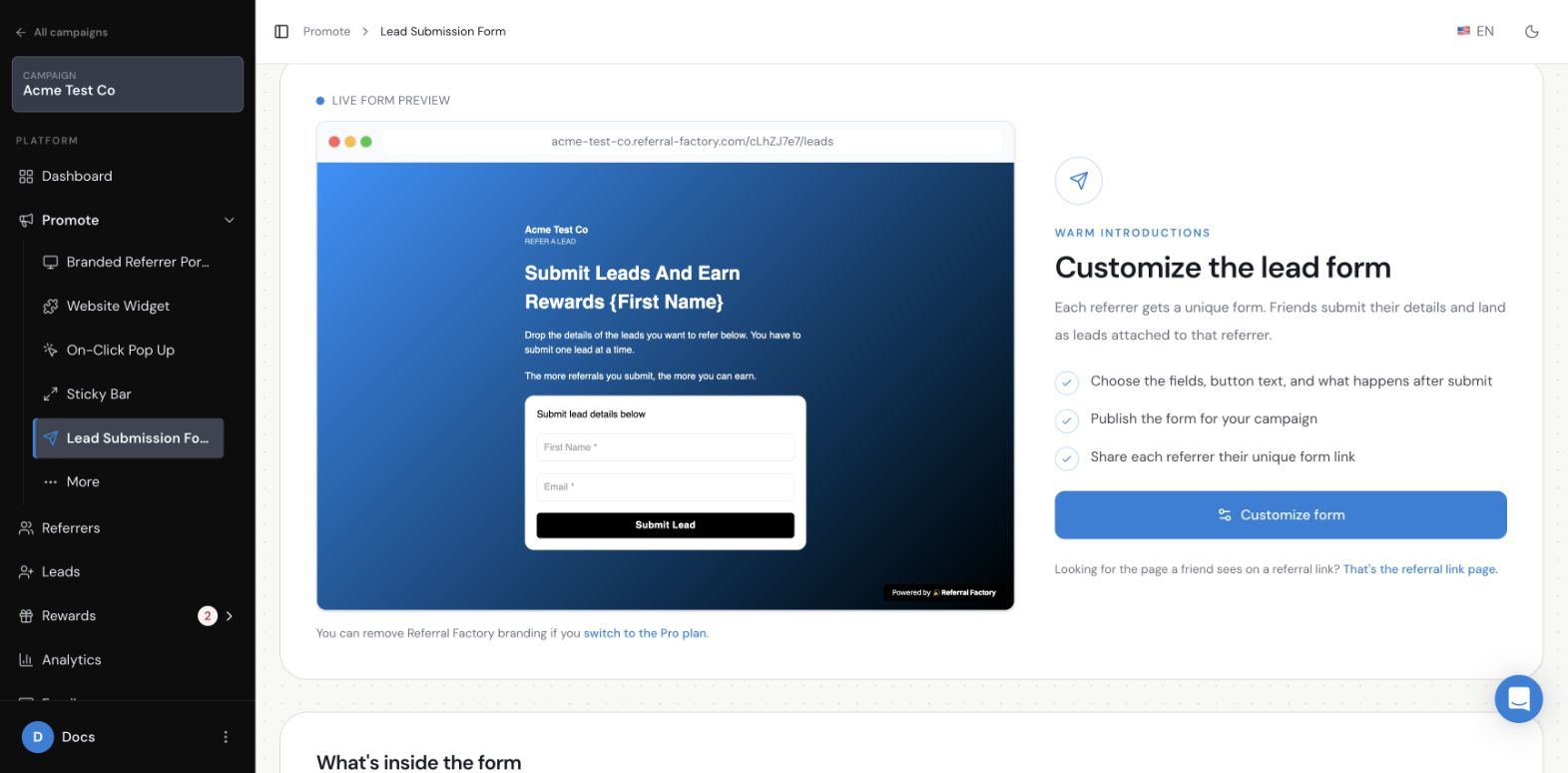
It is a form that referrers use to submit a friend’s details directly. The form is useful when the referrer is making an introduction, the referral happens in person, or the lead is unlikely to click a referral link and sign up themselves.
Each referrer receives a unique submission form URL. You can also add a Submit Leads Button to the Branded Referrer Portal so referrers can open the form without leaving the portal.
When should I use it instead of a referral link?
Use the Lead Submission Form when the referrer already knows who they want to introduce and can provide that person’s details directly. It is a strong fit for offline referrals, B2B introductions, sales teams, and service businesses where a verbal recommendation is more natural than sharing a link.
Use a referral link when you want the lead to visit your referral page, enter their own details, and experience the referral journey themselves. Both methods can attribute the lead to the correct referrer, but the form removes the extra step of asking the lead to click a link.
Who fills in the form and what details are collected?
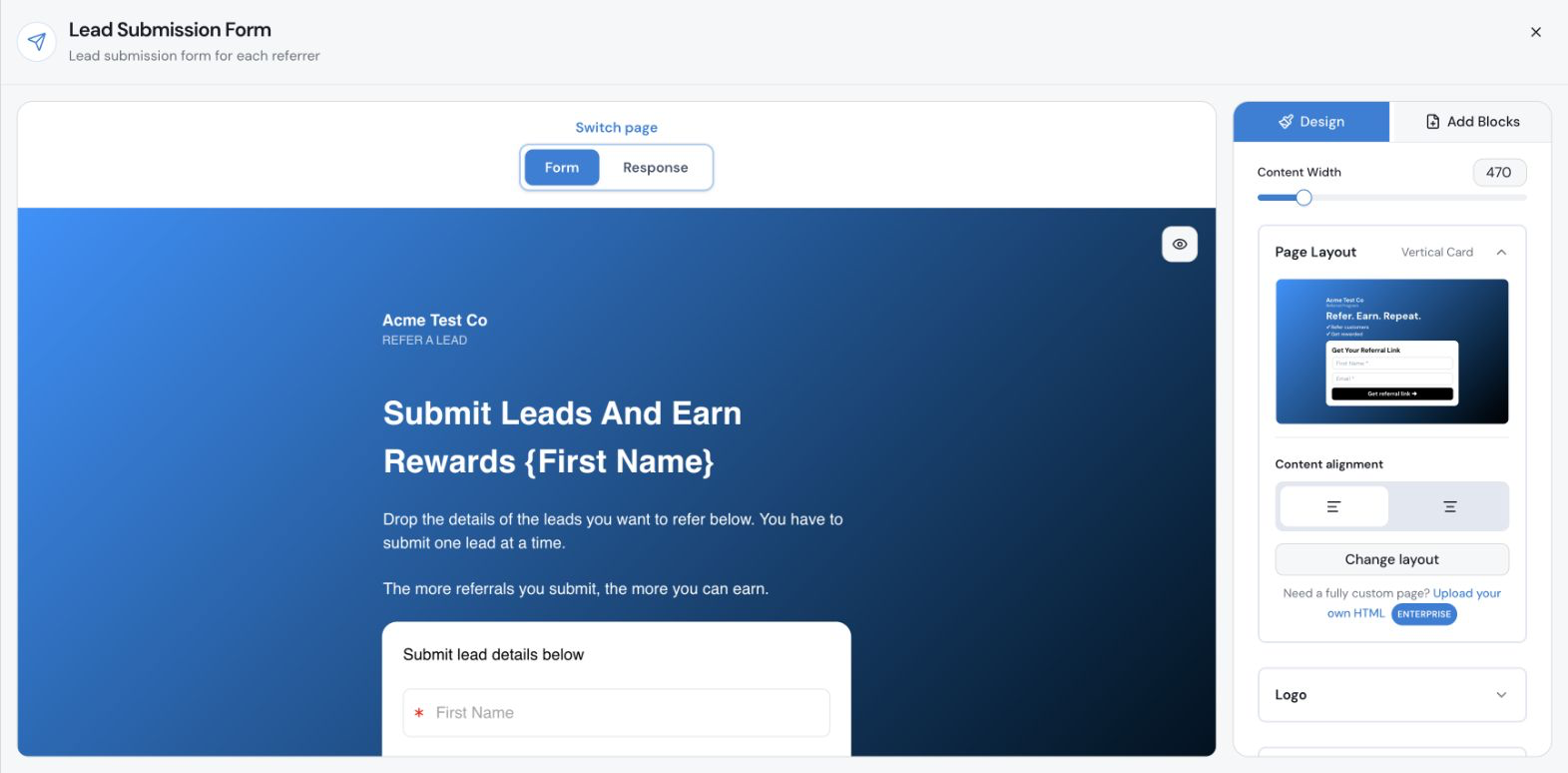
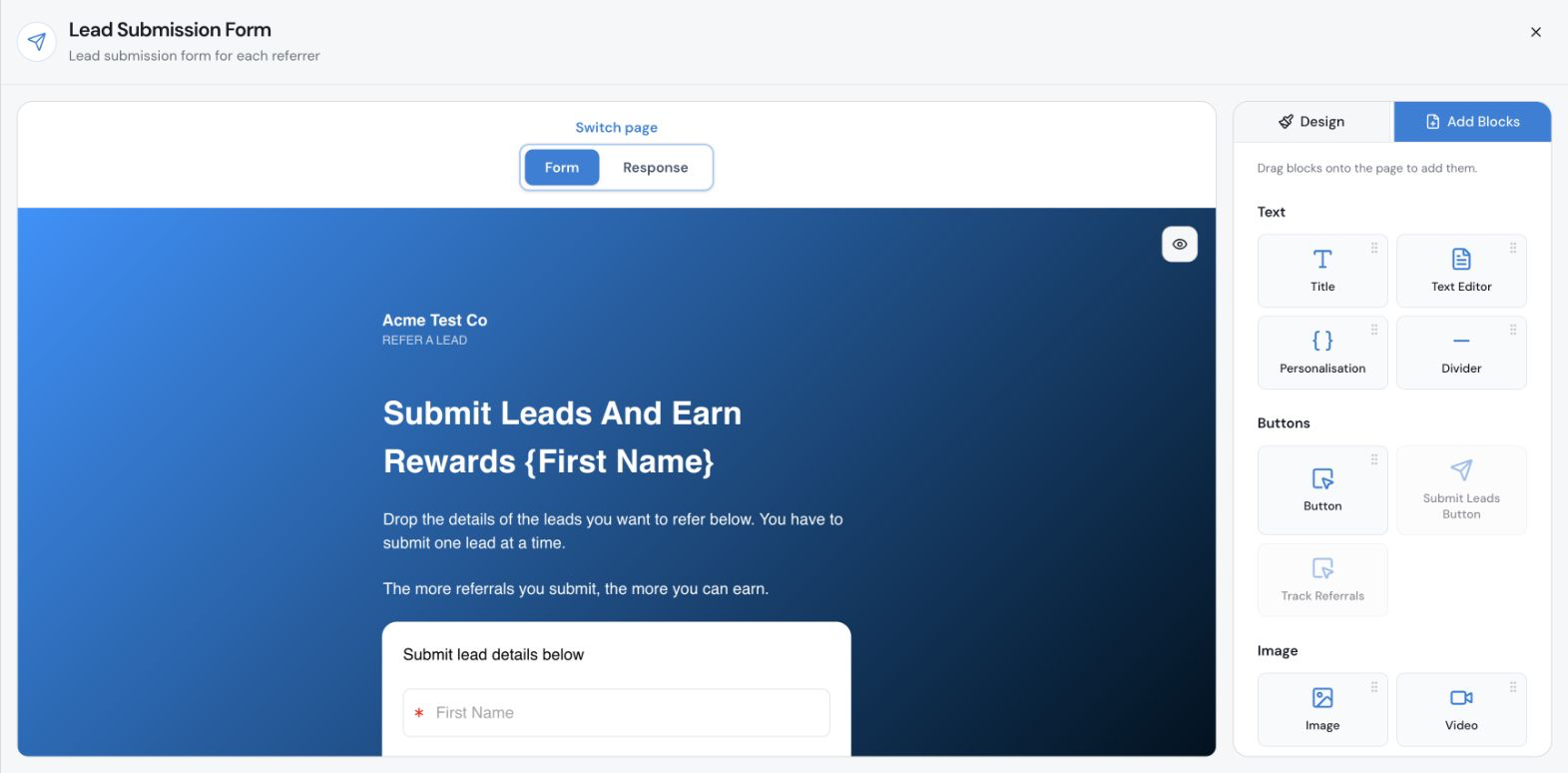
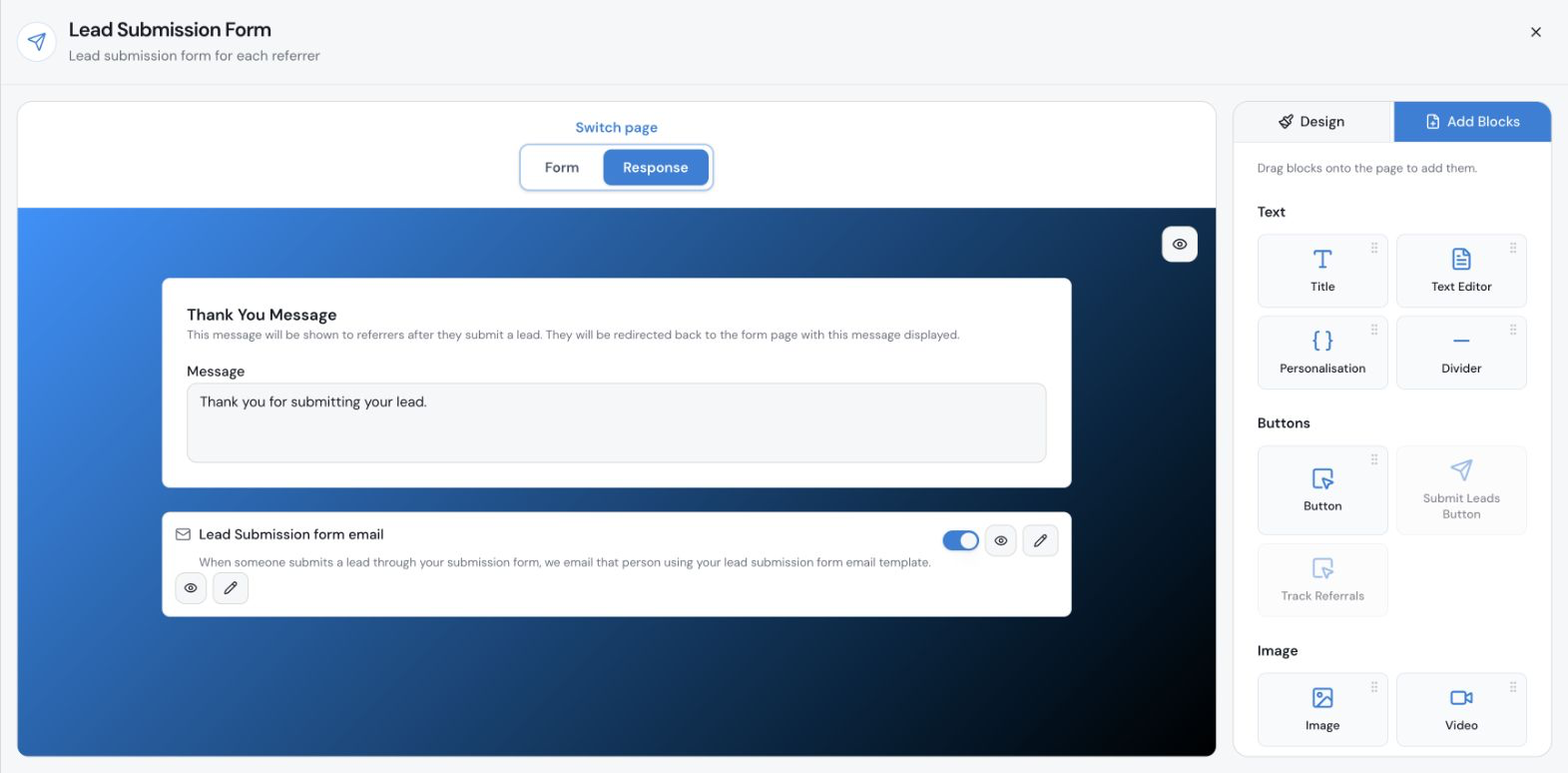
The referrer fills in the form. The default required fields are the lead’s First Name and Email, along with the Submit Lead button. You can add other fields when your workflow needs more information. In the builder, the Form tab is the page referrers use, Design controls global styling, and Add Blocks contains additional content and field blocks.
How does the form keep the Lead tied to the Referrer?
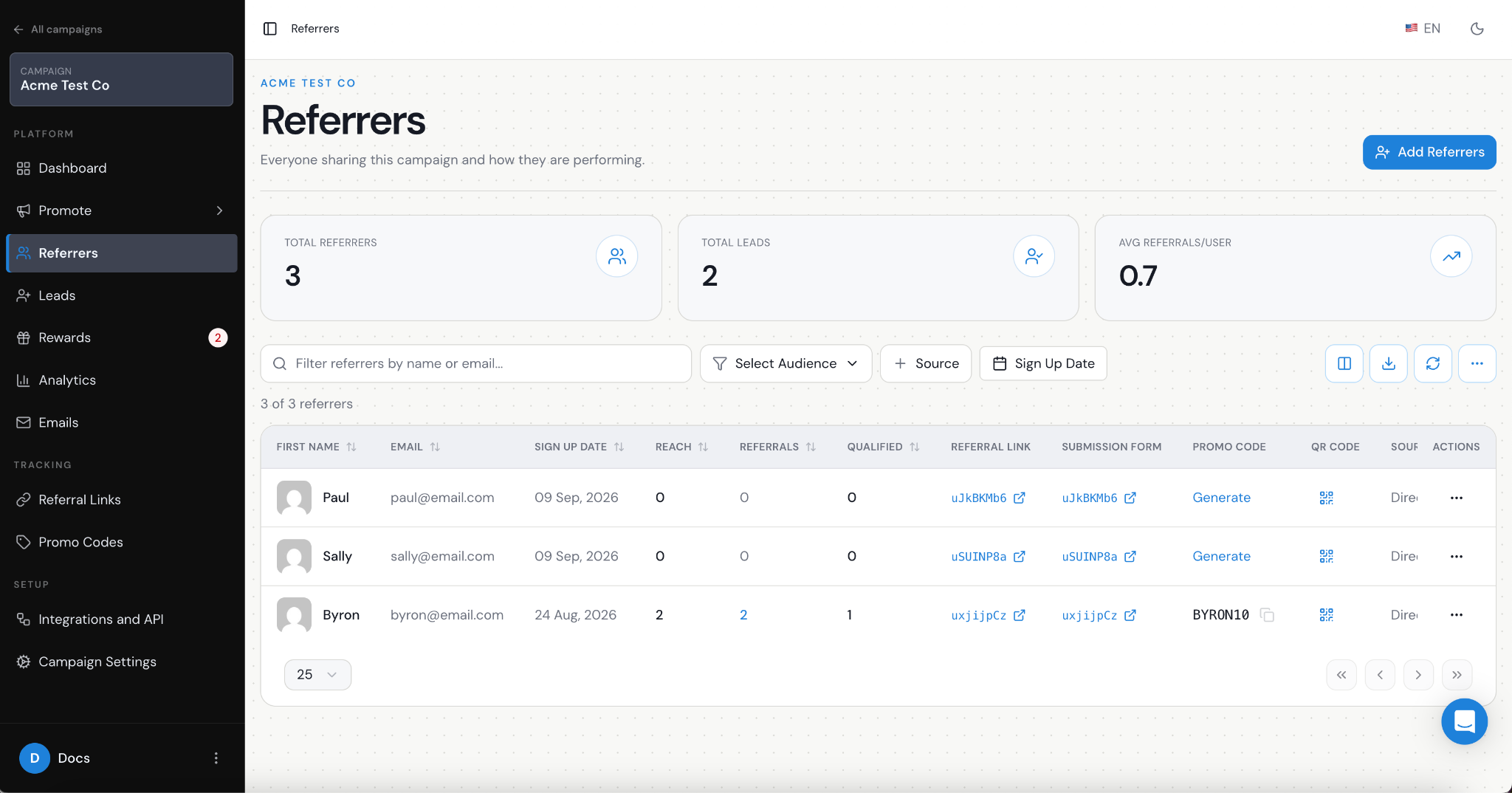
Referral Factory gives every referrer a unique submission form URL. When the referrer submits a lead through that URL, Referral Factory uses the URL to attribute the lead to that referrer. The lead then appears in the campaign’s Leads section with the referrer attached, just as it would when the lead joins through a referral link.
How do Referrers access the form?
Each referrer has a unique Lead Submission Form URL. You can share that link directly with the referrer, or add a Submit Leads Button to the Branded Referrer Portal so they can open the form from their dashboard.
How do I set up the Lead Submission Form?
Step 1
Select the campaign. Open the campaign you want to configure before opening its campaign-level promotion tools.
Step 2
Open Lead Submission Form. From the selected campaign, open Promote and choose Lead Submission Form from the campaign sidebar.
Step 3
Open the form manager. From the Lead Submission Form page, choose the action that opens the full form builder.
Step 4
Design the Form page. Use the Form tab to adjust the text, layout, fields and Submit Lead button. Use Design for global styling and Add Blocks to add content or fields.
Step 5
Configure the Response page. Switch to Response to edit the thank-you message shown after submission and manage the email notification sent to the referred person.
Step 6
Make the form available to referrers. Use each referrer’s unique submission form URL, or add the Submit Leads Button block to the Branded Referrer Portal Dashboard page.
What privacy or consent should I consider?
The referrer is entering another person’s personal information, so explain clearly why the details are being collected and what will happen next. Collect only the fields required for the referral process, make the form labels and consent wording clear, and ensure your use of the data follows the privacy rules that apply to your business and audience.
How do I test the form?
Test the complete flow with dummy data before sharing the form with customers. Use a test referrer’s unique form URL, submit a test lead, and then confirm the result in both the referrer experience and the Referral Factory dashboard.
Open a unique form URL. Use a test referrer’s URL so the submission can be attributed correctly.
Submit dummy lead details. Enter a test first name and email, submit the form, and confirm that the thank-you message appears.
Check the lead record. Open Leads in the selected campaign and confirm that the test lead is present and shows the expected referrer attribution.
Check the email behavior. If the notification is enabled, confirm that the test recipient receives the configured message and that personalization values render correctly. Do not send a test to a real customer.
Frequently asked questions
Why can’t I see Lead Submission Form in the sidebar?
Open the selected campaign’s Promote page and use the eye icon on the Lead Submission Form card to show it in the campaign sidebar.
Can I place the form inside the Branded Referrer Portal?
Yes. In the Branded Referrer Portal builder, add the Submit Leads Button block to the Dashboard page so referrers can open the submission flow from inside the portal.
What happens after a referrer submits a lead?
The lead appears in the campaign’s Leads section and remains attributed to the referrer who submitted it. The referrer sees your configured response message, and if email notifications are enabled, the referred person receives the email you configured.