
Need help applying this to your account?
Contact support and we will keep this article attached to your request.
Can I automatically send new Leads to Zoho?
Yes. Referral Factory can create a Zoho record when a new lead joins your campaign. Choose whether the campaign creates a Zoho Lead or a Zoho Contact, then map the lead’s information to the destination fields.
Before you start
If Zoho is not connected, open Integrations & API, select CRM, choose Zoho, select the correct Zoho region and complete the authorisation. Then open the campaign you want to configure.
- Decide whether new leads should be created as Zoho Leads or Zoho Contacts.
- Use dummy data when testing. Do not send real customer data while checking the setup.
How do I choose what happens when a Lead joins?
Step 1
Open Integrations & API in the campaign settings.
Step 2
Open the Zoho settings for Leads.
Step 3
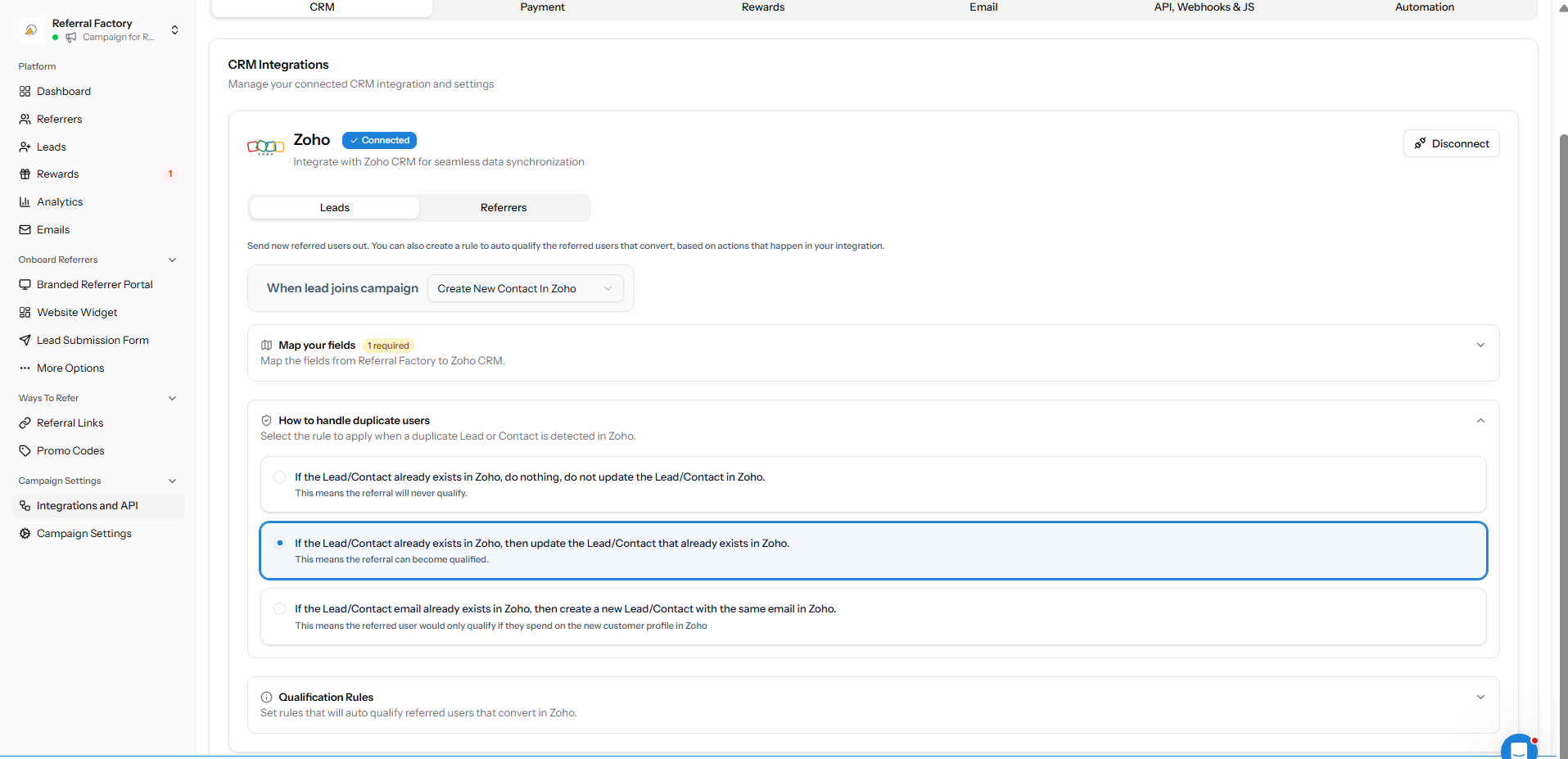
Choose Create New Lead In Zoho or Create New Contact In Zoho.
Step 4
Continue to the fields for that path.
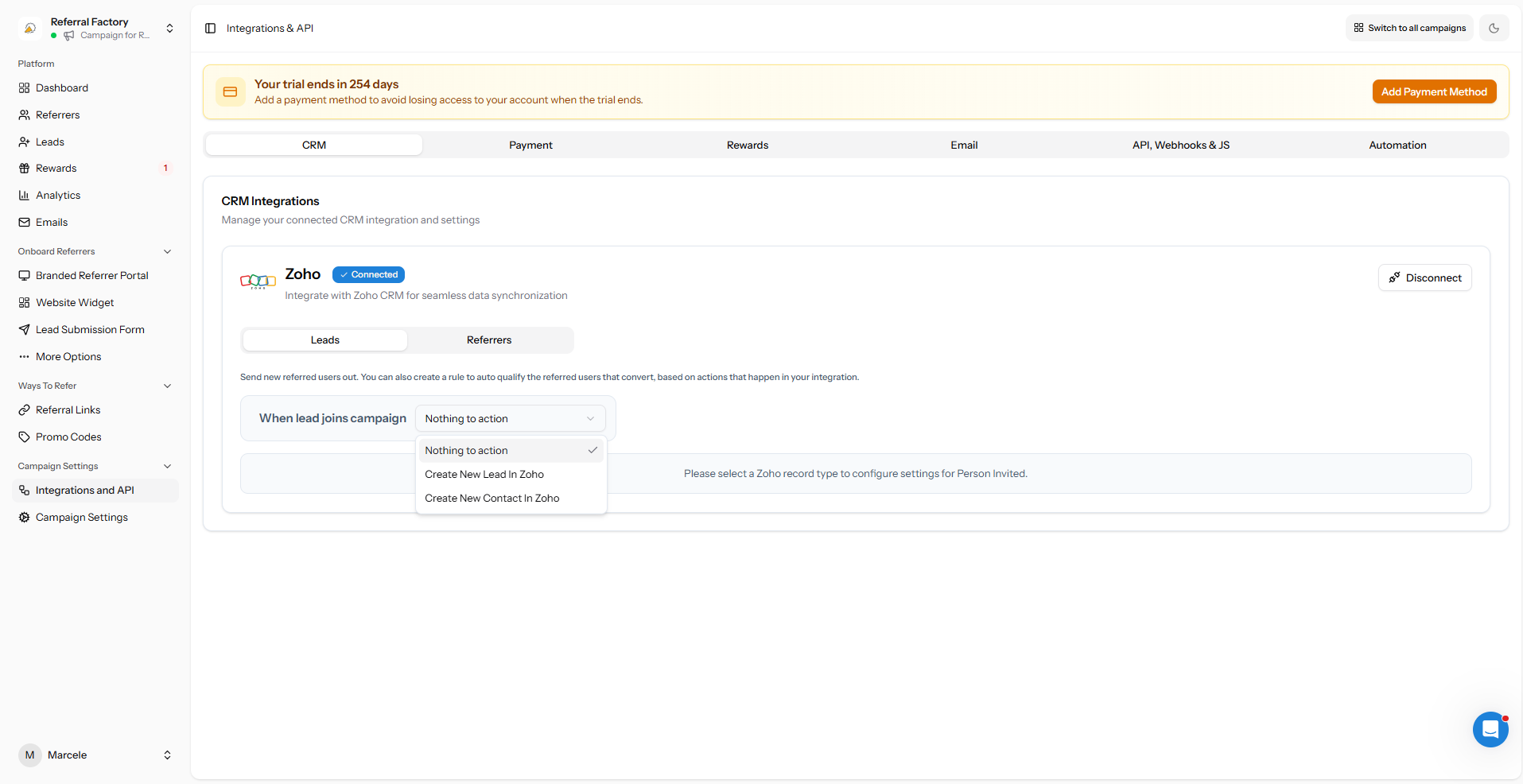
How do I create a new Lead in Zoho?
Choose Create New Lead In Zoho. Map the Referral Factory lead fields to the Zoho Lead fields shown by the connected account. Complete every field marked as required because the available fields depend on the Zoho setup.
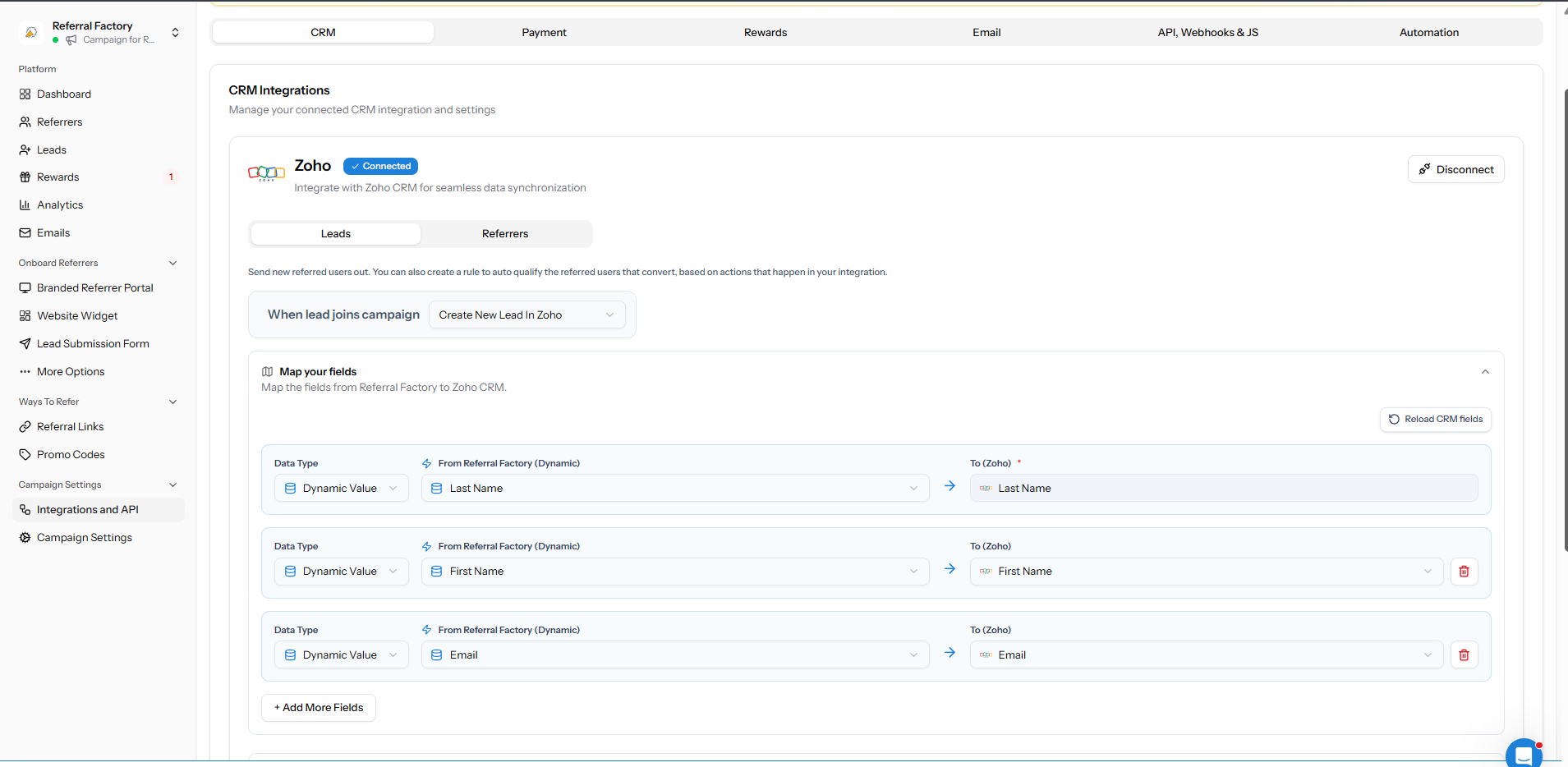
How do I create a new Contact in Zoho?
Choose Create New Contact In Zoho. Map the Referral Factory lead fields to the Zoho Contact fields and complete every field marked as required. The Contact path is separate from the Lead path and can show different destination fields.
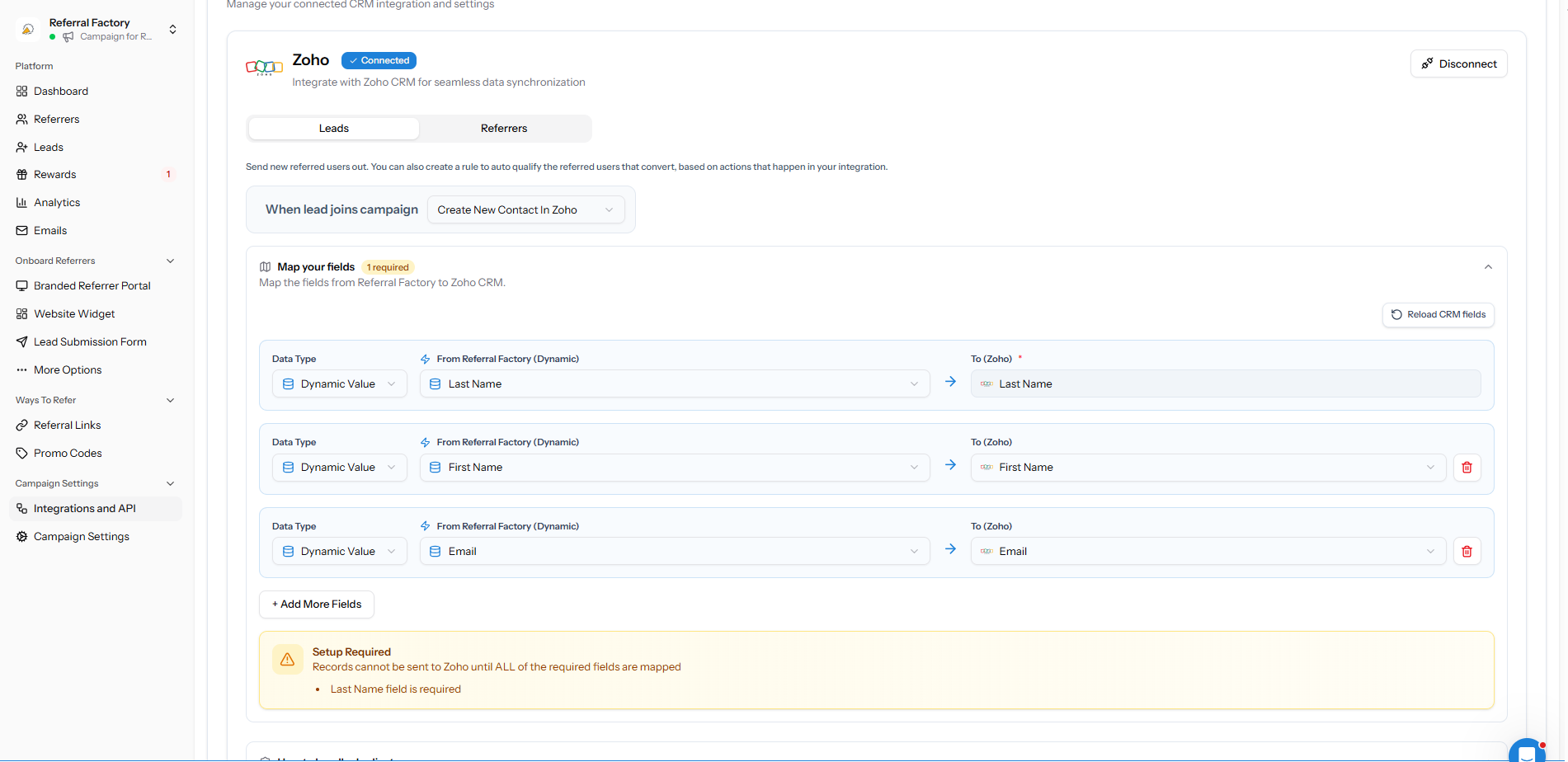
How do I map Referral Factory fields to Zoho?
For each destination field, choose a Dynamic Value from Referral Factory or enter a Fixed Value. Use Add More Fields when you need to send another value. If a field list is stale, use Reload fresh data from integration before mapping again.
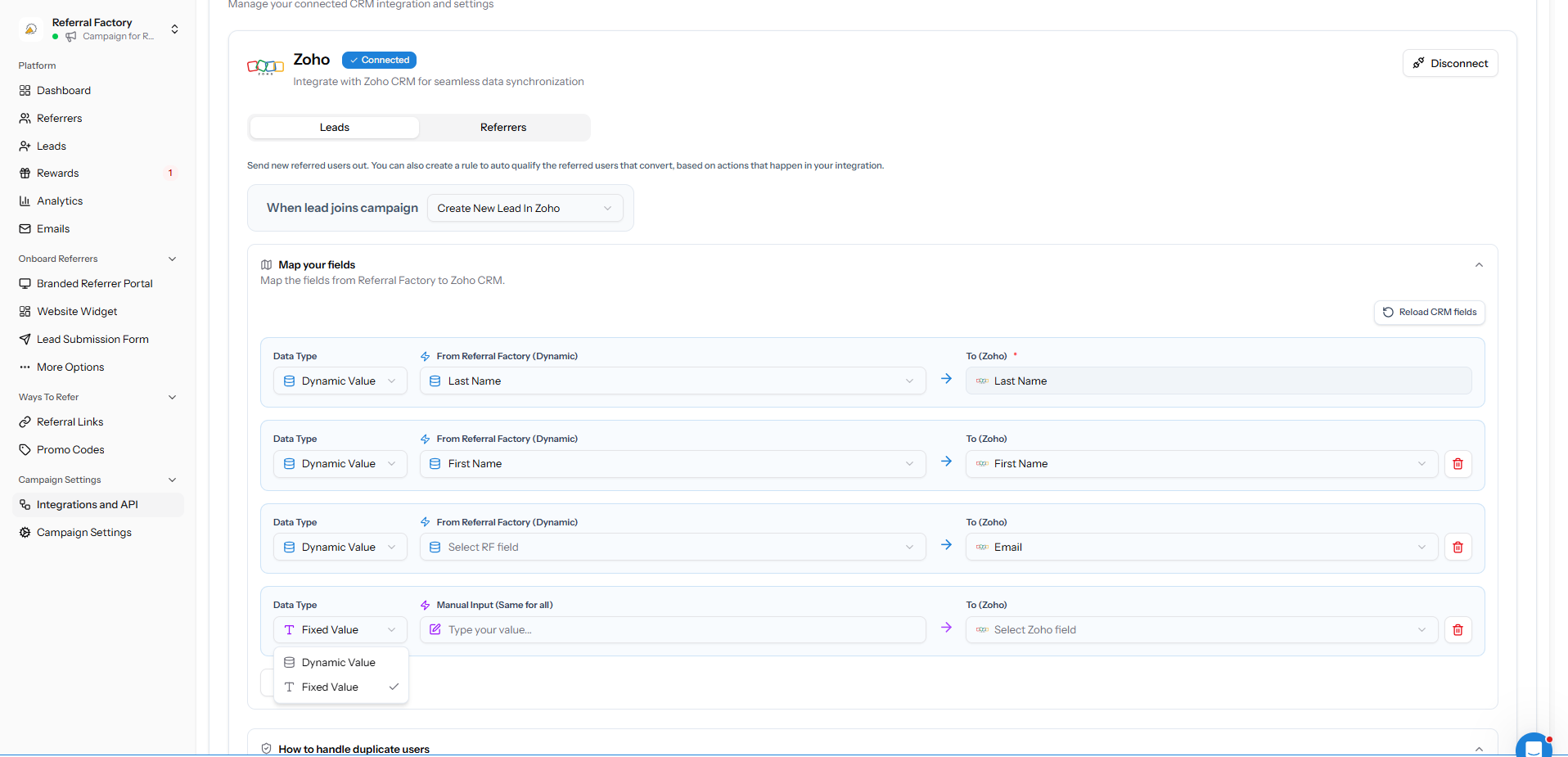
How do I choose what happens if the person already exists?
Choose the duplicate rule that matches the campaign. Do nothing leaves the existing record unchanged and the referral cannot qualify from later updates. Update existing Lead/Contact lets Referral Factory update that record so it can qualify. Creating a new record with the same email means only the newly created profile can later meet the qualification condition.
How do I save and test the setup?
Step 1
Save the Zoho Leads setting after reviewing the mapped fields and duplicate option.
Step 2
Use a dummy referrer and dummy lead to join the campaign.
Step 3
Check Zoho for the record type you selected and confirm the expected fields.
Step 4
If the record does not appear, use the Zoho troubleshooting guide before changing the campaign again.
When is the Lead sent to Zoho?
Referral Factory sends the lead according to the Zoho Leads action you saved when the lead joins the campaign. Processing time can vary, so check the Zoho record after the lead has joined before treating the setup as failed.
Does sending a Lead to Zoho automatically qualify the referral?
No. Sending the lead to Zoho and qualifying the referral are separate settings. Use the Zoho automatic-qualification guide to choose the conversion condition that should qualify the referral.