
Need help applying this to your account?
Contact support and we will keep this article attached to your request.
You can use n8n to automatically send new Referrers from Referral Factory into your CRM when they join your campaign.
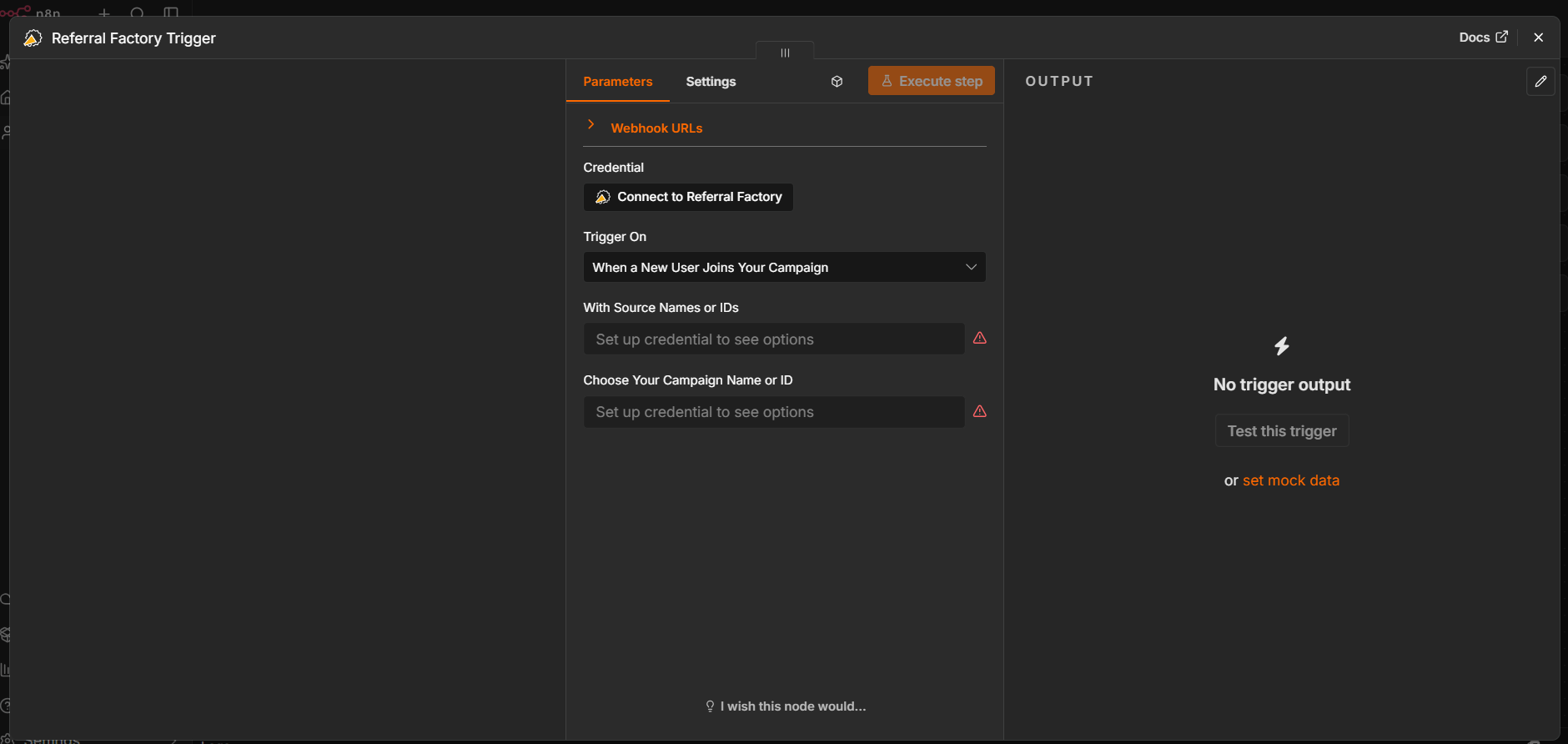
Referral Factory has a native n8n trigger called When a New User Joins Your Campaign. Once the trigger is connected to your Referral Factory account, you can choose the campaign and source you want to monitor and then pass the new Referrer data to your CRM.
How new Referrers are created or synced into n8n
Start by creating a new workflow in n8n.
The basic workflow will look like this:
New Referrer joins your campaign → Referral Factory triggers n8n → n8n creates or updates the Referrer in your CRM
- Create a new a workflow.
- Click + to add a node and search for Referral Factory.
- Select When a New User Joins Your Campaign.
- Under Credential, click Connect to Referral Factory.
- Enter your Referral Factory API Key to connect your account.
- Under With Source Names or IDs, select the source or sources you want the workflow to monitor.
- Under Choose Your Campaign Name or ID, select the Referral Factory campaign you want to connect.
- Click Test this trigger to confirm that n8n can receive new user data from Referral Factory.
- Add your CRM as the next node in the workflow.
- Configure the CRM node to create or update the appropriate record.
Trigger timing
The workflow starts when a new user joins the Referral Factory campaign and matches the campaign and source settings you selected in the trigger.
For example:
A new Referrer joins your campaign → The Referral Factory trigger runs → n8n passes the Referrer data to your CRM
Because this is a trigger-based workflow, you do not need to schedule n8n to check Referral Factory for new Referrers.
The workflow must be active for new Referrers to be processed automatically.
Destination record/object
After setting up the Referral Factory trigger, add your CRM as the next node.
Choose the record or object your team uses to store Referrers. Depending on your CRM, this could be a:
For example, you may want new Referrers to be created as Contacts in your CRM.
Choose the object that matches how your team already manages customers or Referrers.
- Contact
- Lead
- Person
- Customer
- Another supported CRM object
Required fields and mapping
Once you have tested the Referral Factory trigger, n8n will make the data received from Referral Factory available for mapping in the next node.
Map the Referral Factory fields to the corresponding fields in your CRM.
For example:
First Name → CRM First Name Email → CRM Email
You can also map any additional information available in the Referral Factory trigger output to your CRM.
Make sure you map all mandatory fields required by the CRM object you selected. First Name and Email should always be mapped, and some CRMs may require additional fields. For example, Zoho CRM may require Last Name when creating a Lead or Contact.
If you want to store additional Referral Factory information in your CRM, you can map it to existing CRM fields or create custom fields where required.
Duplicate handling
A Referrer may already exist in your CRM before they join your referral program.
To prevent duplicate CRM records, configure your n8n workflow to check whether the person already exists before creating a new record.
A typical workflow could be:
New Referrer → Search CRM using Email → Existing record found?
If the record already exists, update it with the Referral Factory information.
If no matching record exists, create a new record.
If your CRM provides an Upsert, Create or Update, or similar action, you can use that instead.
The exact duplicate behavior depends on the CRM and the actions you configure in n8n.
One-time/ongoing behavior
The When a New User Joins Your Campaign trigger is designed for an ongoing workflow.
Once the workflow is activated, new Referrers who match the selected campaign and source can automatically be sent to your CRM as they join.
This trigger does not work as a historical sync of users who joined before the workflow was active.
If you also need to add existing Referrers to your CRM, handle those users separately as a one-time import or migration. You can then use the n8n workflow for new Referrers going forward.
Testing
Before activating the workflow:
After activation, new Referrers can automatically flow from Referral Factory through n8n and into your CRM.
- Add the Referral Factory node.
- Select When a New User Joins Your Campaign.
- Under Credential, connect your Referral Factory account using your API Key.
- Select the correct source or sources.
- Select the campaign you want to use.
- Click Test this trigger.
- Add a new test Referrer to the selected Referral Factory campaign.
- Confirm that the new user's data appears in the n8n trigger output.
- Add your CRM node and map the Referral Factory fields to the correct CRM fields.
- Run the CRM step and confirm that the correct record is created.
- Test with a Referrer who already exists in your CRM to confirm that your duplicate-handling logic works correctly.
- Once the complete workflow works as expected, activate it.