
Need help applying this to your account?
Contact support and we will keep this article attached to your request.
You can use n8n to automatically send new Leads from Referral Factory into your CRM as soon as a new referral is created.
Referral Factory has a native New Referral trigger in n8n. This trigger starts the workflow when a new Lead is generated in your campaign, allowing n8n to create or update the corresponding record in your CRM.
When a new Referral Factory Lead is sent to n8n
Start by creating a new workflow in n8n.
The workflow will typically look like this:
New Lead is created in Referral Factory → New Referral trigger starts the n8n workflow → n8n creates or updates the Lead in your CRM
The New Referral trigger runs when the Lead is created. You do not need to wait for the Lead to become Qualified before sending them to your CRM.
- Create a new a workflow.
- Click + to add a node and search for Referral Factory.
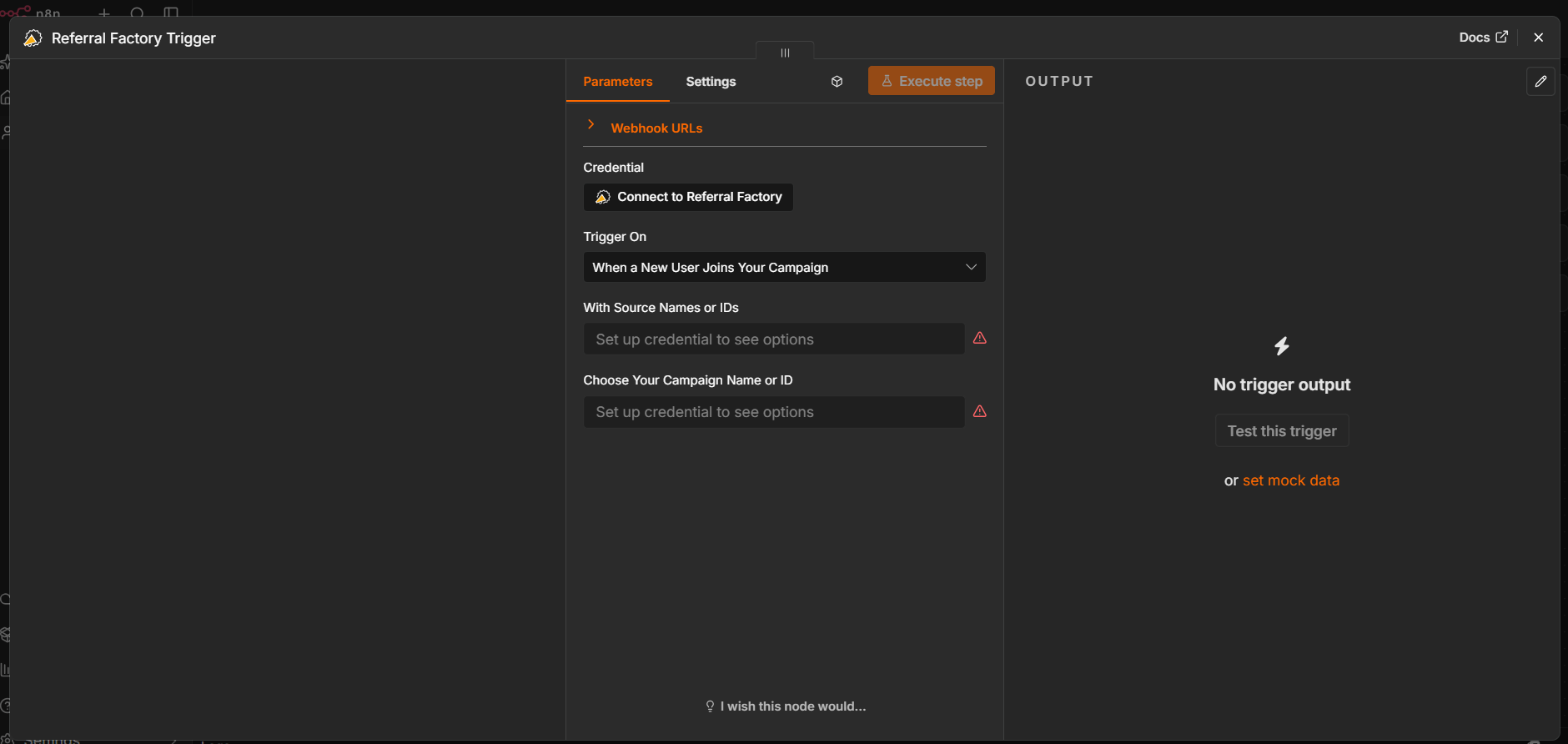
- Select When a New User Joins Your Campaign.
- Under Credential, click Connect to Referral Factory.
- Enter your Referral Factory API Key to connect your account.
- Under With Source Names or IDs, select the source or sources you want the workflow to monitor.
- Under Choose Your Campaign Name or ID, select the Referral Factory campaign you want to connect.
- Click Test this trigger to confirm that n8n can receive new user data from Referral Factory.
- Add your CRM as the next node in the workflow.
- Configure the CRM node to create or update the appropriate record.
Which record/object is created or updated
After configuring the Referral Factory trigger, add your CRM as the next node.
Choose the record or object your sales team normally uses for new Leads. Depending on your CRM, this could be a:
For example, your workflow could create a Contact in HubSpot or a Lead in Salesforce.
Referral Factory supplies the Lead data to n8n, while the CRM node determines which type of record is created or updated.
- Contact
- Lead
- Person
- Customer
- Deal or Opportunity
- Another supported record type
Required fields and mapping
Once you have tested the New Referral trigger, n8n will make the Lead information received from Referral Factory available for mapping.
At minimum, you should map:
First Name → CRM First Name Email → CRM Email
You can also map other information collected from the Lead, such as:
You can also use fixed values when you want the same information to be added to every Lead. For example:
Lead Source → Referral Factory
Make sure you map every mandatory field required by the CRM record or object you selected. Some CRMs require additional fields before a record can be created. For example, Salesforce requires Last Name and Company when creating a Lead.
- Last Name
- Phone Number
- Company
- Campaign information
- Referrer information
- Custom fields collected in your campaign
Duplicate handling
A new Referral Factory Lead may already exist in your CRM.
To avoid creating duplicate records, configure your n8n workflow to check for an existing CRM record before creating a new one.
For example:
New Referral → Search CRM by Email → Existing record found?
If a matching record is found, you can update the existing record with the Referral Factory information.
If no matching record is found, create a new record.
If your CRM provides an Upsert, Create or Update, Find or Create, or similar action, you can use that instead.
Duplicate handling is controlled by the CRM actions and logic you configure in n8n. Referral Factory cannot control what happens to duplicates after the Lead has been sent to the workflow.
Sync timing
The New Referral trigger is event-based. Once your n8n workflow is active, it starts when a new referral is created in the selected Referral Factory campaign.
This means you do not need to schedule n8n to repeatedly check Referral Factory for new Leads.
The trigger is intended for new referral events going forward. It does not act as a historical sync for Leads that existed before the workflow was activated.
If you also want something to happen when the Lead later converts, use the Referral Qualified trigger in a separate n8n workflow.
For example:
New Referral → Send Lead to CRM
Then later:
Referral Qualified → Update CRM record or trigger another action
How to verify the record and troubleshoot failures
Before activating your workflow for live Leads, test the complete process with a new referral.
If the record is not created or updated, check the workflow execution in n8n to identify which node failed.
Also check that your Referral Factory API Key is connected correctly, the correct campaign is selected, the New Referral trigger received the Lead, your CRM connection is active, and all mandatory CRM fields have been mapped.
If Referral Factory successfully sends the Lead to n8n but the CRM record is not created, check the CRM node and its error message. This usually helps identify whether the issue is related to authentication, missing required fields, field formatting, or duplicate-handling rules.
- Configure the New Referral trigger and connect your Referral Factory account using your API Key.
- Select the campaign you want to test.
- Test the trigger in n8n.
- Create a new test Lead in Referral Factory through the normal referral journey.
- Confirm that the Lead data appears in the Referral Factory trigger output in n8n.
- Add your CRM node and map the required fields.
- Run the CRM step.
- Open your CRM and confirm that the correct record was created or updated and that the mapped fields contain the expected values.
- Test again with an email address that already exists in your CRM to confirm that your duplicate-handling logic works correctly.
- Activate the workflow once both new and existing records behave as expected.