
Need help applying this to your account?
Contact support and we will keep this article attached to your request.
You can use Make to automatically send new Referrers from Referral Factory into your CRM when they join your referral program.
The setup is straightforward:
New Referrer joins Referral Factory → Make receives their details → Make creates or updates the appropriate record in your CRM
Use Watch New Users as the Referral Factory trigger in Make, then choose the user source that matches how your Referrers join the campaign.
For example:
This setting tells Make which type of new Referral Factory user should trigger the scenario.
- Select Direct if Referrers sign up through your Branded Referrer Portal.
- Select Popup if Referrers join through an On-Click Pop Up.
- Select the corresponding source if you are using another supported Referrer entry point.
How new Referrers are created or synced into make
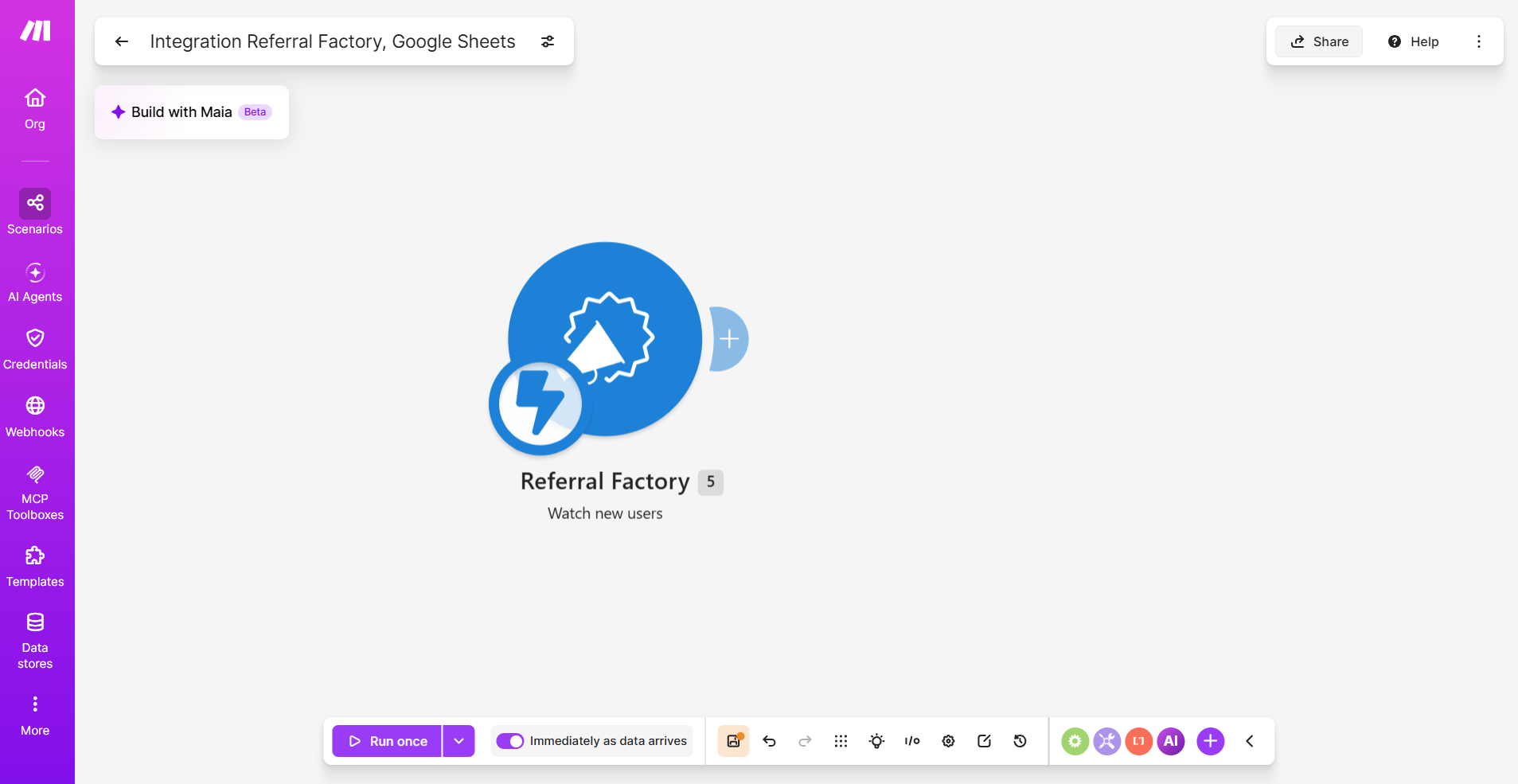
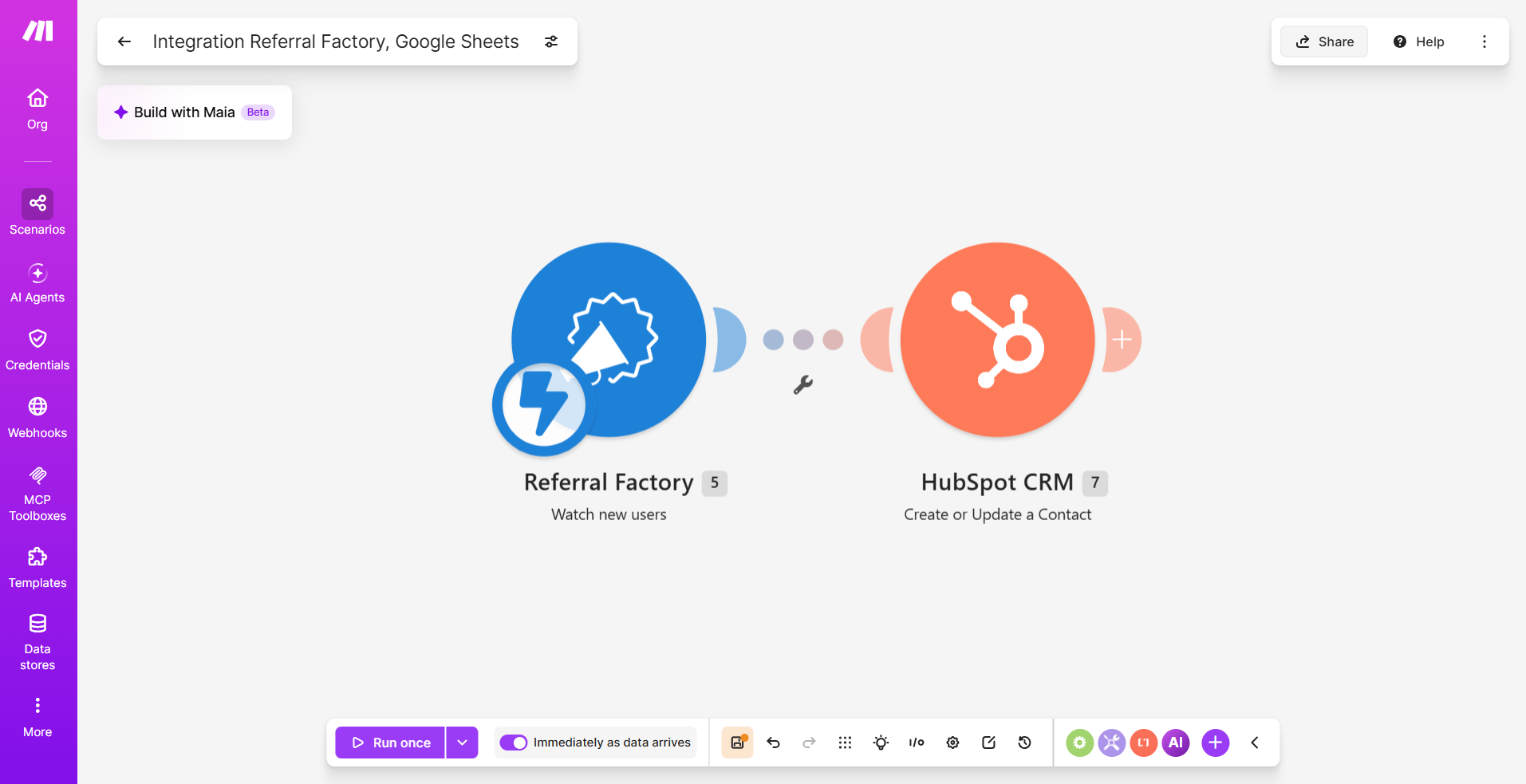
Create a scenario in Make using Referral Factory as the trigger.
Selecting Direct tells Make to send people who join the referral program as Referrers, by signing up on the Branded Referrer Portal.
- Create a new scenario in Make.
- Add Referral Factory as the first module.
- Select Watch New Users.
- Connect your Referral Factory account when prompted.
- Under Which users should we send?, select Direct (or the source that matches how your Referrers join the campaign)
- Save the trigger.
- Add your CRM as the next module.
- Choose the action you want the CRM to perform.
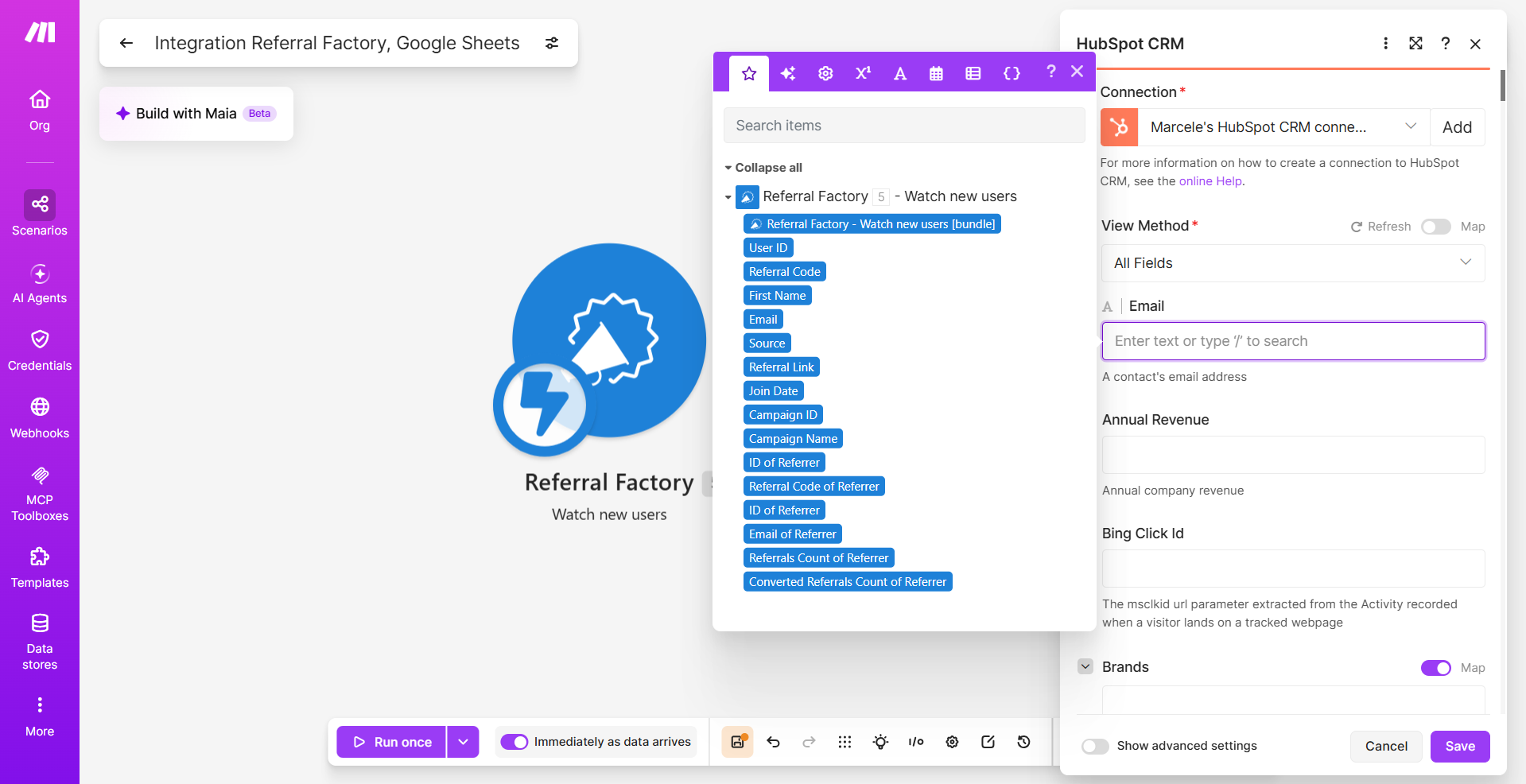
- Map the Referral Factory fields into your CRM fields.
- Save and test the scenario.
Trigger timing
Once the scenario is active, Watch New Users monitors for new users that match the user type you selected.
When a new Direct user joins Referral Factory, their data is passed into the Make scenario and can then be sent to your CRM.
The scenario needs to be active for new Referrers to continue flowing into your CRM.
This trigger works for new users going forward. It does not automatically send Referrers who were already in your Referral Factory campaign before the scenario was set up.
Destination record/object
The action you select in your CRM determines what Make creates or updates.
Depending on the CRM and its available Make modules, this might be a:
Choose the record type that matches how your business normally stores customers or people participating in your referral program.
For example:
Referral Factory Watch New Users → CRM Create Contact
If you want to update an existing CRM record instead, choose an appropriate update action where your CRM's Make connector supports one.
- Contact
- Lead
- Person
- Customer
- Deal
- Another CRM-specific record type
Required fields and mapping
Map the information received from Referral Factory into the corresponding CRM fields.
You will normally want to map:
You can also send other information available from your Referral Factory trigger, such as campaign or Referrer details, where useful.
The Referral Link is particularly useful to store in your CRM because it allows your team to access the Referrer's unique link and use it in emails or other customer communications.
Your destination CRM may require additional mandatory fields depending on the record or object you choose. Make sure those fields are also populated before activating the scenario.
You can also use fixed values where appropriate. For example:
Lead Source → Referral Factory
- First Name
- Email
- Referral Link
Duplicate handling
Before activating the scenario, decide what should happen when the Referrer already exists in your CRM.
Duplicate handling is controlled by the CRM modules and workflow you configure in Make, rather than by Referral Factory.
Depending on the CRM, Make may provide modules that allow you to:
For example, if your CRM provides a module for searching Contacts by email, you can use that as part of a workflow that determines whether an existing record should be updated or a new one should be created.
The exact options differ by CRM, so check which search, create, and update actions are available in the CRM connector you are using.
Before going live, test the scenario with both a new email address and an email that already exists in your CRM.
- Create a new record.
- Update an existing record.
- Search for an existing record before taking the next action.
- Use filters or a Router to control what happens based on the search result.
One-time/ongoing behavior
Watch New Users is designed for an ongoing workflow.
Once the Make scenario is active, new Referrers who join as Direct users can continue to be sent automatically to your CRM.
Testing
Test the complete Referrer-to-CRM journey before activating the scenario for live users.
- In Make, use Run once so the scenario is ready to capture a test user.
- Join your referral campaign as a new Referrer using a new email address.
- Confirm that Watch New Users receives the Referrer.
- Check that the Referrer's information is available in the Make module.
- Confirm that the CRM action runs successfully.
- Open your CRM and verify that the correct record was created or updated.
- Check that fields such as First Name, Email, and Referral Link contain the expected values.
- Test your duplicate handling with an email address that already exists in the CRM.
- Activate the scenario once everything works as expected.