
Read this page as a quick path: scan the headings, use the step blocks, and escalate if the expected result does not happen.
Need help applying this to your account?
Contact support and we will keep this article attached to your request.
When configuring the Intercom integration, you’ll need to map fields between Referral Factory and Intercom. Field mapping appears in two places: the integration settings (for lead and referrer actions) and the sync wizard (for importing contacts).
Field mapping for lead and referrer actions
When you choose Create New Lead In Intercom or Create New User In Intercom on the Leads or Referrers tab, you’ll see the field mapping section.
For each field mapping row, configure:
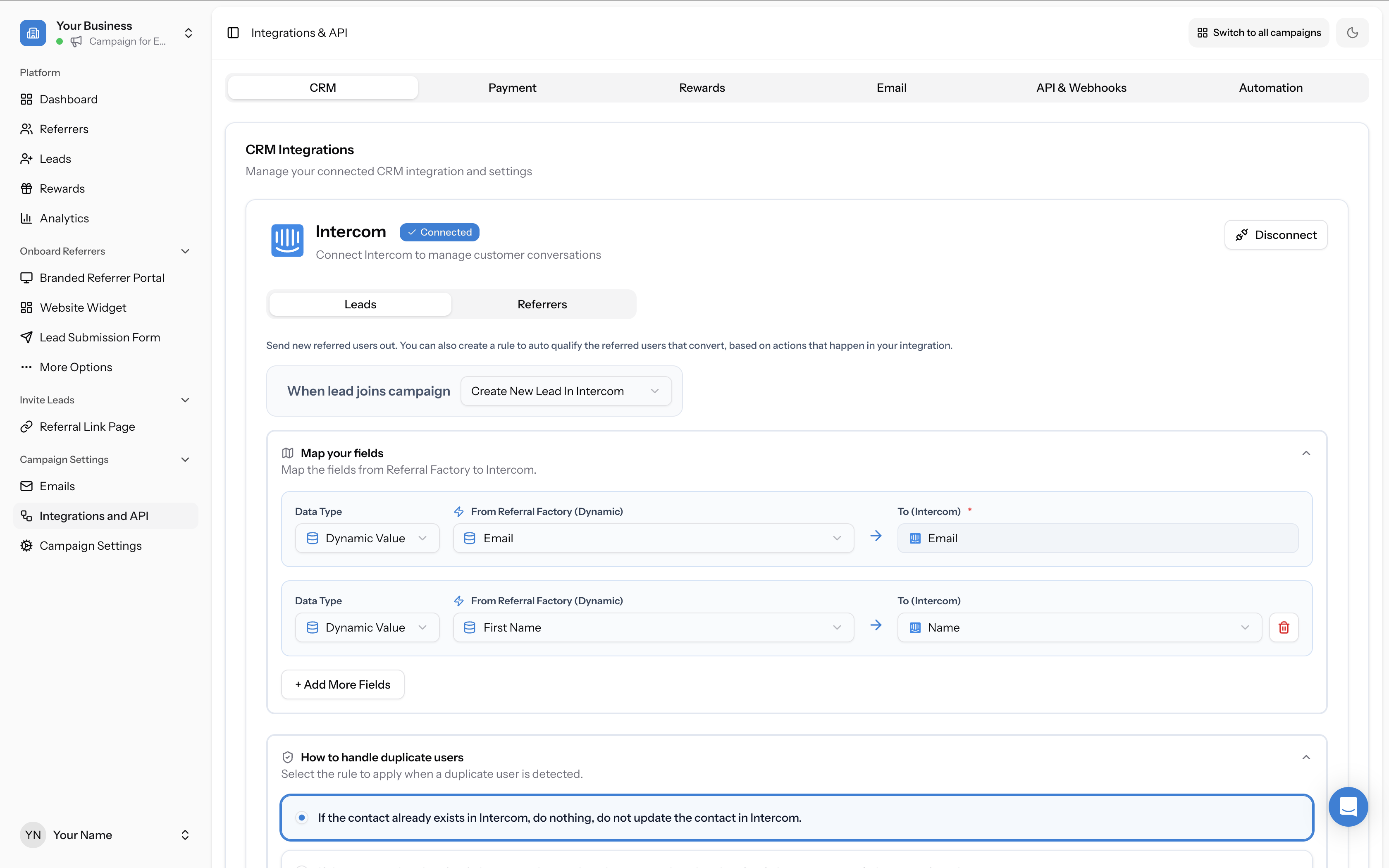
The Email field is always required. You’ll see a “Setup Required” warning until the Email field is mapped.
Click + Add More Fields to add additional mappings.
- Data Type — Choose “Dynamic Value” to map a Referral Factory field
- From Referral Factory (Dynamic) — Select the source field (e.g., Email, First Name)
- To (Intercom) — Select the destination field in Intercom (e.g., Email, Name)
Field mapping for the sync wizard
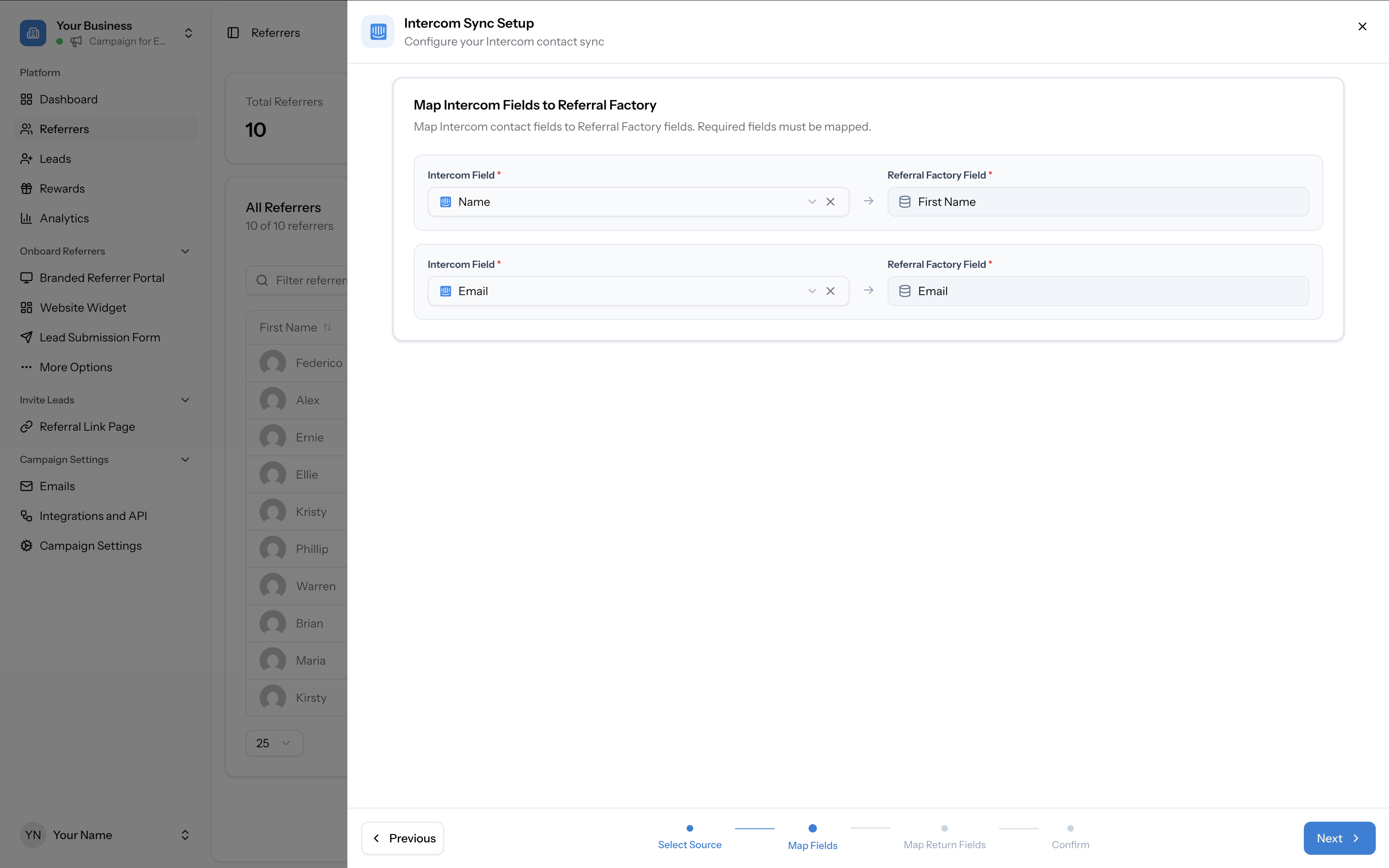
When syncing Intercom contacts into Referral Factory, you map fields in both directions:
Intercom → Referral Factory (inbound)
Map Intercom contact fields to Referral Factory referrer fields. Required fields must be mapped.
Referral Factory → Intercom (return fields)
Optionally send referral data back to Intercom. Available return fields include:
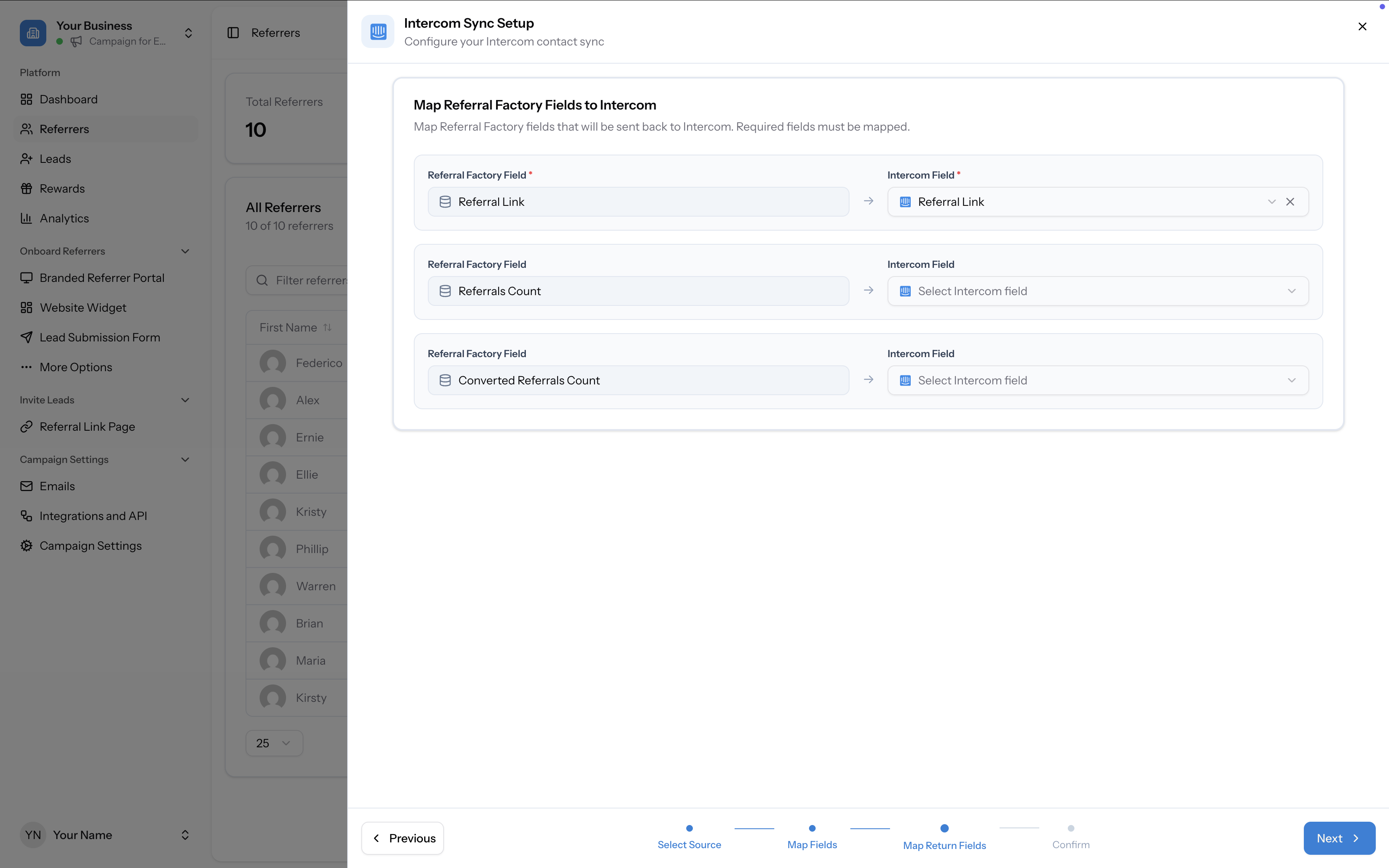
- Referral Link — The referrer’s unique referral link
- Referrals Count — How many referrals the user has made
- Converted Referrals Count — How many of their referrals have converted