
Read this page as a quick path: scan the headings, use the step blocks, and escalate if the expected result does not happen.
Need help applying this to your account?
Contact support and we will keep this article attached to your request.
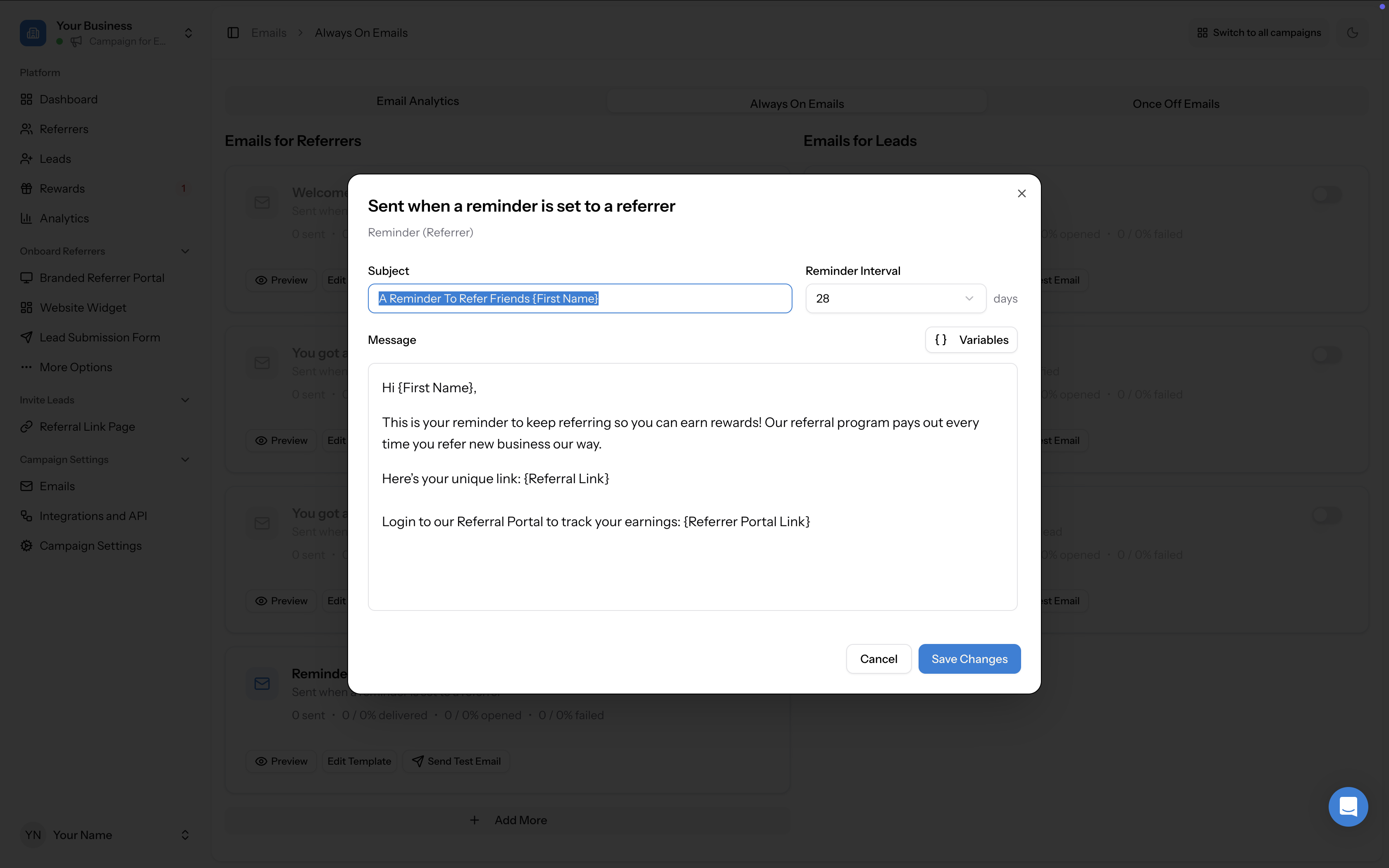
You can customise the subject line, body content, and personalisation variables for each of the Always On email templates.
How to edit a template
- Go to Emails in the left sidebar.
- Click the Always On Emails tab.
- Find the template you want to edit and click Edit Template.
- Update the Subject line — this is what appears in the recipient's inbox.
- Edit the Message body — write or modify the email content directly in the editor.
- Use the Variables button to insert personalisation variables (see below).
- Click Save when you are done.
Personalisation variables
Click the Variables button in the template editor to see all available placeholders. These automatically insert personalised data for each recipient.
Variables for leads:
Variables for referrers:
[First Name][Referrer First Name][Referrer Referrals Count][Referrer Converted Referrals Count][Referrer Referral Link][Referrer Portal Link]
Reminder interval
The Reminder templates (for both referrers and leads) have an additional Reminder Interval setting. This controls how many days after joining the campaign a reminder email is sent. The default is 28 days. The available options are 21, 28, 36, 42, 52, or 60 days.
Preview and test
Before going live, use these features on each template card:
When you click Send Test Email, a confirmation modal confirms the email has been sent to your account email address. Keep in mind:
- Preview — see how the email will look to the recipient
- Send Test Email — send a test version to yourself to check formatting and content
- The test email can take up to five minutes to arrive
- You can only send 10 test emails per hour across all templates and email blasts
Enable or disable emails
Each template has a toggle on its card. Turn it off to prevent that email from sending. Turn it on to re-enable it.
Sending domain
Emails are sent from Referral Factory's sending domain by default. If you want to send from your own domain, see How to use your own sending domain for emails.