
Need help applying this to your account?
Contact support and we will keep this article attached to your request.
Overview
Referral Factory's Lead Submission Form lets a referrer enter a friend's or contact's details directly. The submission is recorded as a lead and remains attributed to the referrer who used the form.
Can Referrers submit an offline Lead without using a referral link?
Yes. A referrer can use their unique Lead Submission Form URL to submit the lead's details directly instead of asking that person to click a referral link and sign up themselves.
What counts as an offline referral?
An offline referral is an introduction where the referrer already knows the person they want to refer and submits that person's details directly. Common examples include a verbal introduction, a trade or service customer passing on a friend's contact details, or a partner, agent or salesperson making an introduction for someone else.
How does an offline referral work in Referral Factory?
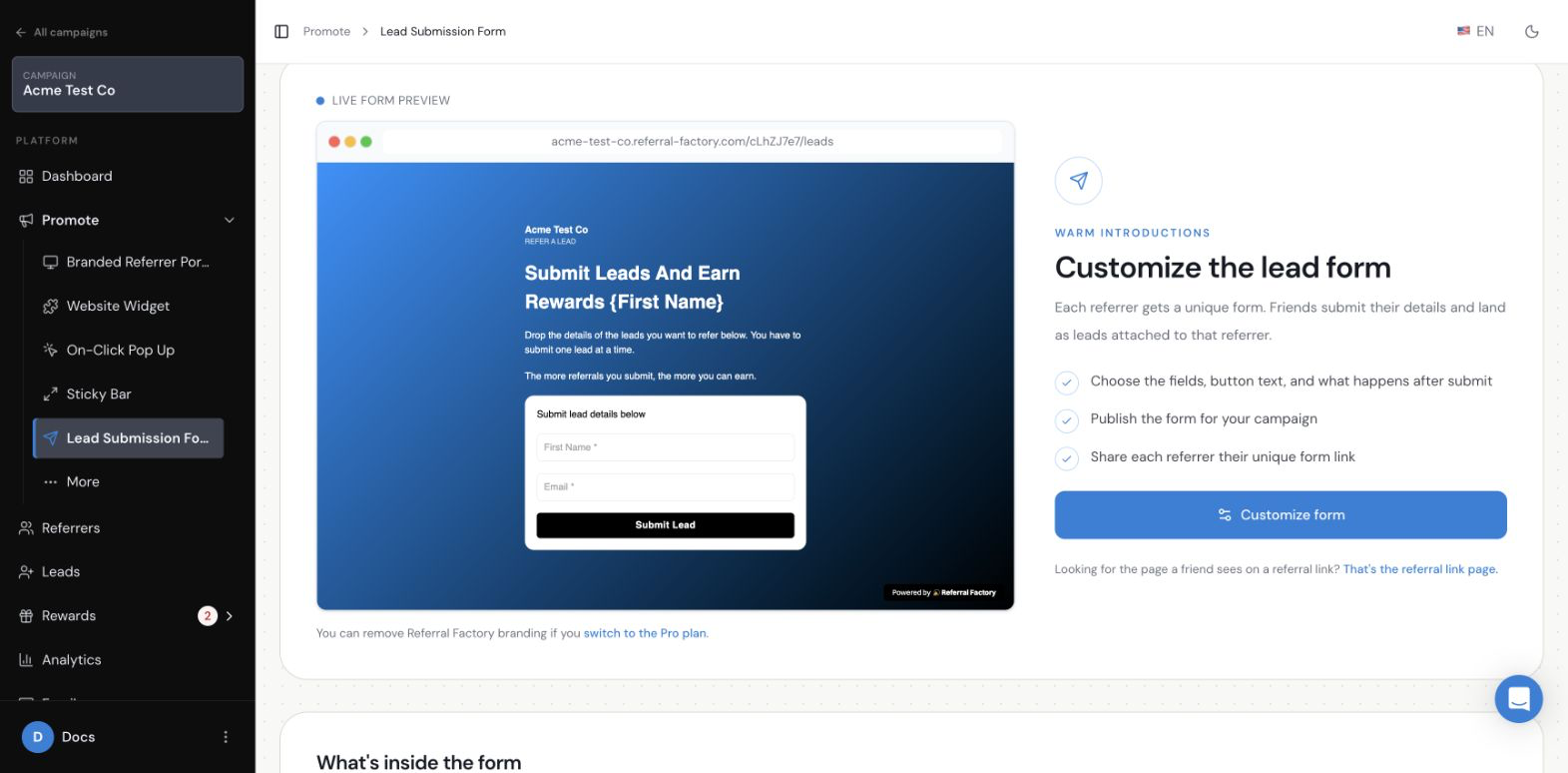
The referrer opens their Lead Submission Form, enters the lead's required details, and submits the form. The form can be opened from the referrer's unique URL or from a Submit Leads Button inside the Branded Referrer Portal. After submission, the referrer sees the configured response message and can return to the form to submit another lead.
How does Referral Factory know who made the offline referral?
Every referrer has a unique Lead Submission Form URL. Referral Factory uses that URL to associate the submitted lead with the correct referrer, so the lead appears in the campaign's Leads section with the referrer attribution attached.
How do Referrers access their Lead Submission Form?
You can share each referrer's unique form URL directly with them. You can also add a Submit Leads Button to the Dashboard page of the Branded Referrer Portal, allowing referrers to open the form from their portal.
What happens after an offline Lead is submitted?
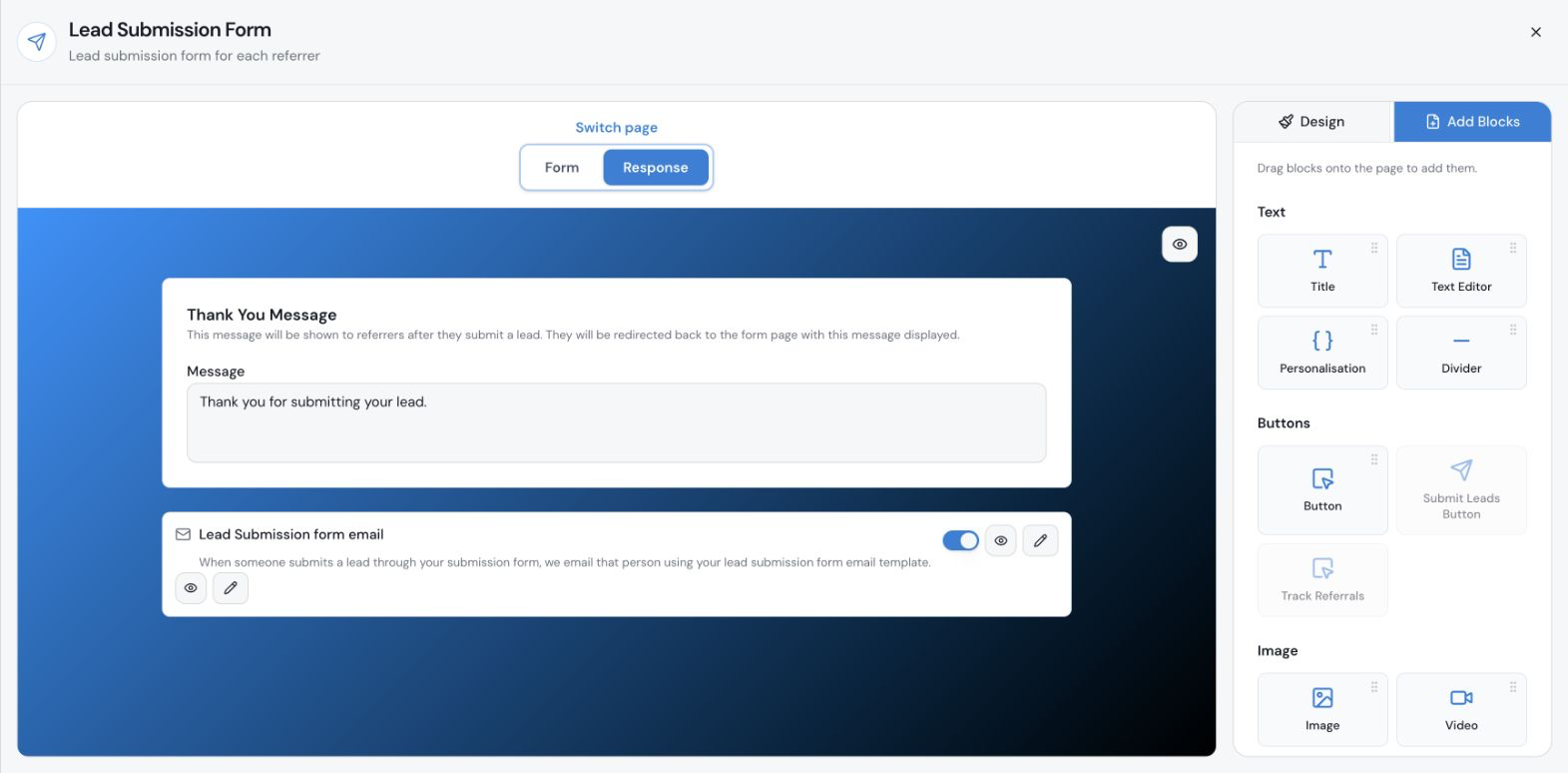
The lead appears in the campaign's Leads section and stays attributed to the referrer who submitted it. The referrer sees the response message configured on the Response page. If the lead submission email is enabled, the referred person receives the configured email.
Can offline referrals still be Qualified and rewarded?
Yes. Because the lead is recorded in the campaign and attributed to the referrer, it can follow the same qualification and reward process as a lead who joined through a referral link. Qualification and reward outcomes depend on the rules configured for your campaign.
How do I start accepting offline referrals?
Open the campaign, go to Promote, and select Lead Submission Form. Configure the Form and Response pages, then give referrers their unique form URL or add a Submit Leads Button to the Branded Referrer Portal Dashboard. For the full instructions, field configuration, email settings, testing, and troubleshooting, see the Lead Submission Form setup guide