
Need help applying this to your account?
Contact support and we will keep this article attached to your request.
Overview
Use this guide to add people who already exist in ActiveCampaign as referrers in a Referral Factory campaign, give each person their own referral link, and send that link back to ActiveCampaign.
Can I give my existing ActiveCampaign contacts their own referral links?
Yes. Select the campaign you want to use, choose which ActiveCampaign contacts to add, map their details, choose which referral details go back to ActiveCampaign, and start the sync. Afterward, those people appear as referrers in the campaign and can use their own referral links.
Before you start
Make sure ActiveCampaign is already connected on the CRM page. Decide whether you want to add all contacts or only the contacts in one ActiveCampaign list or with one tag.
To store each referral link in ActiveCampaign, create a text custom field for contacts in ActiveCampaign first, for example Referral Link. You can create more fields for other referral details, such as Referrals Count.
How do I add existing ActiveCampaign contacts as referrers?
Step 1
Select the campaign. Choose the campaign where these people should become referrers.
Step 2
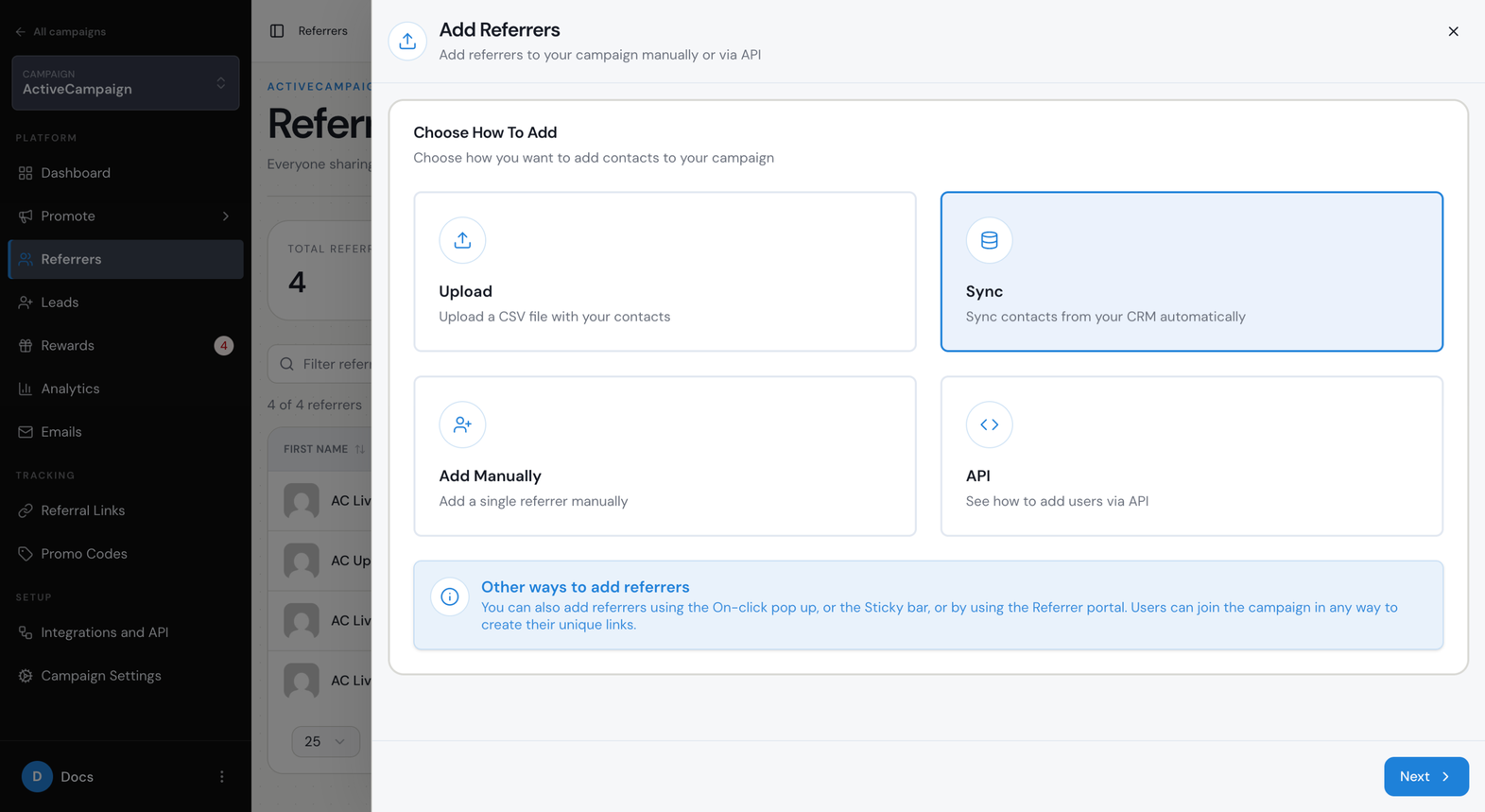
Open Referrers. Select Referrers from that campaign’s sidebar, then choose Add Referrers.
Step 3
Choose Sync. Select the option to sync contacts from your CRM.
Step 4
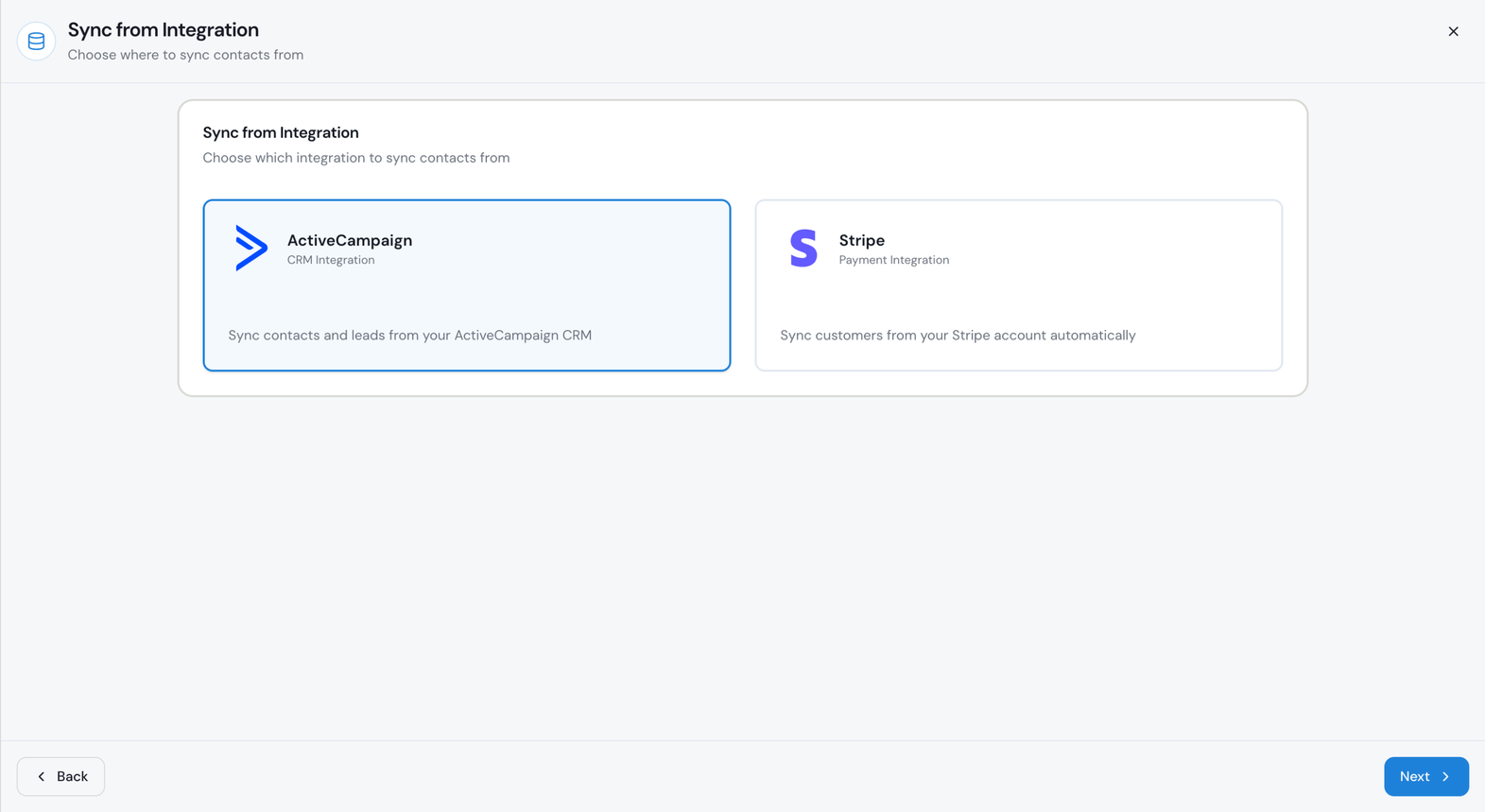
Choose ActiveCampaign. Select ActiveCampaign as the integration, then continue to ActiveCampaign Sync Setup.
How do I choose which ActiveCampaign contacts to add?
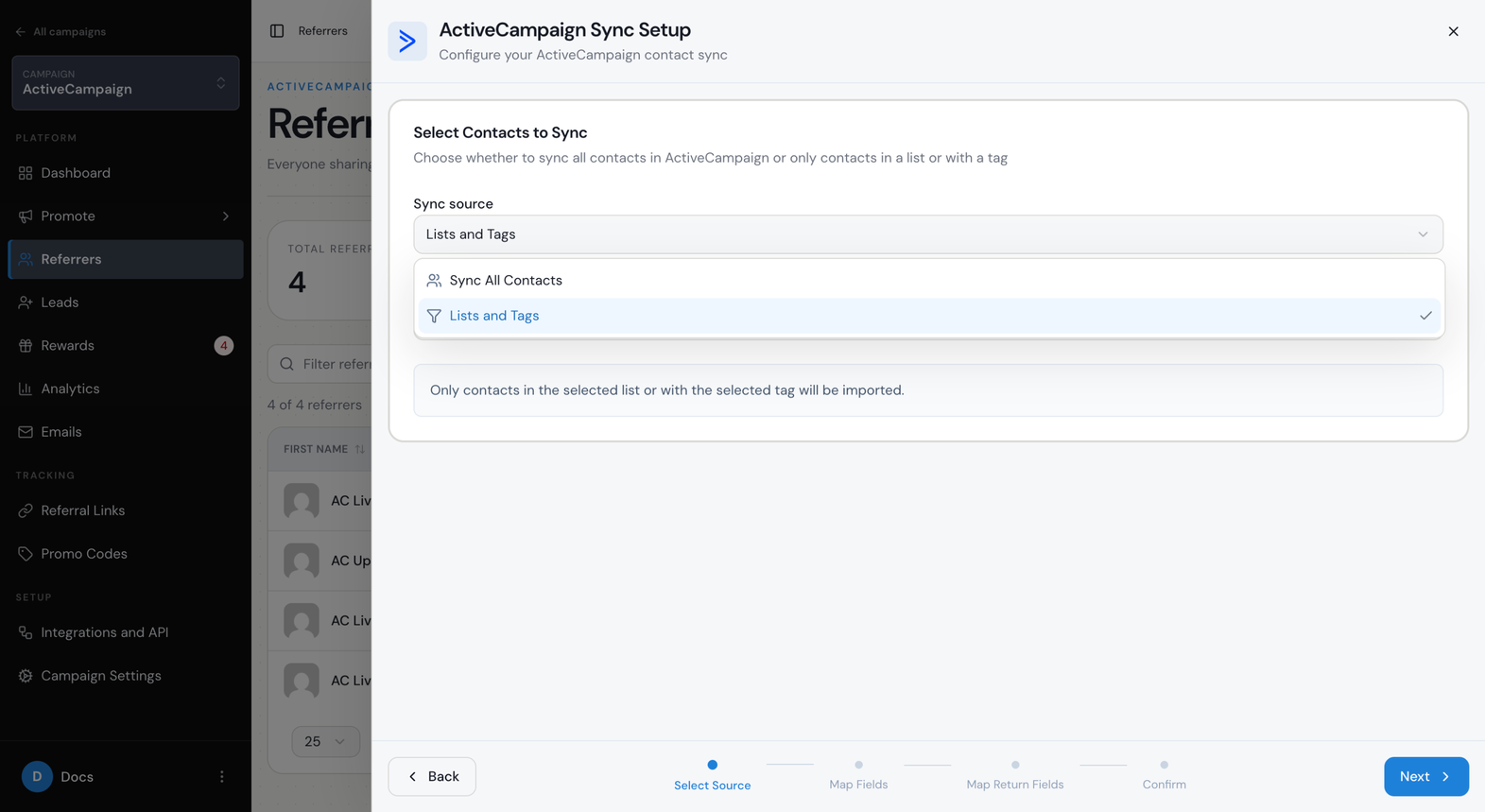
ActiveCampaign gives you two ways to choose contacts. Sync All Contacts includes every contact in your ActiveCampaign account, up to the user limit of your Referral Factory plan. Lists and Tags lets you choose one ActiveCampaign list or tag, so only the contacts in that list or with that tag are added.
Step 1
Choose the sync source. In ActiveCampaign Sync Setup, choose Sync All Contacts or Lists and Tags.
Step 2
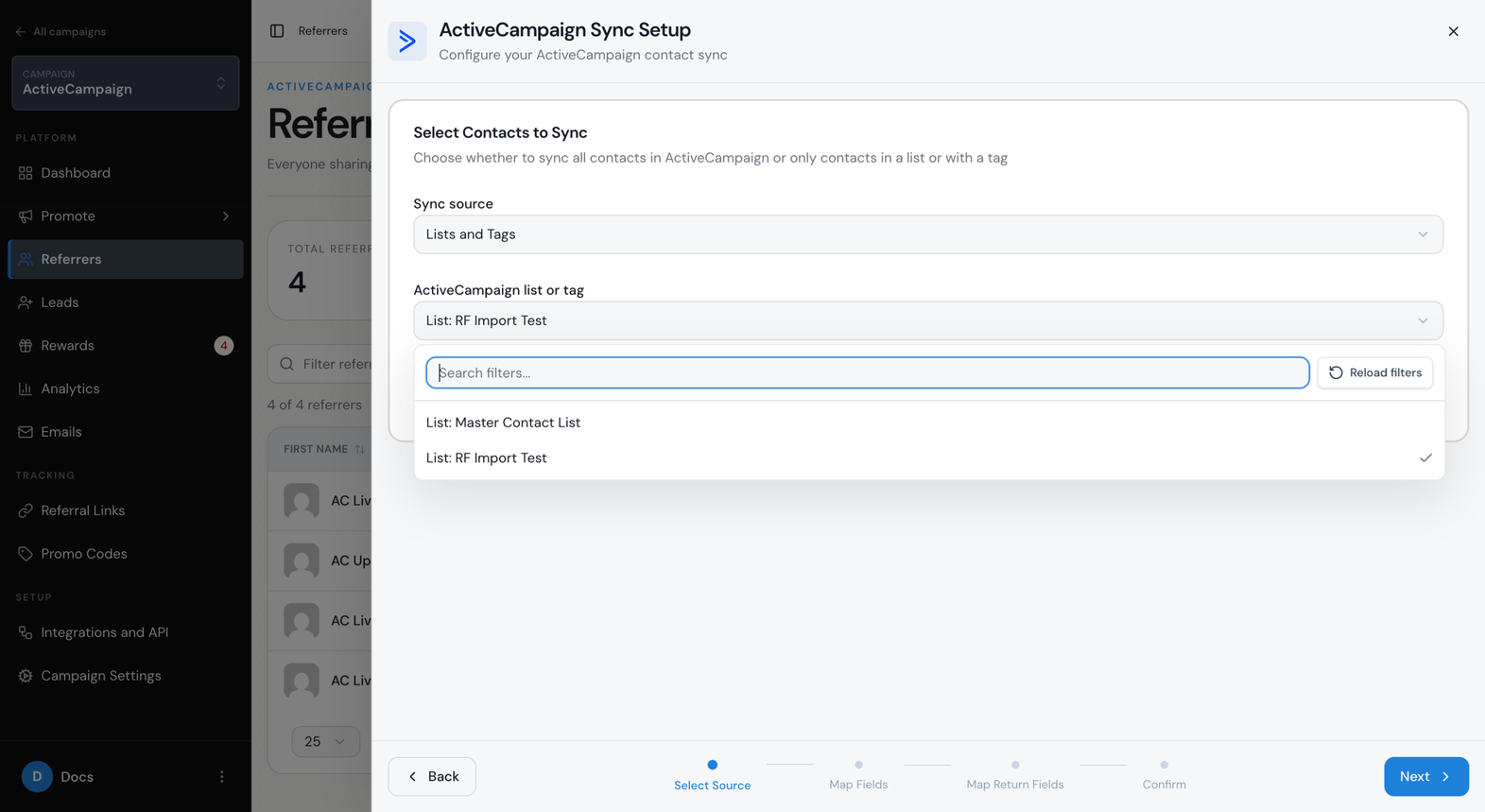
If you chose Lists and Tags, pick a list or tag. Open ActiveCampaign list or tag and choose the list or tag that contains the people you want to add.
How do I map my ActiveCampaign fields to Referral Factory?
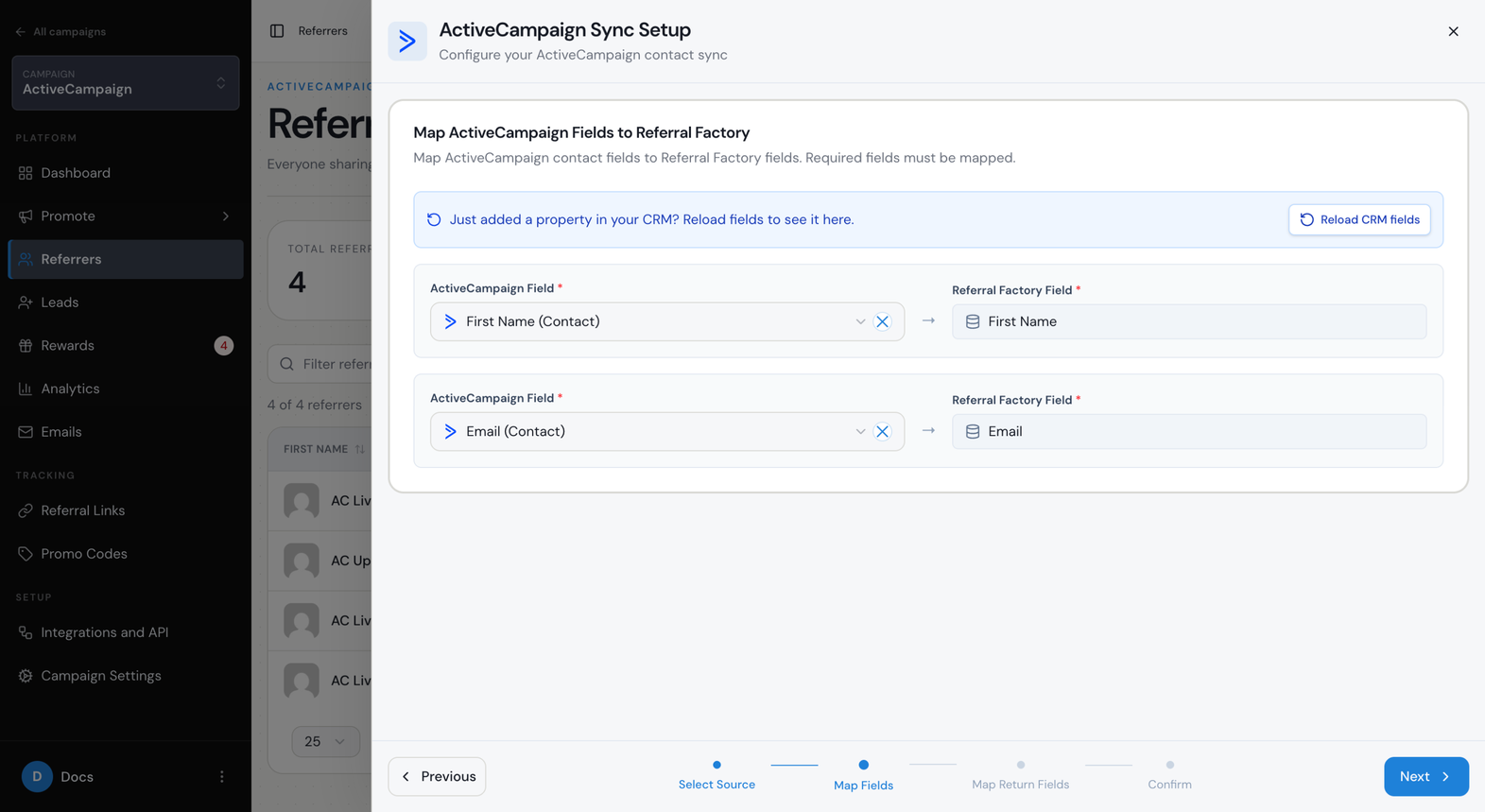
After choosing the contacts, map ActiveCampaign contact fields to Referral Factory fields. First Name and Email are required, so map them to the matching ActiveCampaign fields. Contacts without an email address or first name are skipped.
If a field you recently created in ActiveCampaign is not listed, use the reload option on this screen to fetch fresh ActiveCampaign fields, then check the menu again.
How do I send each referrer’s referral link back to ActiveCampaign?
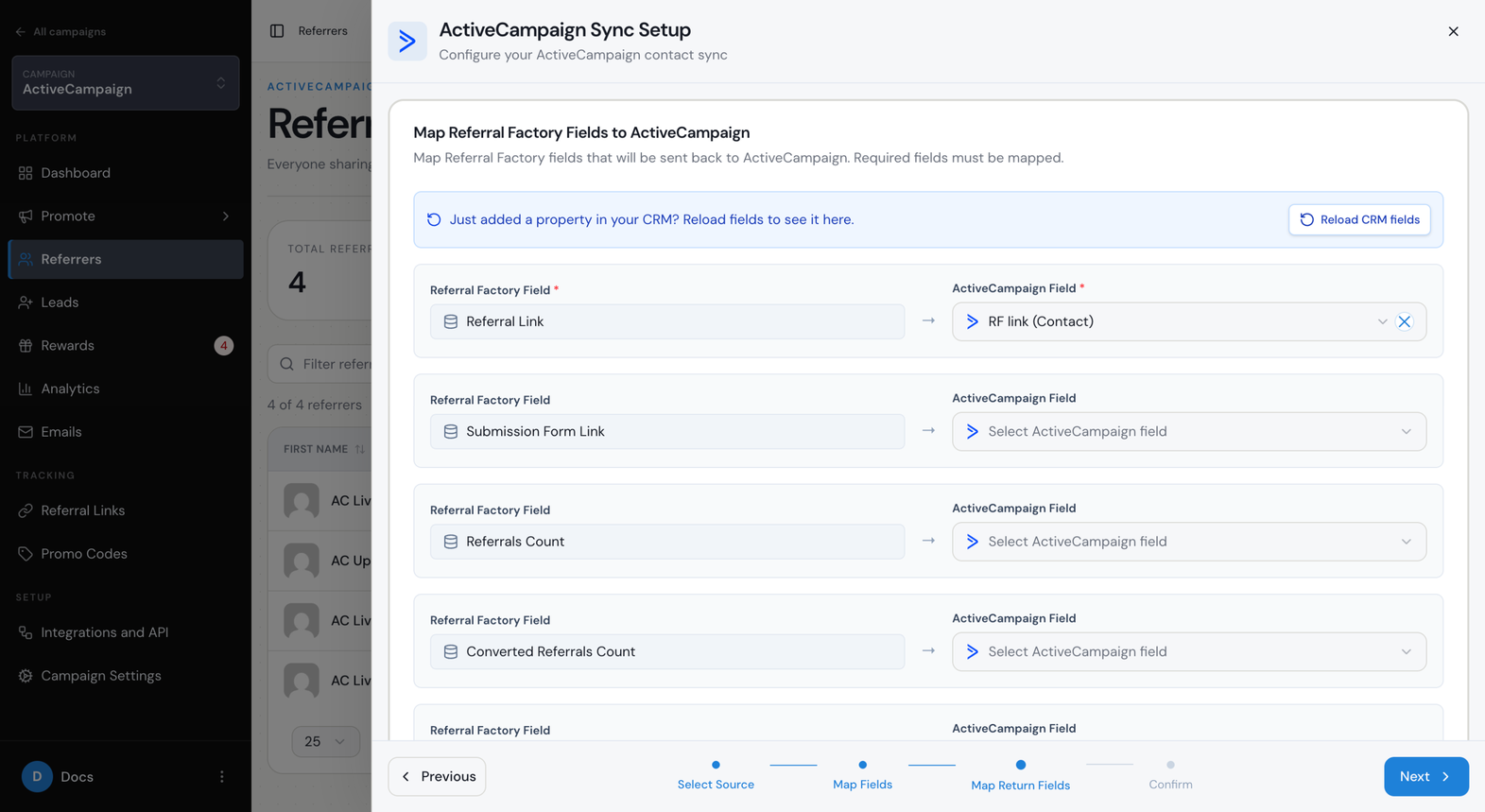
Next, map Referral Factory fields to ActiveCampaign contact fields. Referral Link is required: choose the ActiveCampaign custom field where each person’s link should be saved. You can also send Submission Form Link, Referrals Count, Converted Referrals Count and Promo Code to other contact fields.
Once the link is in ActiveCampaign, you can use it in your ActiveCampaign emails and automations.
Should I choose a one-time or ongoing sync?
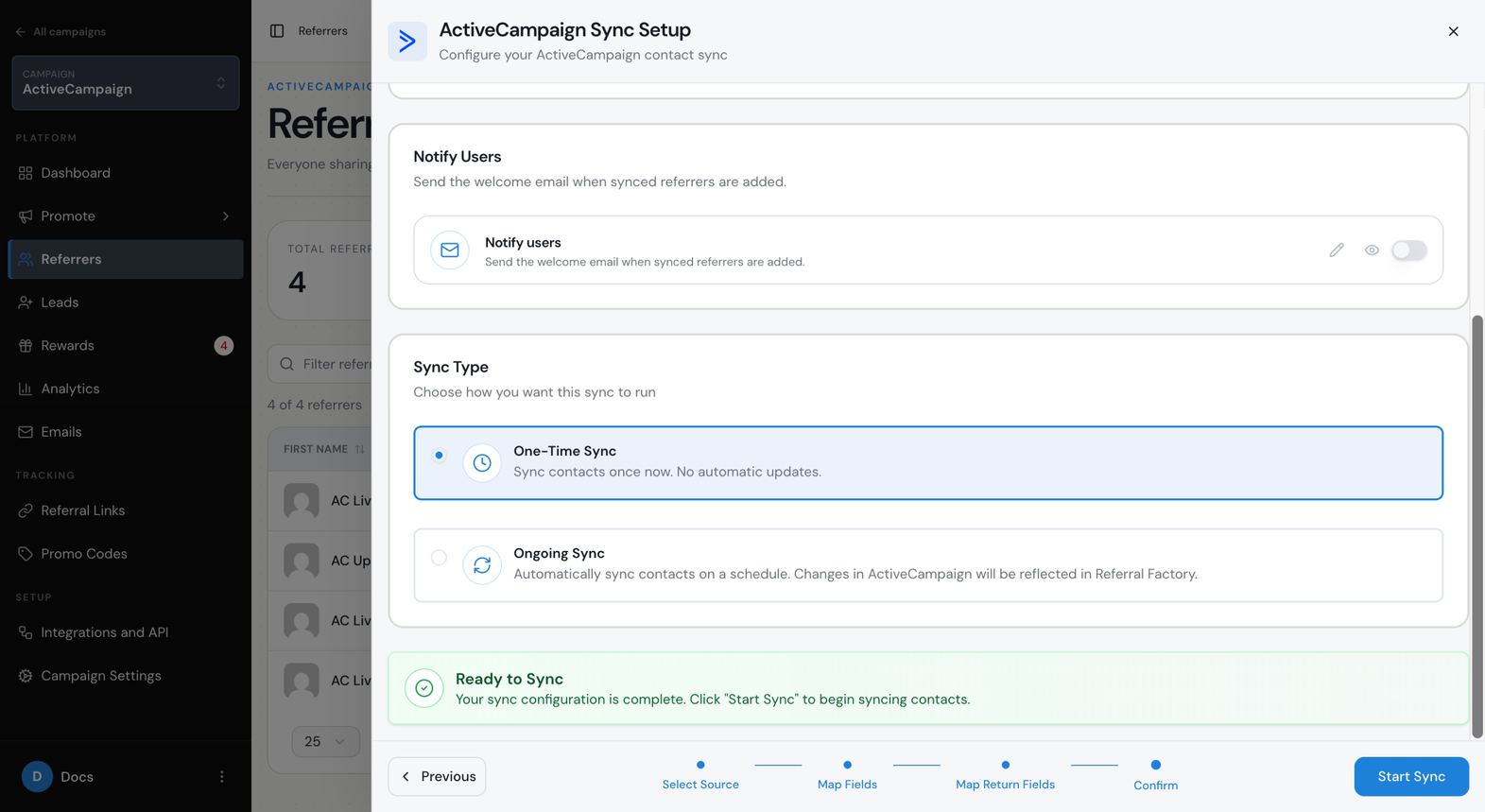
Choose One-Time Sync to add the matching contacts once. Choose Ongoing Sync to keep adding new matching contacts automatically. An ongoing sync runs every 2 hours.
On the same step you can turn on Notify users to send your welcome email to the new referrers. Review your settings, then select Start Sync.
What happens after the contacts are added as referrers?
After the sync is completed, the selected ActiveCampaign contacts appear in the campaign’s Referrers section. Referral Factory gives each person the referral details they need to share the campaign and records the leads they generate.
If the person you are syncing already exists inside the Referral Factory campaign, no duplicate is created. Their name and mapped details are updated, and they also become a referrer if they were only a lead. They are not sent the welcome email. Their referral link is sent back to ActiveCampaign if they were first added by a sync, an upload or by hand. If they joined the campaign by themselves, the link is only sent when Referral Link is mapped on the Referrers tab of the CRM settings.
Where can each referrer find their referral link?
You can see each person’s referral link in the campaign’s Referrers section, in the Referral Link column. The referrer can also find the link in the customer-facing referral experience you have enabled, such as the Branded Referrer Portal. If you mapped Referral Link, the link is also saved in the ActiveCampaign contact field you chose. It can take a few minutes to appear there.
How do I test that the sync worked correctly?
Use an ActiveCampaign list or tag that contains only a safe test contact, then run a One-Time Sync for it.
Step 1
Check the referrer in Referral Factory. Open the campaign’s Referrers section and confirm that the test person appears with the expected name and email.
Step 2
Check the referral link. Confirm that the person has a unique referral link in the Referral Link column.
Step 3
Check the customer-facing experience. Open the enabled referrer experience with the test referrer and confirm that their referral link is visible and can be copied or shared.
Step 4
Check the ActiveCampaign fields. Open the test contact in ActiveCampaign and confirm that the referral link and any other selected details appear in the fields you mapped.